Quick Facts
- Core Innovation: Take a message serves as a native, AI-powered voicemail replacement that keeps all data on your phone.
- Privacy Standard: Uses local AI transcription via the Tensor G5 to ensure conversations never touch carrier servers.
- Data Control: All recordings and transcripts are stored locally within the Call History icon rather than a remote server.
- Device Compatibility: Fully optimized for the Pixel 10 and newer, with limited backward support for Tensor-based models.
- Legacy Security: Google officially disabled the feature for Pixel 4 and Pixel 5 in 2026 to prevent background audio leaks.
- Long-term Support: Google provides seven years of guaranteed security patches and OS upgrades for Pixel 9 and 10 series devices.
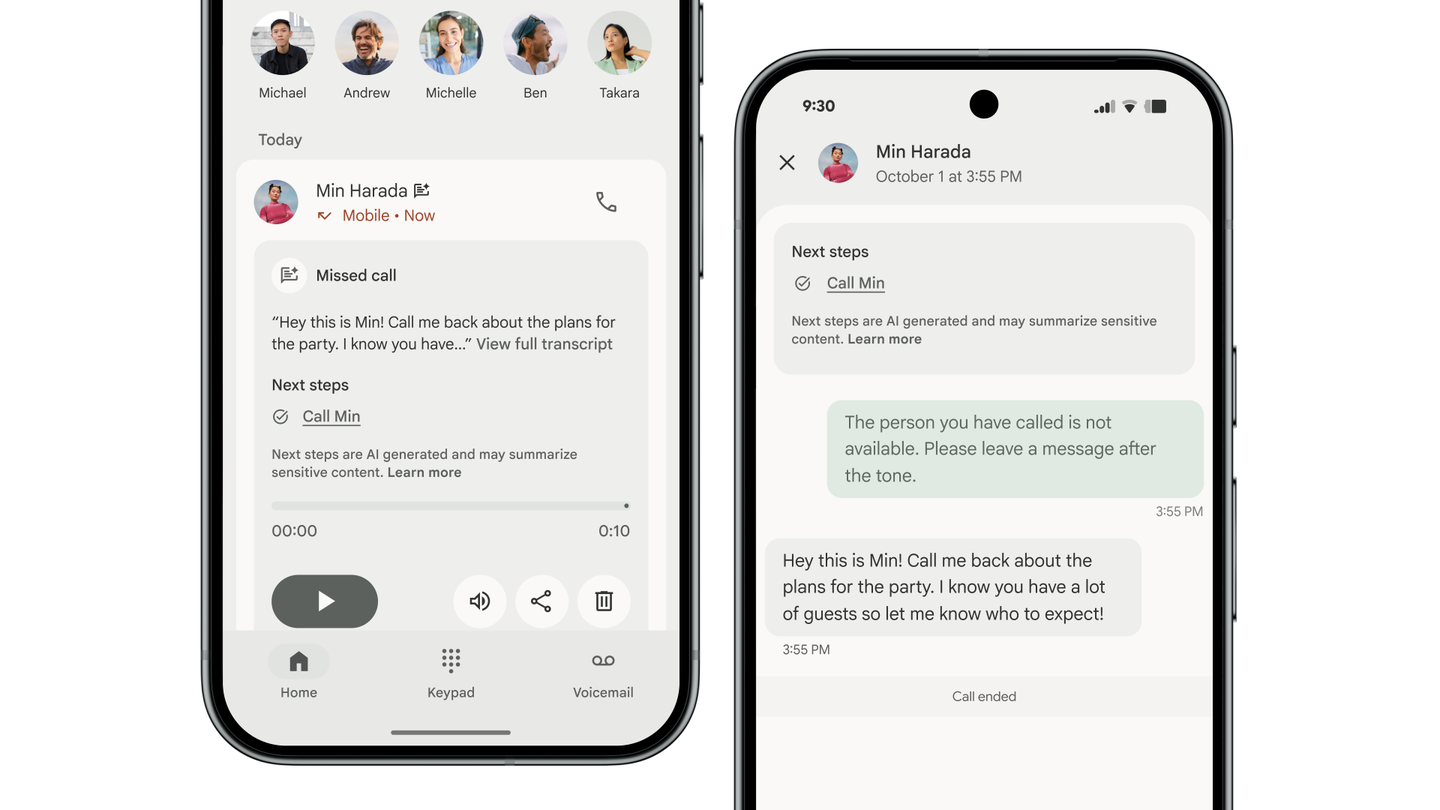
Take a message is an AI-voice replacement that transcribes calls directly on your Pixel device, ensuring that no data is sent to carrier servers. Unlike traditional voicemail, all take a message processing happens locally, providing a secure, on-device alternative for users who want to maintain absolute control over their voice data.
Why Take a Message Changes the Privacy Game
The central problem with traditional mobile communication is what I call carrier custody. For decades, when you missed a call, your audio was routed to a server owned by your service provider. They stored it, they secured it (or didn't), and they had the keys to it. This created a massive privacy gap where your private messages lived on a third-party network, often unencrypted. With take a message, Google is fundamentally shifting the power dynamic back to the user through carrier independence.
By utilizing the Beesly protocol, the Pixel 10 intercepts incoming calls at the device level. The take a message system uses on-device processing to act as a digital gatekeeper. Instead of the call hitting a remote mailbox, your phone handles the interaction itself. This is a massive win for end-to-end privacy because the carrier never sees the content of the message. You are no longer renting a digital locker from your phone company; you are using a vault that you carry in your pocket.
The difference in privacy between google take a message vs voicemail is night and day. Standard voicemail relies on server-side software that can be prone to carrier-side breaches or even law enforcement requests that bypass the user. Because take a message google keeps the transaction local, the transcription and the audio file are subject to your phone's biometric locks and encryption, not the carrier's internal policies.

Hardware Matters: Pixel 10 and the Tensor G5 Advantage
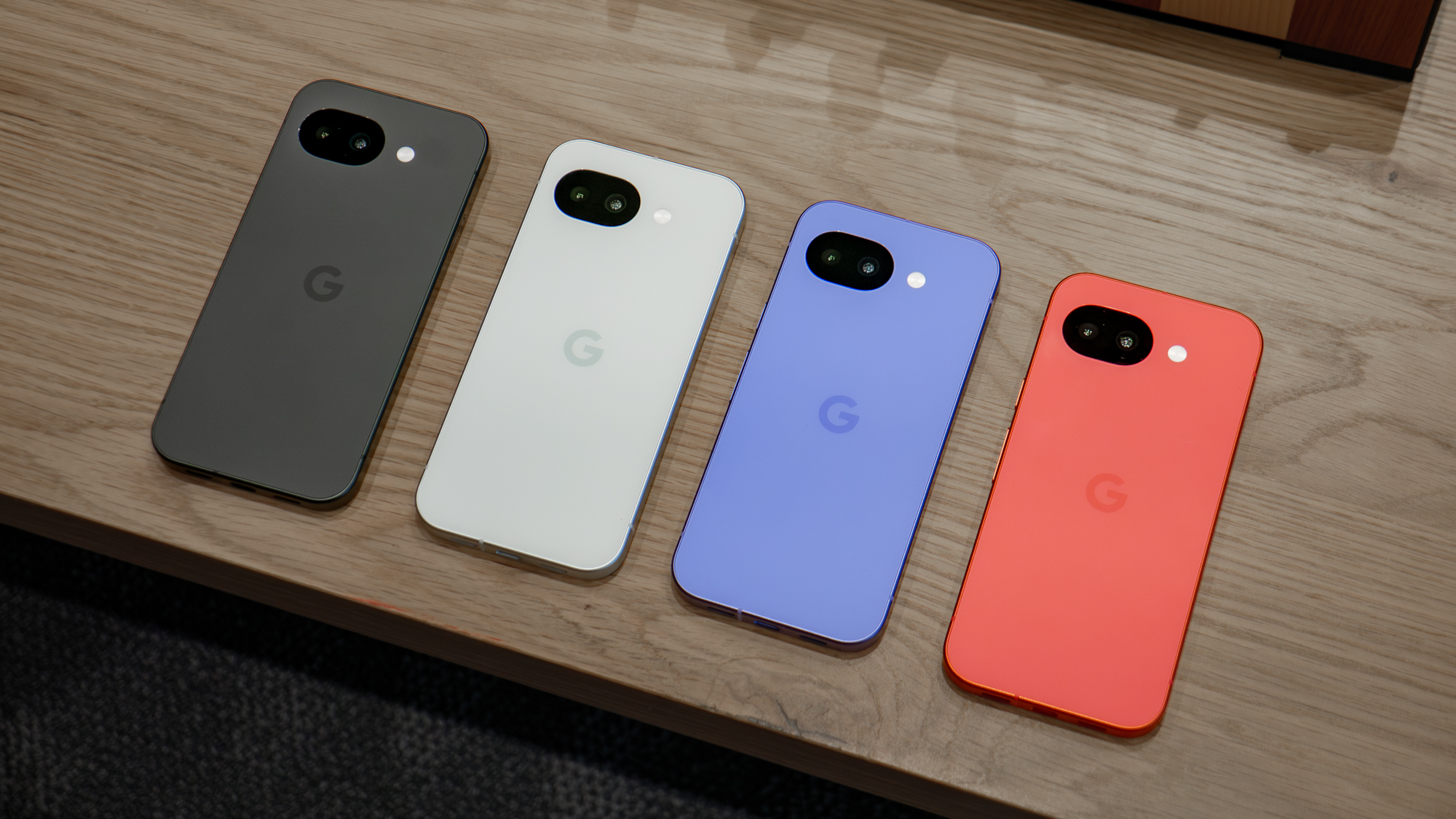
While software handles the logic, it is the hardware security module and the Tensor G5 chipset that do the heavy lifting. Local AI transcription is a resource-heavy task. In older phones, trying to transcribe a live call while managing background tasks would result in lag or truncated messages. Take a message pixel 10 changes this by leveraging the specific NPU (Neural Processing Unit) architecture of the Tensor G5.
This advanced chipset allows for adaptive call management. When a call comes in and the take a message feature is triggered, the Tensor G5 dedicates a secure slice of its processing power to handle the real-time transcription. It isn't just recording audio; it is understanding it in real-time, allowing you to see exactly what the caller is saying as they say it. This on-device AI transcription is what makes the experience feel seamless and safe.
Furthermore, the hardware security module ensures that the cryptographic keys used to protect these local messages are never exposed to the main operating system. This means even if a malicious app were to gain entry to your phone, your take a message records remain isolated and protected. This level of integrated security is why the Pixel 10 is currently the gold standard for mobile privacy.

| Feature | Traditional Carrier Voicemail | Google Take a Message |
|---|---|---|
| Processing Location | Carrier Server | On-Device (Tensor G5) |
| Transcription Style | Server-Side / Cloud | Local AI Transcription |
| Privacy Protocol | Standard Carrier Network | Beesly Protocol |
| Data Sovereignty | Carrier Owned | User Owned |
| Real-time Monitoring | No | Yes (Live Transcription) |
The Security Truth: Learning from Legacy Models
Transparency is key to understanding why take a message is so much more secure today than it was in its experimental phases. In 2026, Google made a difficult but necessary decision regarding the pixel take a message privacy flaw older models experienced. Specifically, the Pixel 4 and Pixel 5 handsets were found to have hardware-level vulnerabilities where background audio could occasionally leak into the transcription stream.
Because this was a hardware limitation and not something that could be fully patched via software, Google officially disabled the feature for those specific models. While it was a blow to fans of older hardware, it demonstrated a commitment to high security standards. Today, google pixel take a message compatible devices 2026 include the Pixel 6 through the Pixel 10, though the best performance is found on the newer Tensor-powered units.
This decision ensures that every user currently using take a message can trust that their audio is not being inadvertently recorded or broadcast. It also highlights the importance of spam call mitigation. By keeping the interaction local, the phone can use its internal database to flag potential scammers before they even have a chance to leave a message, providing an extra layer of defense that carrier-side systems often lack.
Security Note: If you are still using a Pixel 4 or Pixel 5, your device will default back to standard carrier voicemail. Upgrading to a Tensor-powered device like the Pixel 10 is recommended if you want to regain access to native device vs server side transcription features.
Step-by-Step: Pixel Take a Message Setup Guide
Getting started with this feature is straightforward, provided you have a compatible device. Whether you are using a Pixel 10 or a Pixel Watch 2 (paired with a Tensor phone), the setup path is designed to be intuitive.
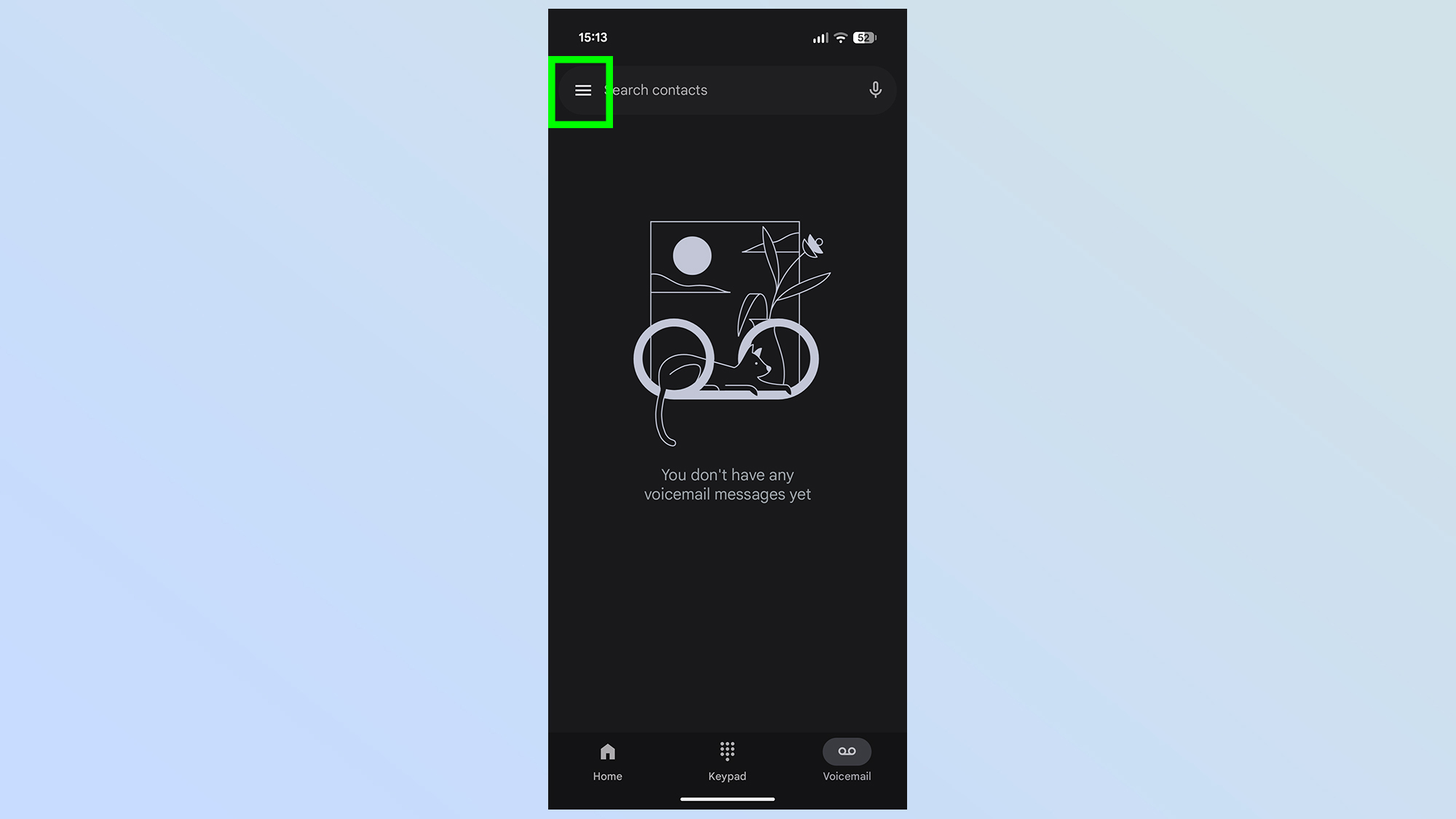
- Open the Phone app on your device. This is the central hub for all communication settings and where you will find your local call records.
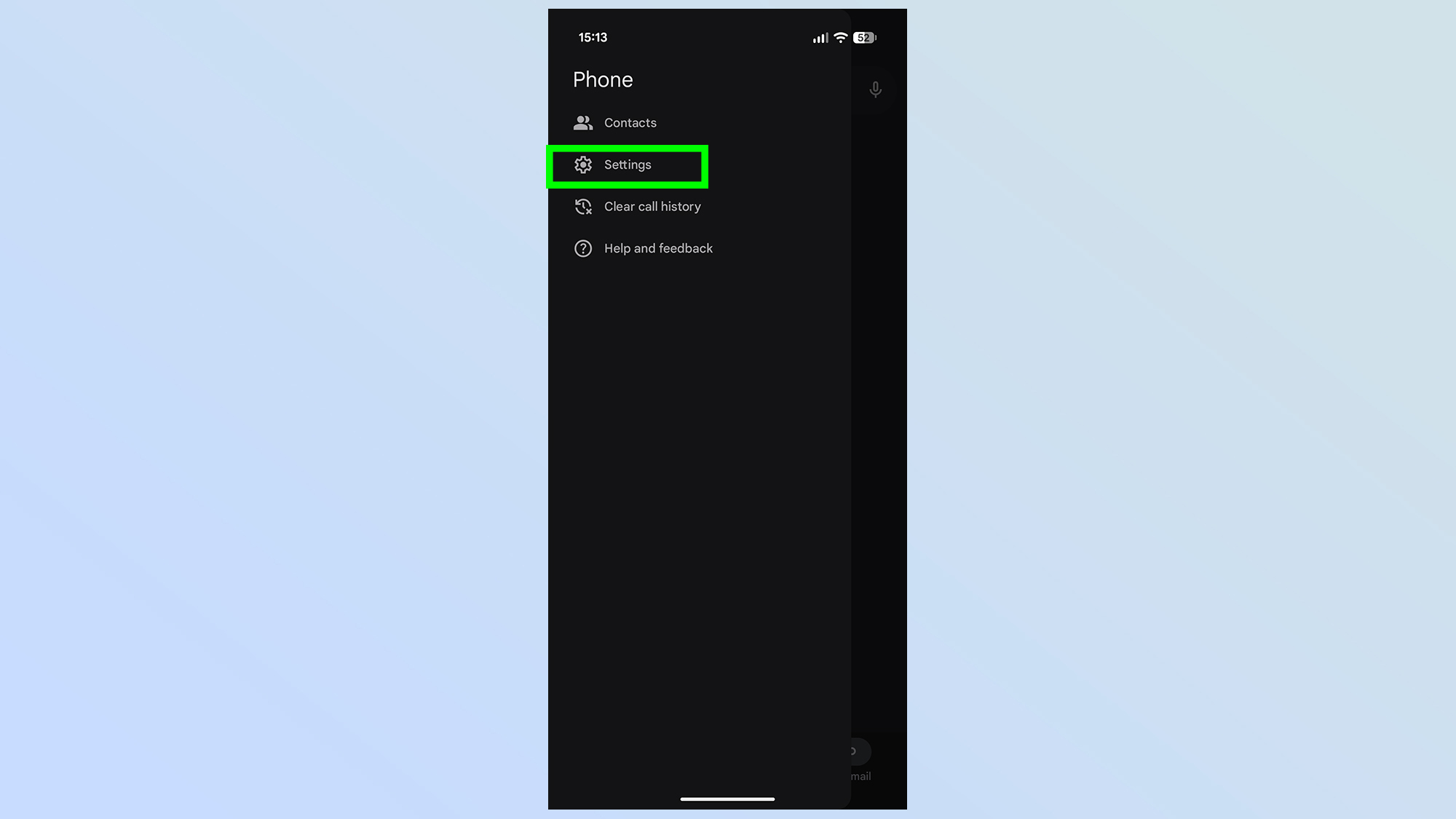
- Tap the three dots in the top right corner and select Settings. From here, look for the section labeled "Calls" or "Assistant."
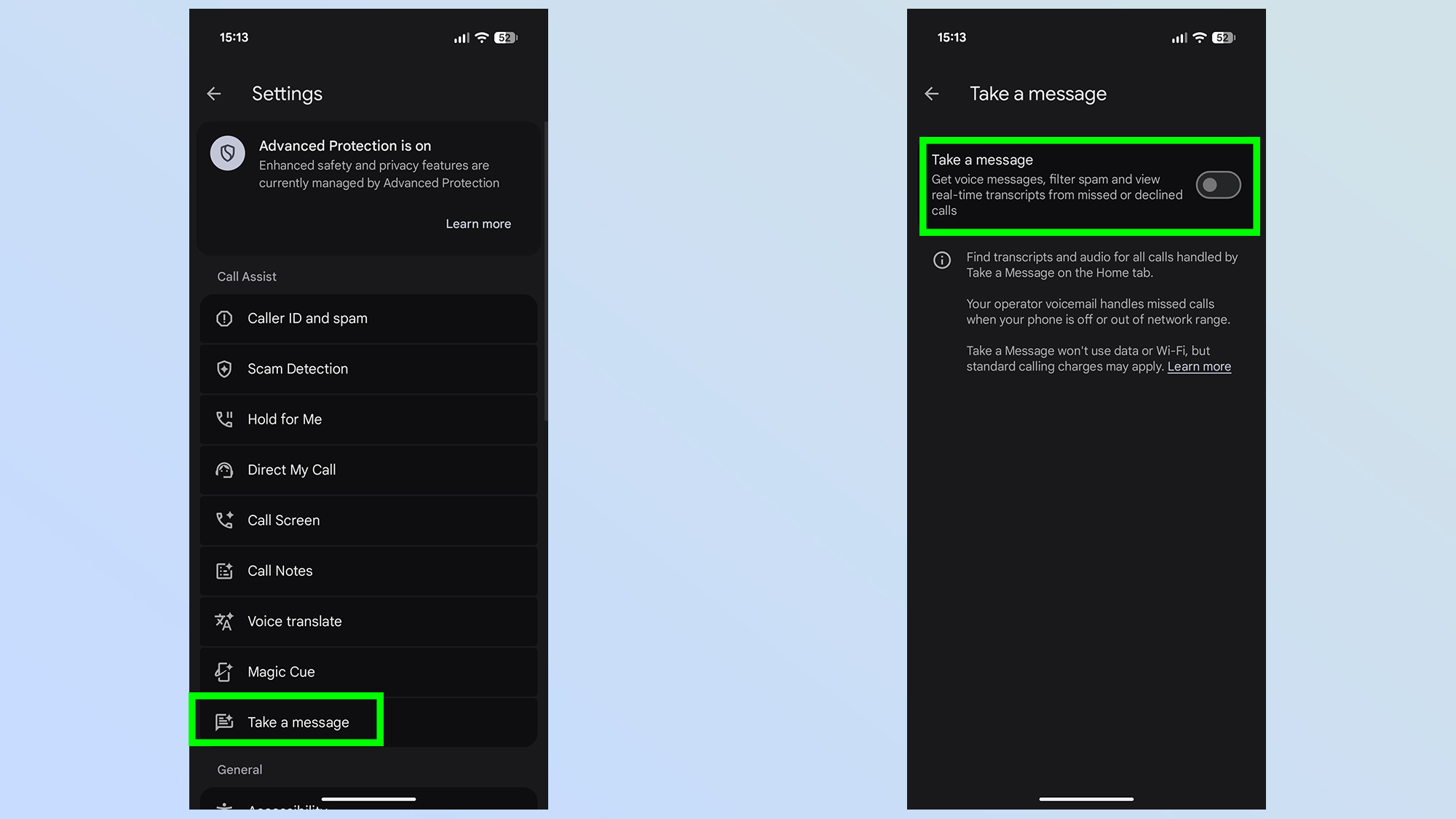
- Find the option for take a message. You will need to toggle this on. During the how to enable take a message on pixel 10 process, the phone may ask for permission to handle calls through the Beesly protocol. Granting this is essential for local processing.

- Customize your automated greeting. You can choose from several AI-generated voices or record your own. This message will inform callers that you are unavailable and that they are being recorded locally.
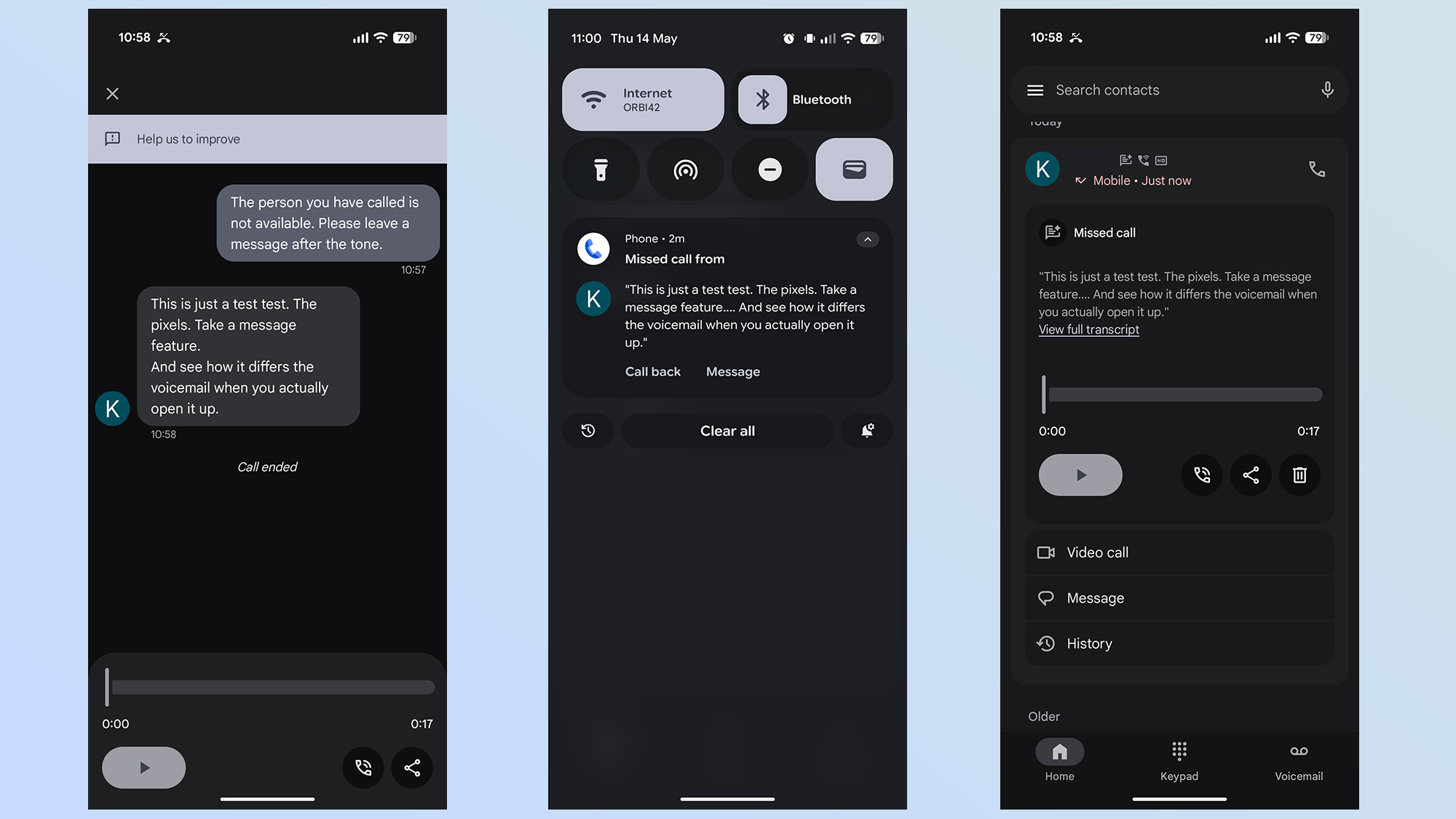
Once configured, you don't need to do anything else. When a call comes in, you will see a button to take a message. Your phone handles the rest, transcribing the audio and saving it directly to your call history.
Performance and Real-World Usage
In my testing, the setup guide for pixel take a message proved remarkably resilient against the usual annoyances of modern telephony. Because the transcription is happening on the fly, I can sit and watch the text appear on my Screen Call interface. If I see that the person calling is my doctor or an important delivery person, I can tap "Join" to jump into the conversation mid-sentence.
This hybrid approach to communication is something traditional carrier systems simply cannot match. It offers a level of screening that puts you back in the driver's seat. For those who value data sovereignty, knowing that every word spoken into that system is encrypted and stored locally is a massive peace of mind. You are no longer wondering who at the phone company might have access to your private messages.
FAQ
What does take a message mean?
In the context of the Pixel 10, take a message means the device's on-device AI will answer the call for you. It functions like a sophisticated answering machine that uses the Beesly protocol to record and transcribe conversations locally, rather than sending the caller to a distant carrier-owned voicemail server.
How to enable take a message?
To set up this feature, open your Phone app, tap the three-dot menu for settings, and locate the take a message option. Toggle the switch to active and follow the on-screen prompts to select your preferred AI voice and greeting.
How do I get my phone to take a message?
Once the feature is enabled, whenever a call comes in that you cannot answer, you will see a specific button on the incoming call screen labeled "Take a Message." Tapping this will trigger the local AI to handle the call while you watch the live transcription.
Where can I see text messages?
Transcripts generated through this feature are not stored in the Messages app. Instead, you can find them by opening the Phone app and tapping the Call History icon. Each entry will have a small transcript icon if a message was left.
How do you take a message?
As a user, you simply tap the button during an incoming call. The phone's Assistant will then greet the caller and begin the local AI transcription. You can choose to listen in silenty, read the text as it appears, or interrupt the process to answer the call yourself at any time.