Quick Facts
- Low-ROI Upgrade: Swapping DDR4 for DDR5 on legacy hybrid platforms provides negligible real-world benefits.
- Value Trap: External GPU setups lose significant power to connection overhead and cost as much as a new PC.
- AI Hype: High-TOPS NPU hardware in AI-native laptops currently lacks the software ecosystem to justify its premium.
- 2026 Standard: A minimum of 16GB RAM is the baseline for productivity, but chasing more is often unnecessary for general users.
- Smart Alternative: Opt for high-quality portable 4K monitors instead of attempting risky internal screen replacements.
- The Solder Reality: Many modern flagship laptops, including the latest Dell and ASUS models, have non-upgradeable memory.
Many laptop upgrade mistakes in 2026 stem from chasing marginal gains, such as upgrading from DDR4 to DDR5 for a mere 3% speed boost, or investing $1,000 in an eGPU setup that loses 30% performance to bandwidth overhead. Navigating the current hardware landscape requires a cold, hard look at diminishing returns and the physical limitations of modern thin-and-light designs.
As a PC editor, I spend my days tearing down the latest hardware and benchmarking components that promise to revolutionize your workflow. But the reality of 2026 is that the gap between "good enough" and "cutting edge" has become a financial minefield. We are seeing a shift where many traditional upgrades are either physically impossible due to integrated designs or economically nonsensical. If you are looking to breathe new life into your machine, you need to know which paths lead to a dead end.
1. The DDR5 Delusion: Why RAM Swaps Often Fail
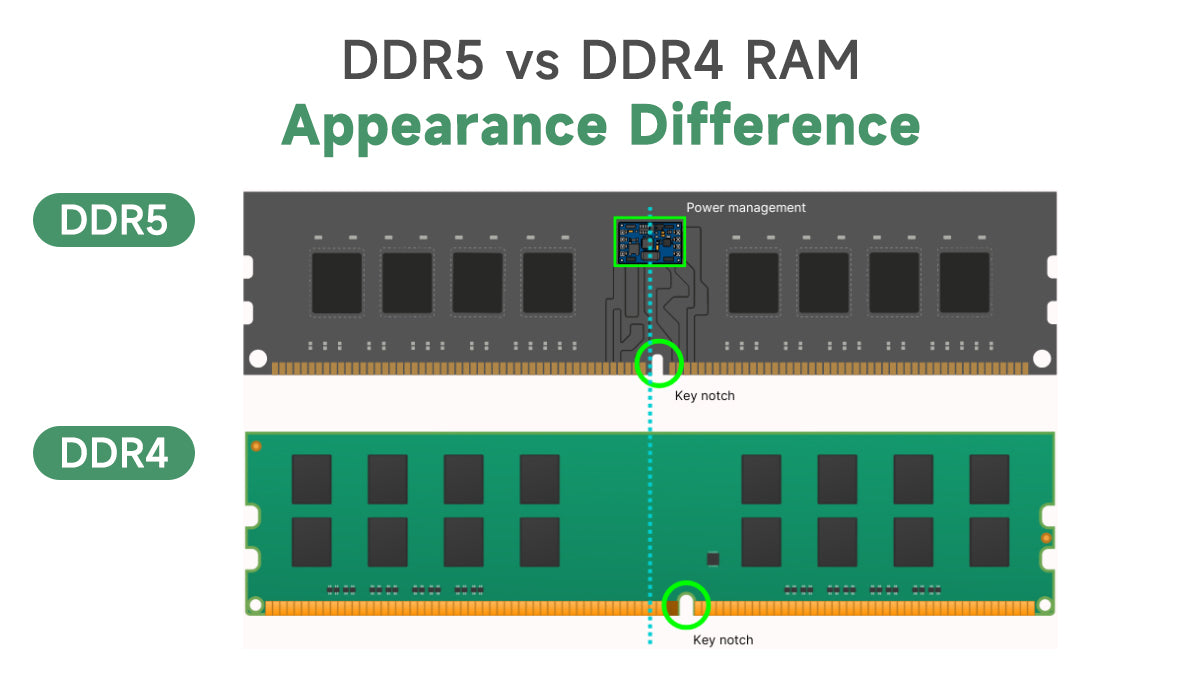
In the transition between hardware generations, there is always a period where manufacturers offer hybrid platforms. We saw this clearly with the shift to DDR5. While the marketing materials tout massive jumps in MT/s (megatransfers per second), the actual impact on your daily laptop experience is often invisible. Unless you are performing heavy architectural rendering or complex data science tasks, the move to DDR5 is rarely worth the investment on a platform that supports both.
The issue isn't just about the RAM modules themselves; it is an ecosystem shift. DDR5 moves power management directly onto the memory stick via a Power Management Integrated Circuit (PMIC). While this allows for better voltage regulation, it also means the modules run significantly hotter than DDR4. In the cramped thermal environment of a laptop, this extra heat can lead to thermal throttling of the CPU earlier than expected. Furthermore, testing across various productivity suites and gaming titles has shown that the performance gap between high-end DDR4 and entry-level DDR5 is often as low as 3%.
| Feature | DDR4 (Late Gen) | DDR5 (Standard) |
|---|---|---|
| Voltage | 1.2V | 1.1V |
| Max Transfer Rate | 3200 MT/s | 4800 - 8400+ MT/s |
| Max Module Capacity | 32GB | 128GB+ |
| Power Management | On Motherboard | On Module (PMIC) |
If your current laptop uses DDR4, trying to find a way to "upgrade" to a DDR5-compatible motherboard or swapping modules on a rare hybrid board is a textbook example of laptop upgrade mistakes. You are paying a premium for a new architecture without the software environment that can actually leverage that increased memory bandwidth.
2. The eGPU Money Pit: High Cost, Low Bandwidth
A few years ago, the promise of the external GPU (eGPU) was intoxicating. You could have a thin-and-light laptop for travel and plug into a desktop-class graphics card at home for gaming. In 2026, even with the advent of Thunderbolt 5, the math still does not add up for the average user. When you factor in the cost of a high-quality enclosure, a dedicated power supply, and the graphics card itself, you are easily looking at a $1,000 investment.
The technical bottleneck remains the primary dealbreaker. Even with the fastest connections available, external GPU (eGPU) setups typically experience a performance overhead of 25% to 30% compared to installing that same card in a desktop motherboard. This is due to the latency introduced by the controller and the limited PCIe lanes available through an external port. You are essentially paying for a top-tier card but receiving the performance of a mid-range one.
For the price of a decent eGPU setup, you could often buy a separate, dedicated gaming desktop or simply sell your current laptop and buy a higher-spec model with a powerful internal mobile GPU. The lack of portability is the final nail in the coffin. Carrying a bulky enclosure and its power bricks defeats the purpose of owning a laptop in the first place. When it comes to external GPU cost effectiveness, the numbers simply do not justify the "mistake" of trying to turn a sleek ultrabook into a desktop workstation via a tether.
3. Chasing the AI Hype: Are Copilot+ Upgrades Necessary?
The industry is currently obsessed with AI-native laptops, specifically those marketed under the Copilot+ branding. These machines feature Neural Processing Units (NPUs) capable of 45 TOPS (Trillions of Operations Per Second) or more. While this sounds impressive on a spec sheet, the practical value for most users in 2026 remains questionable. Most of the AI features people actually use, like LLM chatbots or image generation, are still handled more efficiently by powerful cloud-based servers or through existing web browsers.
Paying an early-adopter premium for high-TOPS NPU hardware is a gamble. The software ecosystem is still in its infancy, and many on-device AI features are plagued by bugs or privacy concerns regarding automated data collection. If you are an app developer or a specialized researcher, there is a case for these machines. However, for the general professional, a traditional high-performance laptop with a strong CPU and GPU will handle today's AI tasks just fine. Investing in an "AI-first" laptop before the software matures is one of those worthless laptop hardware upgrades that you will likely regret when the second or third generation of these chips arrives with significantly better efficiency.
4. The Screen Replacement Trap: Why a Portable Monitor Wins
I often hear from users who want to upgrade their 1080p laptop screen to a 4K panel. On paper, it seems like a straightforward DIY project. In practice, it is a high-risk endeavor that rarely ends well. Modern laptop lids are thinner than ever, often using permanent adhesives instead of screws. The risk of cracking the bezel or damaging the fragile EDP (Embedded DisplayPort) cable is extremely high.
Warning: Attempting an internal screen swap can easily short-circuit your motherboard if the battery is not properly disconnected or if the new panel draws a different voltage than the original. Furthermore, finding a legitimate, high-quality replacement panel that matches your specific internal mounting brackets is a logistical nightmare.
Instead of risking your entire machine, the smarter move is to invest in a portable 4K monitor. For around $200, you can get a slim, secondary display that connects via a single USB-C cable. This provides the extra resolution you crave without the risks of replacing laptop screen panel yourself and gives you a dual-monitor setup that increases productivity far more than a simple internal swap ever could.
5. Secondary HDDs: The Slow Death of Mechanical Storage
It might seem tempting to buy a cheap, high-capacity mechanical hard drive to fill an empty 2.5-inch bay in an older laptop. However, in 2026, this is a massive error. Modern operating systems and applications are designed with the assumption of near-instantaneous data access. Even as a secondary storage drive for photos or videos, a mechanical HDD creates a system-wide bottleneck.
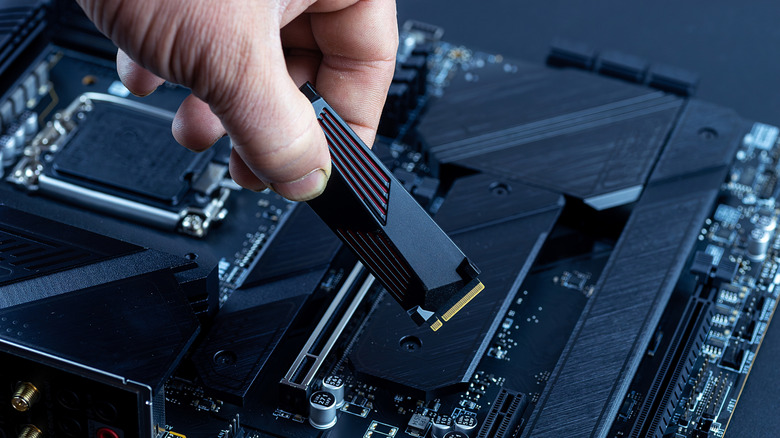
The price of NVMe storage has plummeted to the point where the cost-per-gigabyte gap is no longer large enough to justify the performance trade-off. A 1TB NVMe drive might cost $160, while a 1TB HDD is $60. That $100 difference buys you a drive that is 50 to 100 times faster. Mechanical drives are also susceptible to physical shock, which is a major liability in a portable device. Sticking with a secondary HDD is one of those worthless laptop hardware upgrades that will make your modern machine feel like a relic from a decade ago.
6. Fighting the Solder: The Myth of the Upgradeable Modern Thin-and-Light
One of the most frustrating trends for PC enthusiasts is the industry-wide move toward soldered components. The trend toward soldering RAM has expanded into high-performance and gaming models like the 2024 Dell XPS 16 and ROG Zephyrus G14, which prevents users from performing manual memory upgrades after purchase.
Before you buy a laptop with the intention of upgrading it later, you must verify the internal layout. Many people make the mistake of buying a base model with 8GB or 16GB of RAM, assuming they can just pop in a new module later. If the RAM is soldered, you are stuck with that configuration for the life of the device.
How to identify if your components are soldered:
- Check the manufacturer’s "Service Manual" (not the marketing spec sheet).
- Look for the term "On-board memory" or "Integrated LPDDR5x."
- Search for teardown videos of the specific model year.
- If the laptop is ultra-thin (under 15mm), there is a 90% chance the RAM is soldered.
Trying to "upgrade" these components requires a professional heat gun and specialized micro-soldering skills. For the vast majority of people, these are not upgrades—they are recipes for a dead motherboard.
FAQ
Is it worth upgrading an old laptop?
It depends on the age and the specific bottleneck. If the laptop is more than five years old, the CPU architecture likely cannot keep up with modern web standards and security protocols, making hardware upgrades a poor investment. However, if you have a mid-range machine from three years ago, upgrading from 8GB to 16GB of RAM or swapping a SATA SSD for a faster NVMe drive can provide a noticeable life extension for a relatively low cost.
What are the most common laptop upgrade mistakes?
The most frequent errors include buying incompatible RAM speeds that the motherboard cannot support, purchasing an eGPU without realizing the massive bandwidth loss, and failing to check if components are soldered before buying upgrade parts. Many users also over-invest in high-capacity storage while neglecting the fact that their aging battery or dim screen is the actual reason they want a new device.
How do I check if my laptop components are upgradeable?
The most reliable way is to visit the manufacturer's support page and download the Hardware Maintenance Manual or Service Manual for your specific serial number. These documents provide exploded views of the internals. Alternatively, websites like Crucial or Kingston offer "System Scanner" tools that can identify available SODIMM slots and M.2 bays, though they aren't always 100% accurate for the newest models.
Can you damage a laptop motherboard while upgrading?
Yes, quite easily. Static electricity is the most common silent killer, but physical damage is also frequent. Dropping a screw onto the motherboard while the battery is still connected can cause a short circuit that permanently bricks the device. Additionally, using the wrong size screwdriver can strip delicate internal screws, making future repairs impossible without destructive methods.
Should I upgrade RAM or SSD first for better performance?
If your system currently has less than 16GB of RAM and you frequently use many browser tabs or creative software, a RAM upgrade will offer the most immediate improvement in system stability and multitasking. However, if your laptop still uses a mechanical hard drive or a very early-generation SATA SSD, upgrading to a modern NVMe SSD will provide the most dramatic "snappiness" in boot times and application loading.