Quick Facts
- The 2026 Speed Benchmark: Modern dictation software allows users to reach 150 words per minute, nearly quadrupling the average typing speed of 40 words per minute.
- Accuracy Standards: The industry benchmark for transcription accuracy has hit 98% in 2026, thanks to heavy integration of natural language processing models.
- Best for Windows Users: Windows 11 Voice Access provides the most seamless, no-cost experience for system-wide control and text entry.
- Best for Mac Users: Apple Dictation, especially on M-series chips, offers superior privacy through local on-device processing.
- Best for Professionals: Dragon Professional remains the leader for specialized legal and medical vocabularies, while Voicy is the top pick for general document formatting.
- Free Options: Google Docs Voice Typing and built-in OS tools provide robust real-time transcription without a subscription fee.
In 2026, the best dictation software options include specialized tools like Voicy and Dragon Professional, alongside integrated features such as Microsoft Dictate and Apple Dictation. Professional users often prefer standalone applications for their higher accuracy and advanced formatting commands, while casual users benefit from the free, built-in tools available on Windows, macOS, and mobile operating systems.
The 150 WPM Speech-to-Text Revolution
As someone who spends more time testing hardware than almost anything else, I have seen a massive shift in how we interact with our PCs. For years, the keyboard was king, but in 2026, the bottleneck isn't your mechanical switches—it is your fingers. Research indicates that voice dictation is approximately three times faster than typing, with average speech rates of 150 words per minute compared to typing speeds of 40 to 50 words per minute.
The leap from 2024 to 2026 has been driven largely by the integration of more efficient natural language processing models, like the latest iterations of OpenAI Whisper, into everyday apps. For professionals looking for a voice recognition software for productivity boost, the technology has finally reached a point where the lag is imperceptible and the errors are rare. Whether you are drafting a long-form report or managing a flood of emails, transition to voice is no longer a luxury for those with RSI; it is a competitive advantage for anyone who values their time.
1. Windows 11 Voice Access
For most users on a PC, the journey starts with dictation software for windows that is already installed. Windows 11 has transitioned from the old "Speech Recognition" to a more modern Voice Access system. It is impressive because it handles both text input and full computer control. You can open apps, click buttons, and manage your desktop entirely hands-free.
One of the best dictation software free options available, Voice Access uses on-device models to ensure that what you say stays on your machine as much as possible. It excels at automated punctuation, meaning you no longer have to manually say "period" or "comma" at the end of every thought—the AI simply understands the cadence of your voice.
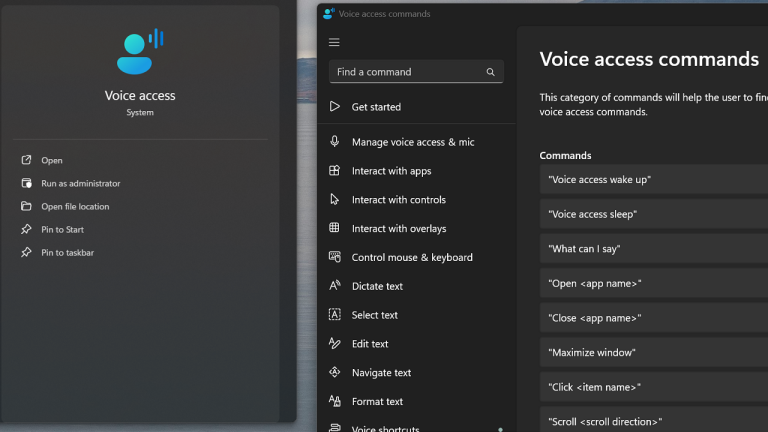
- Pros: Deep system integration; zero cost; respects privacy.
- Cons: Can be resource-heavy on older laptops with less than 16GB of RAM.
2. Apple Dictation (macOS & iOS)
If you are looking for the best dictation software for mac, you don't actually need to download anything. Apple has leveraged its Silicon architecture to make Apple Dictation incredibly fast. Because the Neural Engine handles the real-time transcription, there is virtually zero latency when you speak.
What sets this apart from other best dictation software free tools is how it handles multi-device sync. You can start a thought on your iPhone using Gboard or the native keyboard and finish it on your MacBook without losing a beat. In 2026, the offline processing capabilities mean you can dictate a full memo on a flight without needing a Wi-Fi connection, making it a staple for mobile productivity.
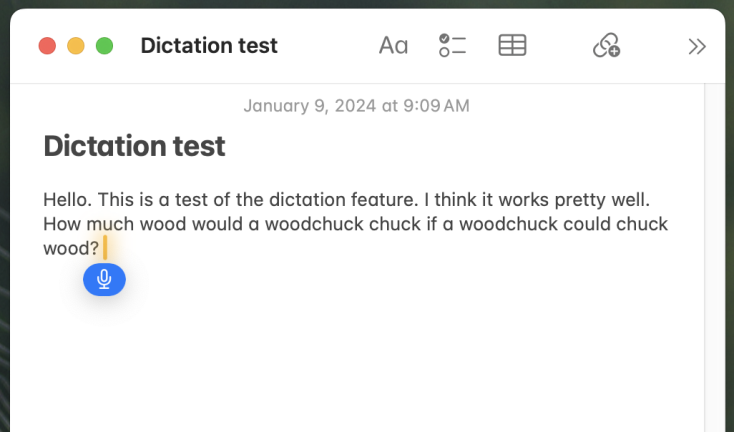
- Pros: Incredible speed on M3/M4 chips; excellent privacy; works offline.
- Cons: Limited formatting commands compared to professional-grade third-party apps.
3. Microsoft Dictate (Microsoft 365)
For Microsoft Word users, the built-in Dictate feature is the most accessible choice as it integrates directly with the Microsoft 365 ribbon menu. It is perhaps the most streamlined dictation software for word because it understands the context of a document. If you are writing a professional letter, it adjusts its vocabulary to match.
This tool is especially useful for meeting documentation. By using the Transcribe feature within the same ecosystem, you can record a full meeting and have it converted to a Word doc with speaker identification. However, while it is a great dictation software for microsoft word, it does require a steady internet connection since much of the heavy lifting happens in the Azure cloud.
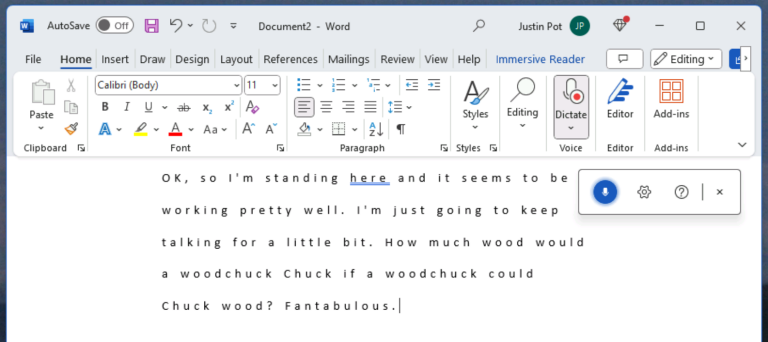
- Pros: Seamless Office 365 integration; high accuracy for technical terms.
- Cons: Requires a subscription; requires an internet connection for high-tier accuracy.
4. Voicy
Voicy has emerged in 2026 as a top-tier contender for users who need more power than what comes built into their OS but don't want the complexity of enterprise software. It functions as a versatile overlay that works across any application, making it a fantastic voice recognition software for productivity boost regardless of whether you are in a web browser or a coding environment.
It specializes in formatting. If you say "make a three-by-three table," Voicy actually builds it. This level of workflow optimization is what separates it from standard speech-to-text tools. For users who juggle multiple platforms, its ability to maintain a custom dictionary across Windows, Mac, and mobile is a major selling point.
- Pros: Superior command and control features; works everywhere.
- Cons: Monthly subscription fee.
5. Dragon Professional
In the world of high-stakes documentation, Dragon Professional is still the king of transcription accuracy. While it is significantly more expensive than other options, it offers a level of customization that is unmatched. It is the go-to dictation software for professionals in legal and medical fields where jargon is dense and errors can be costly.
Dragon allows users to create incredibly complex voice commands. You can automate entire sequences of actions—like generating a standard report, inserting a specific signature, and emailing it to a client—with a single phrase. For hardware enthusiasts, it is worth noting that Dragon benefits significantly from a dedicated, high-quality microphone and plenty of CPU cores.
- Pros: 99%+ accuracy after training; specialized industry vocabularies.
- Cons: Steep learning curve; high upfront cost.
6. Wispr Flow
Wispr Flow represents the "new school" of dictation software. Instead of just transcribing exactly what you say, including all your "ums" and "ahs," Flow uses large language models to clean up your speech in real-time. It focuses on the intent of your words, providing a polished output that feels like it was written, not spoken.
This is a massive shift for workflow optimization. It means you can talk naturally, almost like you are having a conversation with a friend, and the software will produce a perfectly formatted email or blog post. It is currently one of the fastest-growing best speech to text apps for mobile dictation because it reduces the need for heavy editing after the fact.
- Pros: "Cleaning" of disfluencies; very natural user experience.
- Cons: Less control over the exact word-for-word transcription.
7. Google Docs Voice Typing
Google Docs Voice Typing dictation software remains one of the most popular tools for students and casual writers. Accessible via the Tools menu in Chrome, it provides a very reliable, no-frills experience. It is particularly adept at handling different accents, thanks to Google's massive global dataset.
Because it is browser-based, it is a great solution for those who switch between different hardware frequently. Whether you are on a Chromebook at a coffee shop or a powerful desktop at home, your settings and custom words stay with you. It is the quintessential best dictation software free for users who live in the cloud.
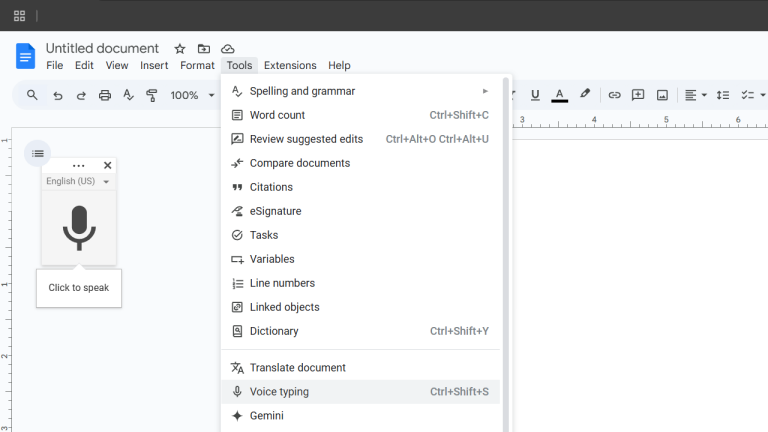
- Pros: Completely free; excellent multi-lingual support.
- Cons: Only works within Chrome/Google Docs; limited hands-free writing commands.
8. Otter.ai
While often categorized as a transcription service, Otter.ai has evolved into one of the best speech to text apps for mobile dictation for the corporate world. It is built for the "meeting-heavy" professional. It doesn't just take dictation; it captures conversations, summarizes them into action items, and syncs them with your calendar.
In 2026, its real-time transcription is sharp enough to be used as a primary dictation tool for long-form content. You can dictate a 2,000-word chapter into your phone while walking, and Otter will have it formatted and ready for review on your PC by the time you sit down.
- Pros: Best-in-class meeting summaries; great mobile app.
- Cons: Free tier is limited; transcription can struggle with heavy background noise.
Buyer's Guide: Hardware & 2026 Tech Standards
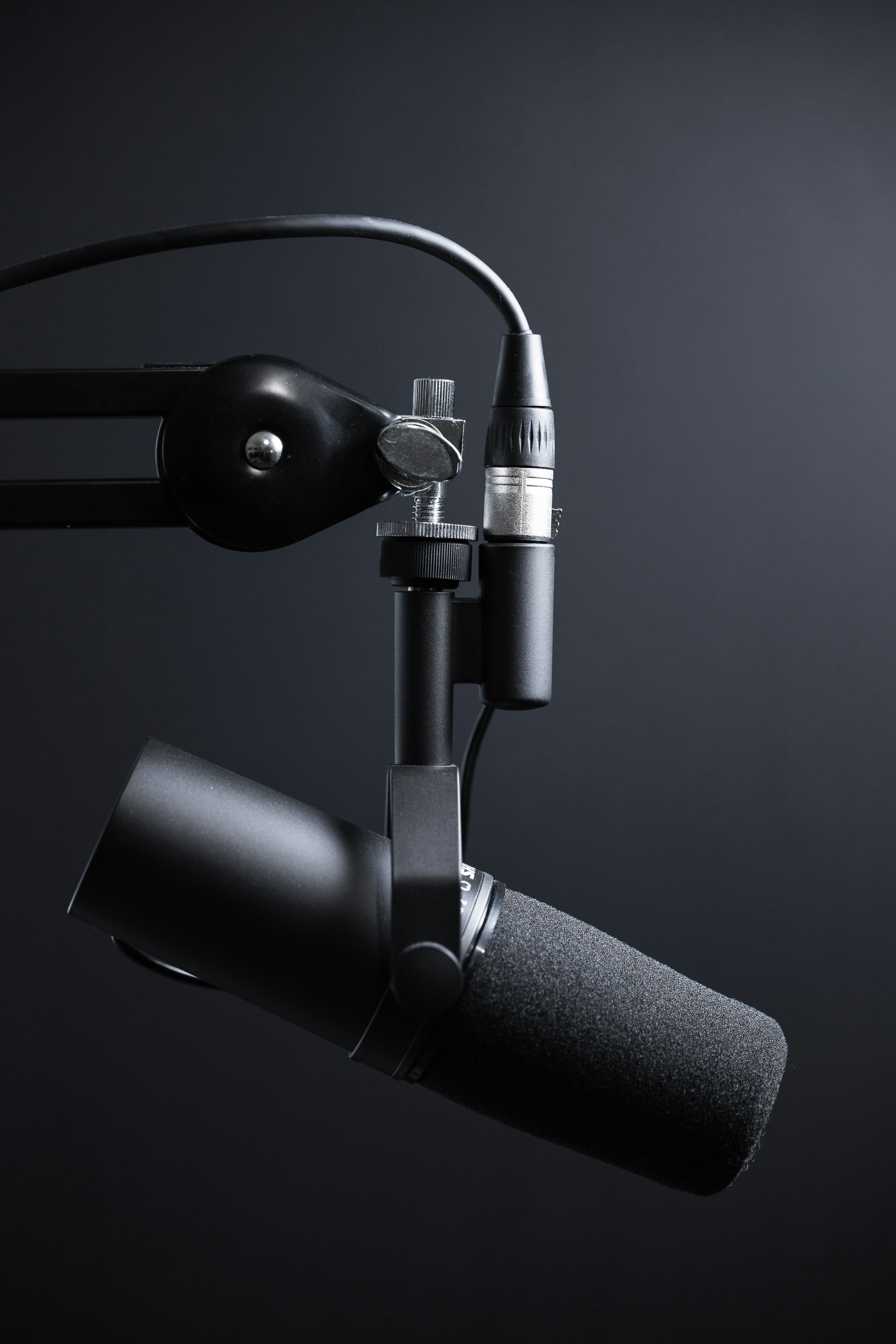
To get the most out of your dictation software, you need to think about the hardware supporting it. We have moved past the era where any old laptop microphone would suffice. In 2026, the standard for professional dictation requires a microphone with a high signal-to-noise ratio. If the software can't hear you clearly, even the best natural language processing will fail.
| Feature | Minimum Requirement | Professional Standard |
|---|---|---|
| RAM | 8GB | 16GB+ (for local AI) |
| Latency | <1000ms | <500ms |
| Microphone | Built-in Array | External Cardioid/USB |
| Processor | 4-Core | 8-Core (Apple Silicon/Zen 5) |
System latency is the second biggest factor. If there is a delay of more than 500ms between your speech and the text appearing on screen, your brain will struggle to maintain its train of thought. This is why local processing on modern chips is so vital for voice commands. When the AI handles the data on-device, the response is near-instant, creating a much more fluid hands-free writing experience.
Finally, consider your environment. While modern software is better at noise cancellation, using these tools in a shared office requires a headset. Look for models that specifically mention "noise-canceling microphones" to ensure your real-time transcription stays accurate even in a busy room.
FAQ
What is the best software for dictation?
The best software depends on your needs. For Windows users seeking a free tool, Windows 11 Voice Access is excellent. For professionals requiring the highest accuracy and specialized vocabularies, Dragon Professional is the industry standard. For general cross-platform productivity, Voicy offers the best balance of features and ease of use.
Can I dictate in Microsoft Word?
Yes, you can dictate in Microsoft Word using the built-in Dictate feature located on the Home tab of the ribbon. This feature is available to Microsoft 365 subscribers and offers high accuracy with support for various languages and automated punctuation.
Does Windows 11 have built-in dictation software?
Windows 11 includes a robust feature called Voice Access (and an older tool called Windows Speech Recognition). You can activate voice typing at any time by pressing the Windows Key + H, which allows for quick, system-wide speech-to-text input.
Is there a free dictation?
There are several high-quality free options. Windows and macOS both include native dictation tools at no extra cost. Additionally, Google Docs Voice Typing is a free, web-based solution, and mobile users can use the dictation features built into Gboard or the iOS keyboard.
Does Microsoft have built-in dictation?
Microsoft provides built-in dictation through two primary avenues: the system-wide Voice Access feature in Windows 11 and the specific Dictate tool found within Microsoft 365 applications like Word, Outlook, and PowerPoint.
How do I turn on voice typing in Word?
To turn on voice typing in Word, open a document, go to the Home tab, and click the Dictate button (represented by a microphone icon). Alternatively, you can use the keyboard shortcut Alt + ` (backtick) or Windows Key + H to trigger the system's voice typing overlay while in Word.
Final Thoughts
The transition to dictation is the single biggest productivity hack available in 2026. Whether you opt for a professional dictation software suite or stick with the best dictation software free options built into your OS, the gain in speed is undeniable. Start small—try dictating your next few emails. Once you get used to the 150 WPM flow, going back to 40 WPM on a keyboard will feel like typing in slow motion.