Our Top Picks
- Best for Power Users: The new multitasking engine shines on the M4 iPad Pro, supporting up to 12 simultaneous windows for complex workflows.
- Most Controversial Change: The removal of Slide Over in favor of Windowed Apps mode creates significant learning curves for long-time users.
- Essential Update: iPadOS 26.4 is a mandatory install for its Hidden Windows tool, which finally makes managing obscured app instances manageable.
- Verdict: While it offers true macOS parity, the added user friction makes this the most polarizing update in the history of the platform.
iPadOS 26 multitasking has undergone its most radical transformation yet with the introduction of Windowed Apps mode. While it promises macOS parity, many users find the new Liquid Glass UI adds significant friction to touch-based workflows by replacing intuitive swipe gestures with a more complex, cursor-optimized windowing engine.
The Death of Slide Over: Understanding Windowed Apps Mode
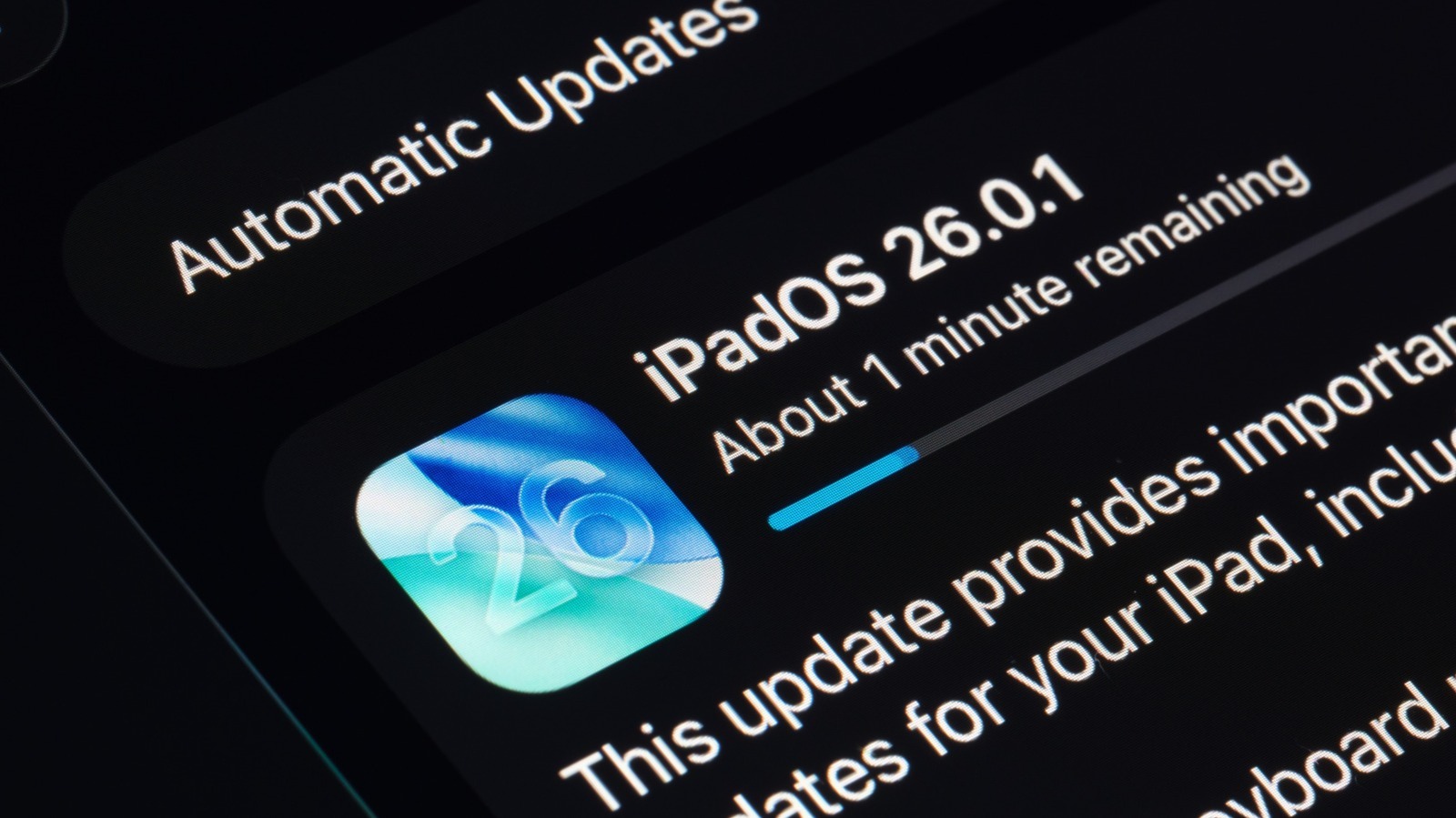
For over a decade, iPad users have relied on the muscle memory of swiping from the right edge to pull in a secondary app. That era ended on September 15, 2025, when Apple released iPadOS 26, effectively skipping several version numbers to align with the calendar year. In this new era, the iPadOS 26 multitasking paradigm has shifted away from the structured rigidity of Split View and Slide Over toward a completely fluid, desktop-style Windowed Apps mode.
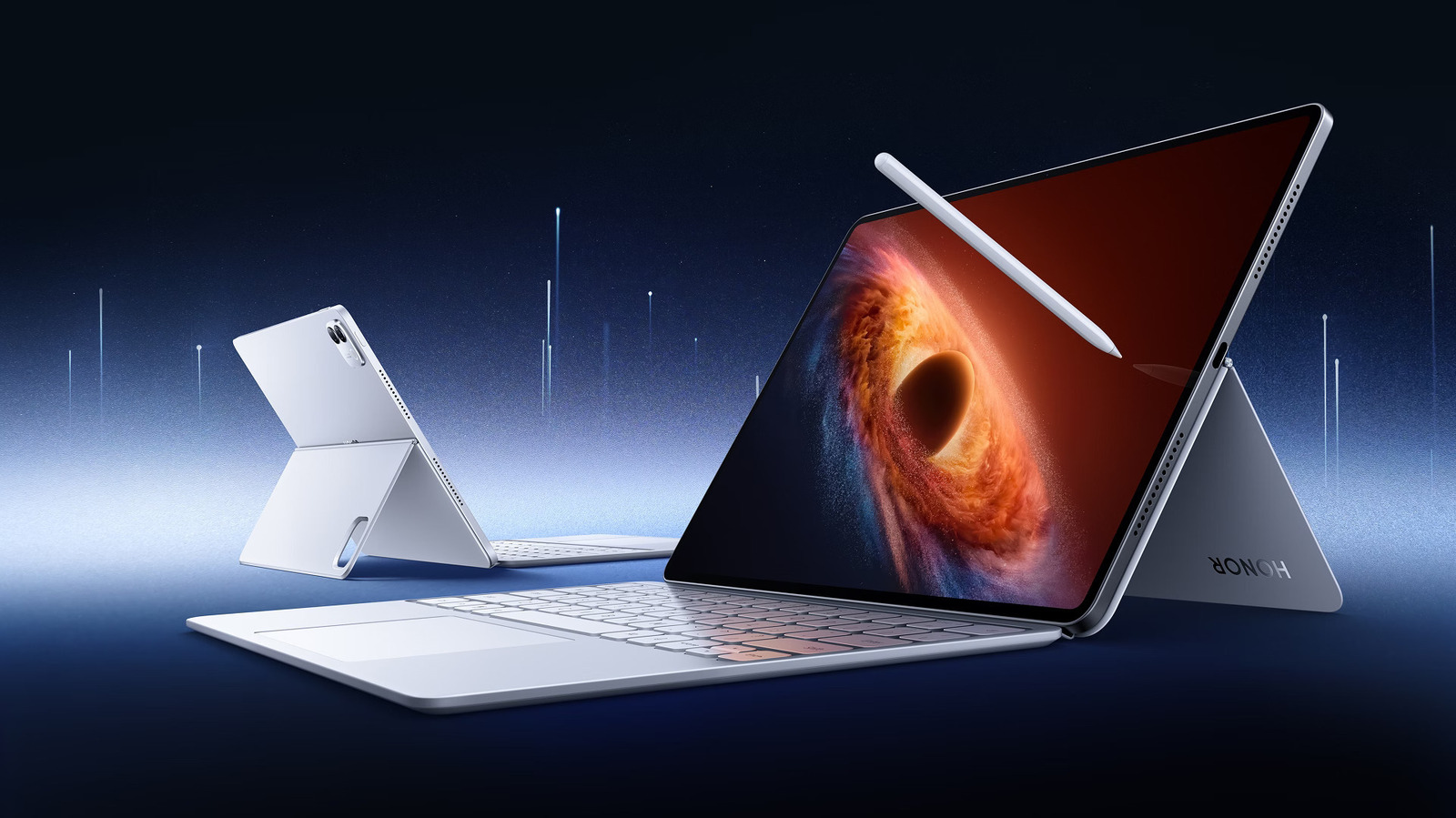
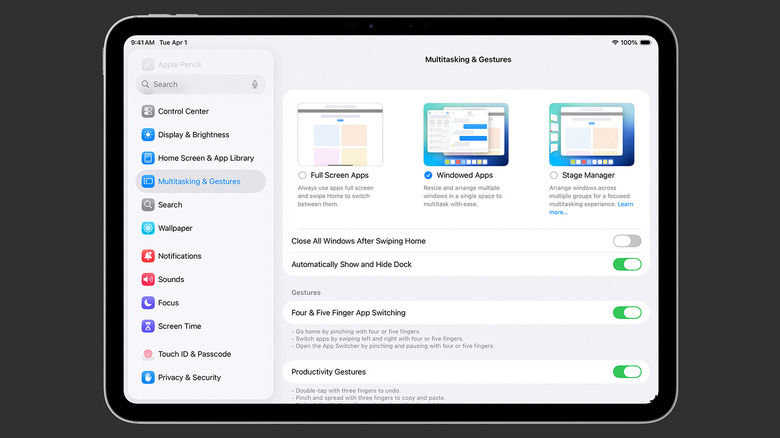
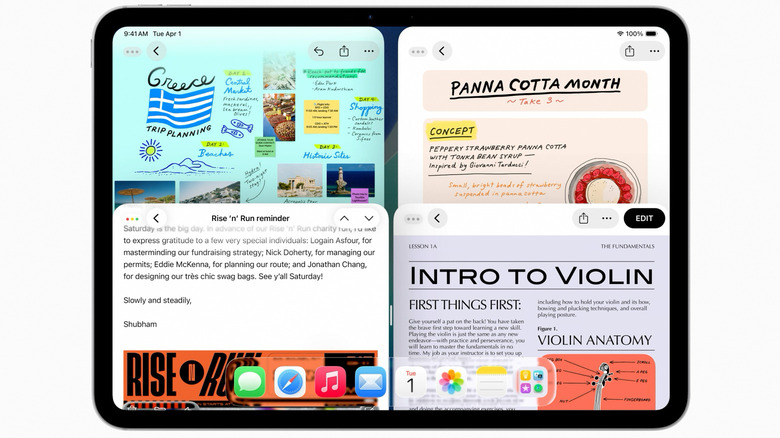
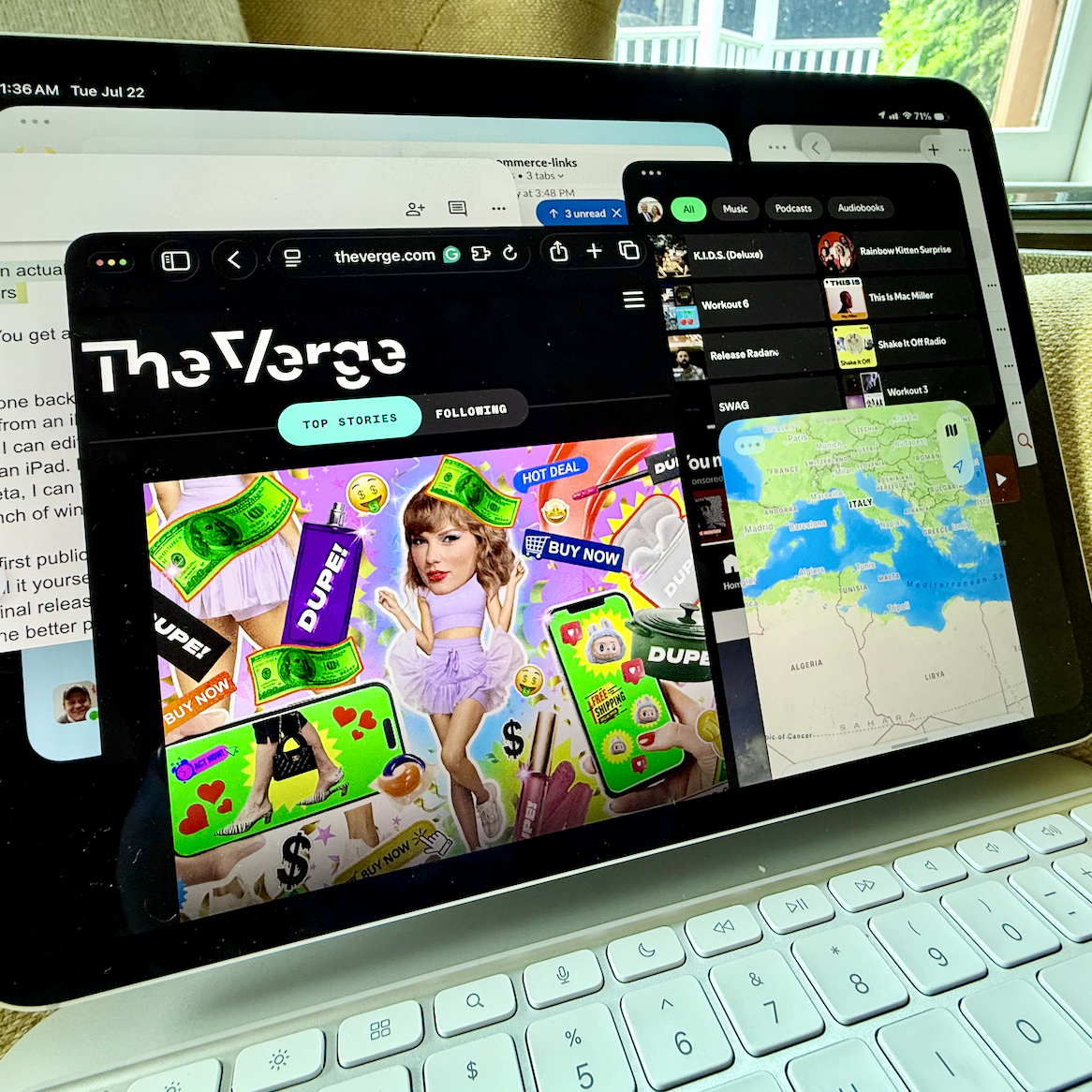
In this new environment, apps no longer snap into pre-defined halves or thirds of the screen by default. Instead, they launch into a floating state within the Liquid Glass UI. This interface overhaul introduces macOS-style traffic light controls at the top of every window—red to close, yellow to minimize, and green to expand. While this looks beautiful on a 13-inch Pro display, the transition highlights a fundamental shift in philosophy: the iPad is no longer a touch-first device in Apple’s eyes; it is a precision-first machine.
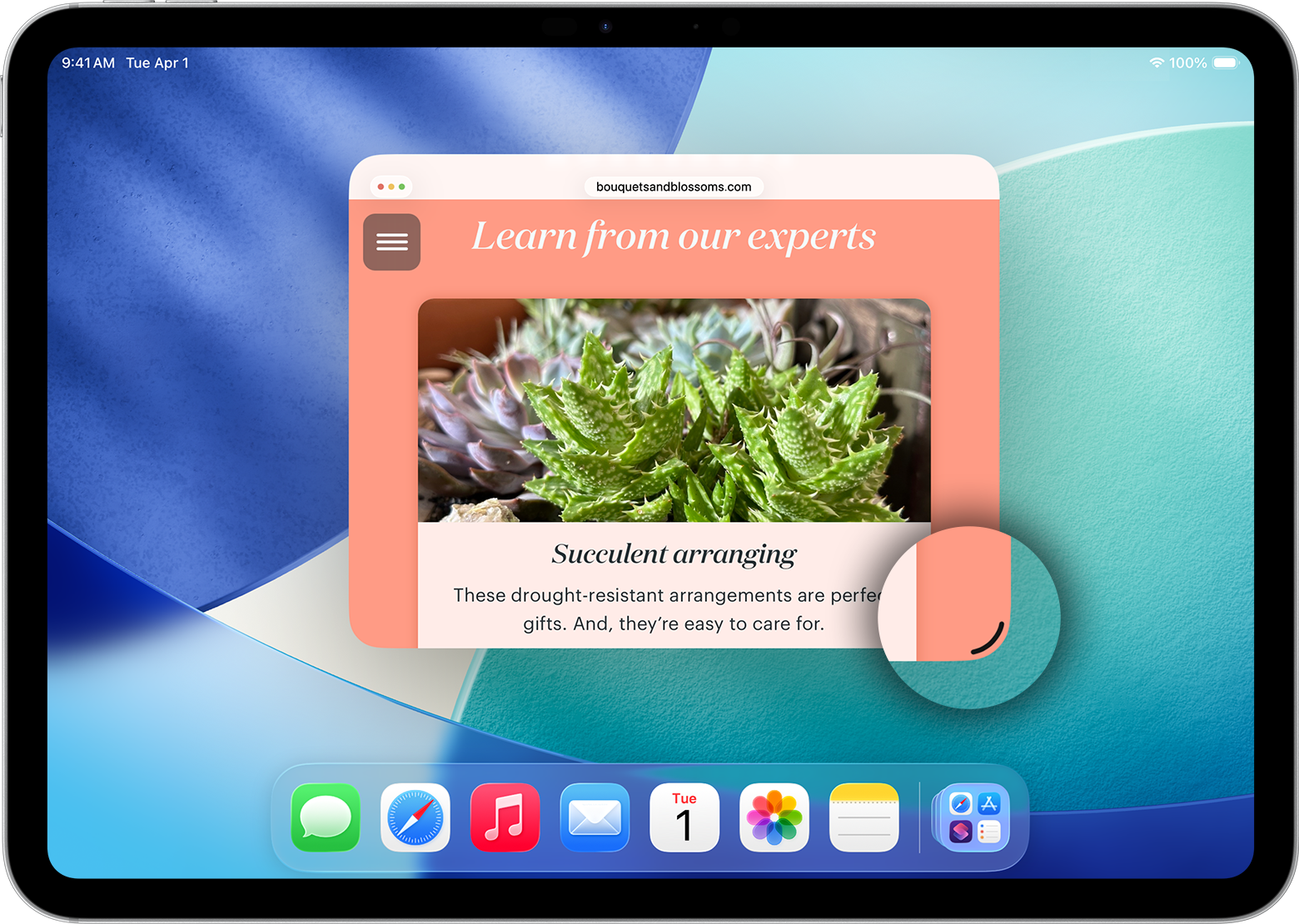
The primary point of contention in any iPadOS 26 Split View vs Slide Over comparison is the loss of speed. To create a multi-app workspace now, you must manually resize and arrange windows using a small handle bar located at the bottom corner of each app. If you are using a finger rather than an Apple Pencil or a Magic Keyboard trackpad, this process feels clumsy. What used to take a single, confident swipe now requires several deliberate taps and drags.
During my "Travel Test"—working from a cramped tray table on a flight from San Francisco to Seattle—the limitations became obvious. Trying to precisely grab the handle bar to resize a spreadsheet while the plane hit light turbulence was an exercise in frustration. The legacy Split View was "low resolution" in its options but "high reliability" in its execution. The new Windowed Apps mode is the exact opposite.
Hardware Power Play: M4 vs A17 Pro Benchmarks
The ambition of the iPadOS 26 multitasking engine is clearly designed to flex the muscles of Apple's latest silicon. However, the experience varies wildly depending on which device you’re holding. The windowing engine demands significant overhead for memory management and real-time shadows within the Liquid Glass UI.
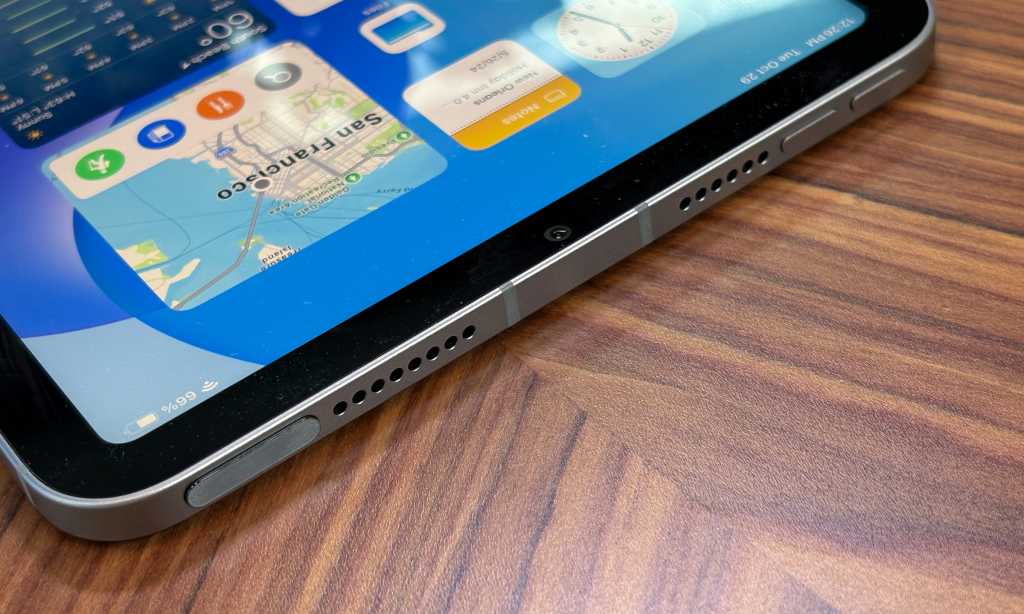
On the M4 iPad Pro models, the system is buttery smooth. You can have a dozen app instances running simultaneously without a hint of lag. However, on the A17 Pro-powered iPad mini, the experience is cramped. The 8.3-inch screen simply doesn’t have the real estate for overlapping windows, making the removal of Slide Over feel like a genuine regression for small-tablet fans.
| Feature | M4 iPad Pro (13-inch) | A17 Pro iPad mini |
|---|---|---|
| Max Concurrent Windows | 12 Windows | 4-6 Windows |
| Liquid Glass Blur Effects | Full Resolution | Reduced Transparency |
| External Display Support | Full Extended Desktop | Mirrored Only |
| Windowing Engine Priority | High Performance | Power Optimized |
The resource allocation in iPadOS 26 is aggressive. On older M1 or M2 hardware, I noticed that the system would aggressively "freeze" background windows to maintain the frame rate of the active window. While this prevents the UI from stuttering, it means that your "hidden" apps might need a second to refresh when you bring them back to the foreground. Improving iPad productivity with iPadOS 26 multitasking engine requires understanding these hardware-bound limits; you can't treat a base-model Air like a fully specced Pro.
Mastering Version 26.4: The Hidden Windows Tool
Apple acknowledged the complexity of the new system with the release of iPadOS 26.4, which introduced the much-needed Hidden Windows feature. In the initial 26.0 release, it was remarkably easy to "lose" an app window behind a stack of other apps. This led to early reviews characterizing the workflow as one of the platform's most frustrating features due to the sheer number of taps required to find buried content.
The Hidden Windows feature in iPadOS 26.4 adds a dynamic indicator to the bottom edge of the screen. When a window is completely obscured or minimized, a subtle glowing "stack" icon appears. You can:
- Long-press the icon: To see a thumbnail gallery of all open app instances.
- Swipe up from the stack: To fan out the hidden windows in a manner similar to Mission Control on macOS.
- Click the status button: In the top menu bar to see a list of active workspaces.
This update effectively saved the Windowed Apps mode from being a total UX disaster. By providing a clear visual map of your workspace management, it reduces the cognitive load of keeping track of where your Mail app went when you opened three Safari windows over it.
Pro Workflow: Gestures and Keyboard Shortcuts
If you want to find the best multitasking workflow for iPadOS 26 power users, you have to embrace the keyboard. While the touch interface is struggling with its identity crisis, the keyboard shortcuts have never been better. Apple has moved closer to the desktop paradigm, and learning these commands is the only way to bypass the interaction friction of the handle bar.
Here are the essential shortcuts for navigating the iPadOS 26 multitasking settings and workspace:
- Globe + M: Minimize the current window to the Hidden Windows stack.
- Globe + Left/Right Arrow: Snap the current window to a pre-set "Quick Arrange" half-screen layout.
- Globe + Up Arrow: Enter the "Fill & Arrange" preset menu, allowing you to choose from various grid layouts (2x2, 1 large/2 small, etc.).
- Command + Tilde (~): Cycle through different instances of the same app (e.g., switching between three different Word documents).
For those who prefer a touch-only approach, the secret to how to resize and arrange windows in iPadOS 26 lies in the "magnetic" edges. When dragging a window toward the side of the screen, it will now gently "pulse" to indicate a snap point. This isn't as rigid as the old Split View, but it helps in creating a clean layout without needing the precision of a surgeon.
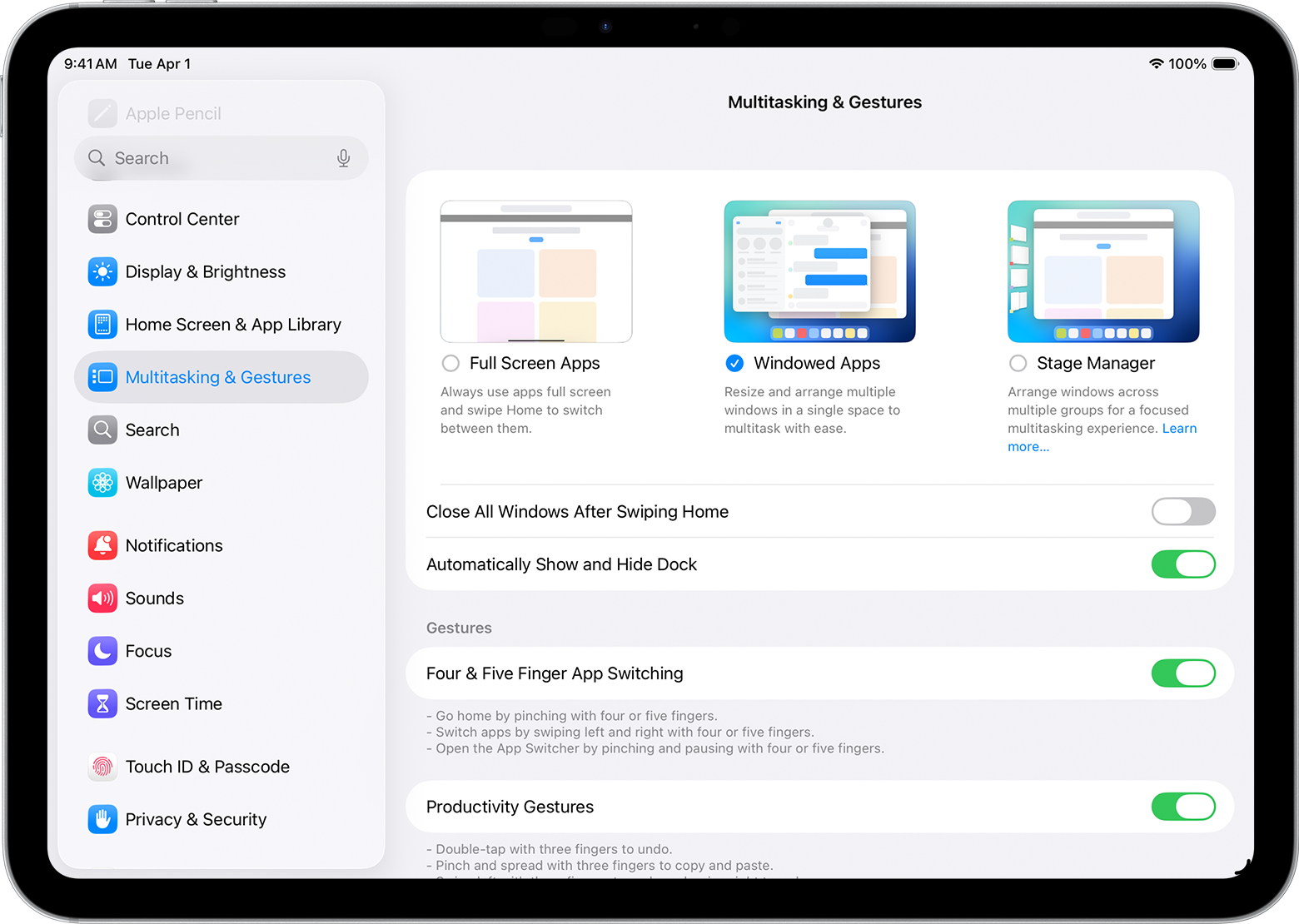
Sarah’s Tip: If you find the Windowed Apps mode too overwhelming, you can actually revert to a "Classic Mode" in the iPadOS 26 multitasking settings. It doesn't bring back the old Slide Over gestures perfectly, but it forces apps to launch in full-screen by default, which is a lifesaver for iPad mini users.
Despite the criticisms of being the worst feature in years, there is a certain satisfaction in the Liquid Glass UI once you master the iPadOS 26 windowed mode gestures and shortcuts. It feels expensive. It feels professional. But for the average user who just wants to watch a YouTube video while scrolling through X (formerly Twitter), it feels like Apple brought a sledgehammer to a thumbtack fight.
FAQ
What are the new multitasking features in iPadOS 26?
The headline feature is Windowed Apps mode, which replaces Split View and Slide Over with a free-form windowing system. This includes the Liquid Glass UI, macOS-style traffic light controls, and a new windowing engine that supports up to 12 apps on high-end hardware. Version 26.4 also added the Hidden Windows feature for better workspace management.
How do I use Stage Manager in iPadOS 26?
Stage Manager has been absorbed into the core Windowed Apps mode. You can enable it via a toggle in the Control Center. Once active, apps launch as floating windows rather than full-screen. You can group these windows into "Stages" by dragging them onto one another or using the new Fill & Arrange presets found in the window controls.
Is iPadOS 26 multitasking available on older iPad models?
The full Windowed Apps mode with Liquid Glass UI is limited to iPads with M-series chips (M1 and later) and the A17 Pro. Older models receive a simplified version of the update that retains the new traffic light controls but lacks the ability to run more than four simultaneous windows or use the advanced transparency effects.
Does iPadOS 26 improve external display multitasking support?
Yes, this is one of the areas where the update truly succeeds. When connected to an external monitor, iPadOS 26 provides a full extended desktop experience. You can drag windows between the iPad and the monitor seamlessly, and the Hidden Windows stack is shared across both screens, making it much easier to manage large projects.
How do I disable multitasking gestures in iPadOS 26?
If you prefer a single-app experience, you can go to iPadOS 26 multitasking settings and toggle off "Allow Windowed Apps." This will force the system to behave more like the iPadOS of old, where apps launch in full-screen. However, note that the specific swipe-in Slide Over gesture cannot be fully restored as it has been replaced by the new system architecture.