Quick Facts
- Shutter Lag: A physical button can reduce input latency by 400ms to 900ms compared to a screen tap.
- Launch Speed: Hardware-dedicated buttons facilitate a sub-1 second 'pocket-to-photo' transition.
- Stability: Eliminates micro-vibrations that occur when the finger strikes the touchscreen glass.
- Tactile Feedback: The two-stage shutter allows for a dedicated focus and exposure lock similar to professional DSLRs.
- Operational Blindness: Enables photographers to operate the camera by feel, keeping their eyes on the subject rather than the interface.
- Premium Trend: Higher-end smartphones now prioritize these physical controls to justify their pro-level imaging claims.
A dedicated smartphone camera button is more than a simple shortcut; it is the vital key to achieving pro-level stability and speed in mobile imaging. It provides the tactile smartphone camera ergonomics necessary to reduce shutter lag by significant margins, often up to 900ms, while allowing users to utilize mechanical feedback to lock focus and exposure before they ever capture the shot. This physical interface effectively transforms the mobile point-and-shoot experience into a more intentional, stable, and professional workflow.
The Speed Factor: From Pocket to ProRAW in Milliseconds
In my years reviewing high-end glass and full-frame sensors, the one metric that separates a tool from a toy is responsiveness. For a long time, the smartphone was hampered by digital friction—the seconds it took to wake the screen, swipe the camera icon, and wait for the UI to become interactive. By the time the software caught up, the candid moment was often gone. The recent re-introduction of the smartphone camera button across flagship devices is changing that narrative by re-enabling instant-on capture.
Data from recent market shifts indicates that consumers are increasingly hungry for these dedicated experiences. The global premium smartphone market share for devices priced at $600 or above climbed to 25% in 2024, as users move toward devices that offer more than just a better sensor; they want the hardware control to match. When you use a physical interface, you bypass the 3-4 second delay typical of screen-based navigation. Instead, a dedicated press launches the imaging app in under a second, transitioning you from pocket to ProRAW in a heartbeat.
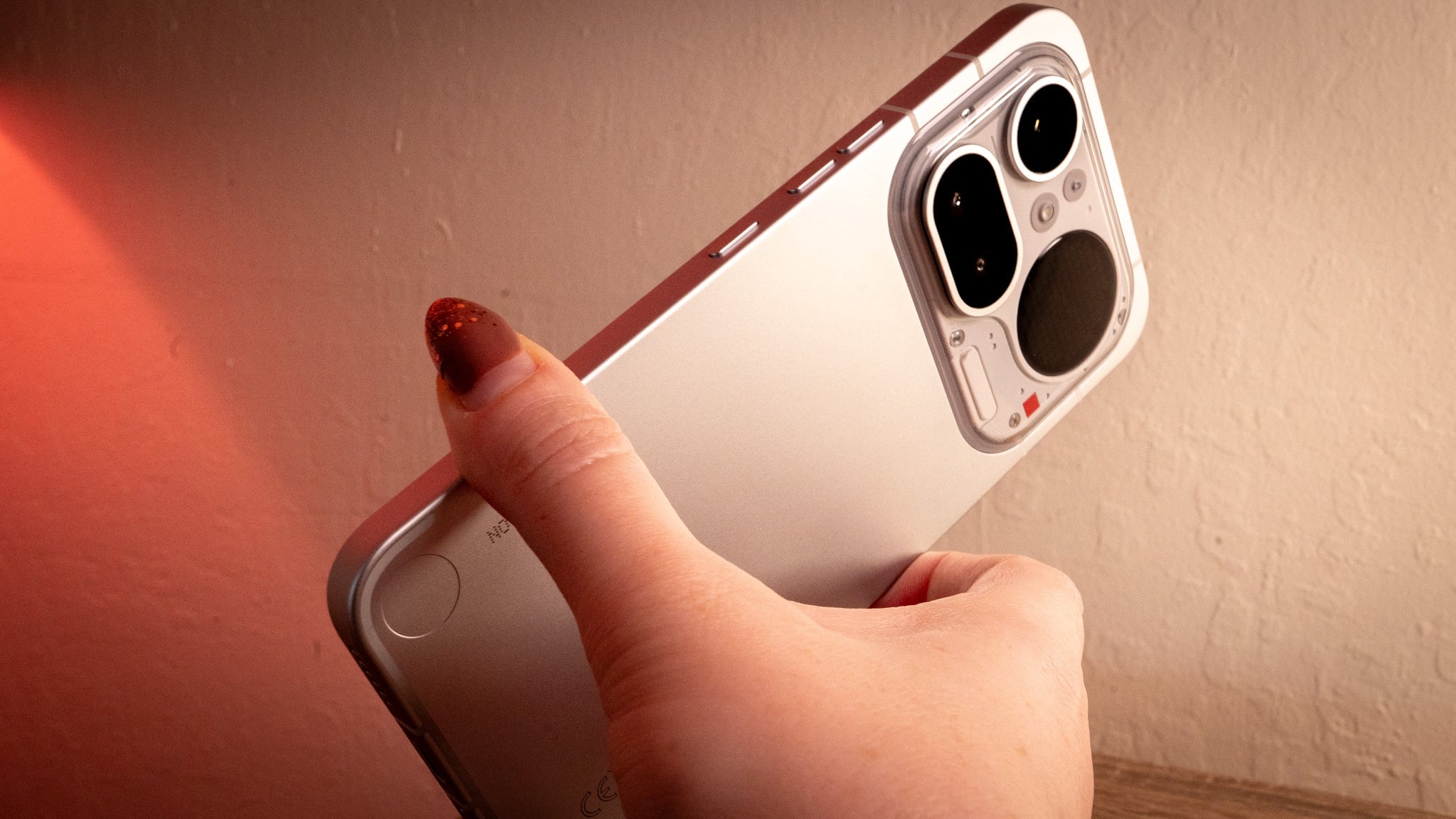
The iPhone 16 Camera Control features represent a significant leap in this direction. By utilizing a force sensor integrated with haptic feedback, the device simulates the physical movement of a shutter without requiring a deep mechanical cavity. This minimizes the physical movement of the phone during the launch and capture process, ensuring that the shutter lag is kept to an absolute minimum. In fast-paced environments, such as street photography or lifestyle shoots, this reduction in latency is the difference between a blurry mess and a gallery-worthy frame.

Ergonomic Excellence: Why Tactile Trumps Touch
One of the greatest enemies of sharpness in photography is camera shake. When you tap a glass screen, you are inevitably applying a forward force that causes a micro-vibration. In low light, where the shutter stays open longer, this translates to soft focus and lost detail. Professional photography relies on stability, and that is where tactile smartphone camera ergonomics come into play.
Using a physical button allows for a more natural horizontal orientation. Your hands can grip the device like a traditional camera, with the index finger resting naturally on the shutter. This grip provides three points of contact, which is the gold standard for handheld stability. Furthermore, for those captures where you need a quicktake video recording, a physical button allows for a technique I call the 3-5 second follow-through. By holding the button, you can track a subject with much smoother motion than you could while trying to keep a finger pressed against a flat, frictionless piece of glass.
To understand the impact clearly, look at how the handling differs between the two methods:
| Feature | Screen Tap Control | Physical Button Control |
|---|---|---|
| Stability | Low (Single-point impact) | High (Grip-integrated) |
| Shutter Lag | Variable (500ms - 1s) | Minimal (<100ms) |
| One-Handed Use | Difficult and unstable | Comfortable and secure |
| Eye Contact | Focused on the UI | Focused on the subject |
| Vibration | High micro-shake risk | Negligible vibration |
For users who often struggle with blurry images, the smartphone camera button vs screen tap for shaky hands debate is easily won by the button. The resistance of a physical key allows you to "roll" your finger over the trigger rather than "stabbing" at a screen, which keeps the sensor perfectly still during the critical moment of exposure.
Advanced Techniques: Focus Lock and Exposure Control
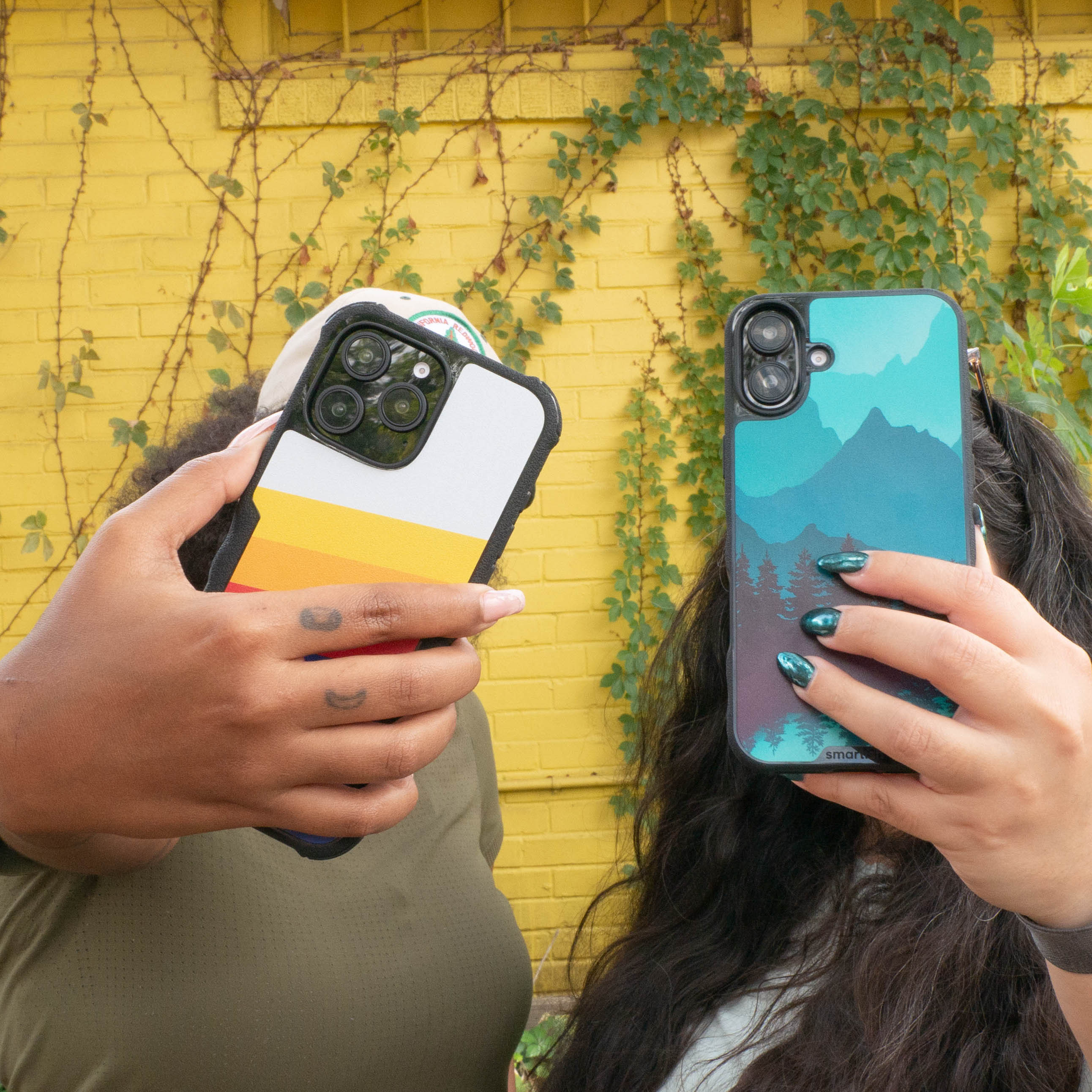
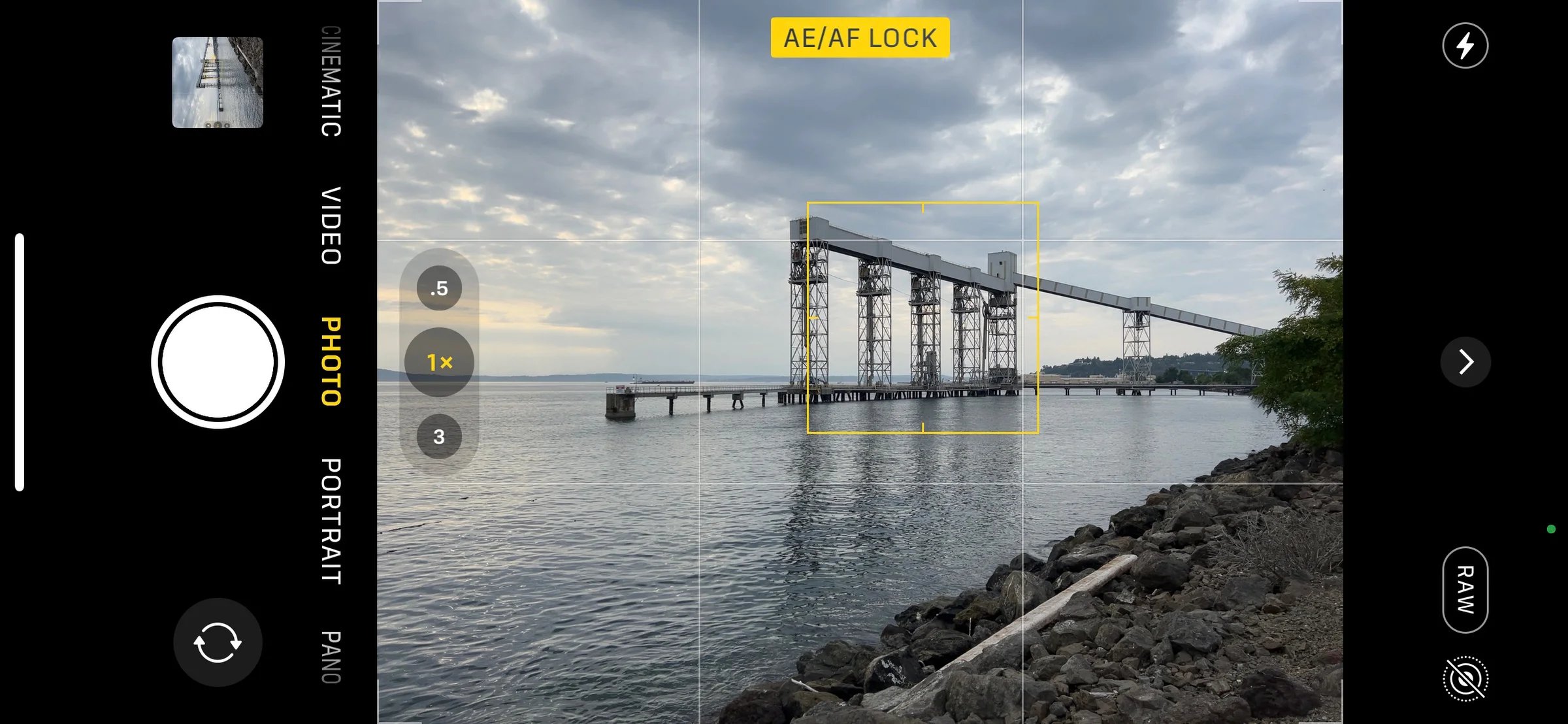
The secret to why professional photographers still reach for their DSLRs often comes down to the two-stage shutter. This is the ability to press the button halfway to lock your settings before committing to the shot. While tap-to-focus on a screen is common, it is often imprecise and requires taking your eyes off the composition.
Many modern flagship devices are now implementing this high-end functionality. The iPhone 16 series features a dedicated Camera Control button that uses a force sensor and haptic feedback to simulate a professional two-stage shutter. This allows you to light-press to lock focus and exposure before fully pressing to capture the image. It is a game-changer for focus lock smartphone photography tips, especially when shooting subjects that aren't centered in the frame.
How to use smartphone camera button for better focus:
- Frame your subject.
- Apply a light pressure (half-press) to the camera button until you feel the haptic "click" or see the focus box turn green.
- Keep the button held halfway and recompose your shot if necessary.
- Fully depress the button to take the photo.
This method is also incredibly useful for using the shutter button to lock exposure on mobile. When shooting into bright light or high-contrast scenes, you can point the camera at a neutral-toned area, half-press to lock the exposure, and then move back to your original composition. This ensures your subject is perfectly exposed without the camera’s auto-exposure logic jumping around as you move. This traditional point-and-shoot experience brings a level of intentionality to mobile photography that software sliders simply cannot match.
The Pro Setup: Configuring Your Button for the Field
Just having the button isn't enough; you need to tune it to your specific shooting style. When we look at the smartphones with physical shutter buttons vs digital controls, brands like Sony have been the standard-bearer for years. For instance, Sony's Xperia 1 VIII is one of the few high-end smartphones to retain a physical, dedicated shutter key with dual-stage functionality. It’s designed specifically to bridge the tactile gap between mobile devices and traditional professional cameras.
For those using the newer haptic-based buttons, such as the one on the latest iPhone, the pro setup involves tailoring the pressure sensitivity. I personally recommend going into your settings and adjusting the force required for a "light press." If you find yourself accidentally triggering the shutter when you only meant to lock focus, increasing the required pressure can stabilize your workflow.
Beyond just firing the shutter, these buttons often act as a gateway to manual controls. Swiping across the surface of a touch-capacitive sensor can allow you to toggle through zoom levels or manual exposure adjustments. My top pro-tip for a clean preview is to disable the on-screen UI adjustments and move those functions entirely to the physical button. This gives you a "Leica-style" unobstructed view of your frame, allowing you to focus entirely on the art of the composition.
When setting up for fast-action photography, ensure you have the best camera button settings for fast action smartphone shots by enabling burst mode on a long-press. This allows you to rapidly fire off a series of frames just by holding down the button, ensuring you catch the peak of the action without the lag associated with a digital shutter button.

The shift back toward physical buttons marks a realization in the industry: while software is powerful, the laws of physics and human ergonomics are constant. Professional results require stability, speed, and a connection between the photographer and the machine. Whether you are using a dedicated mechanical switch on an Xperia or a advanced haptic sensor on an iPhone, mastering that physical interface is arguably the most effective way to elevate your mobile photography from casual snapshots to professional-grade work.
FAQ
What is the shutter button in a mobile camera?
The shutter button is the control used to trigger the camera to take a picture. While it is commonly a digital button on the touchscreen, many modern smartphones now include a physical or haptic button on the side of the device to simulate the experience of a traditional camera.
What is the camera button on the iPhone?
On the iPhone 16 series, the camera button is a new hardware feature called Camera Control. It is a sapphire crystal-covered button with a force sensor and haptic engine that allows users to launch the camera, take photos, record video, and adjust settings like zoom and exposure through various pressure levels and swipes.
Which phone has a camera button?
While many phones use volume rockers as a secondary shutter, the Sony Xperia 1 series and the iPhone 16 series are primary examples of modern smartphones with dedicated photography-focused buttons. The Sony features a mechanical two-stage switch, while the iPhone uses a haptic-force sensor.
How do I turn on the camera button on my iPhone?
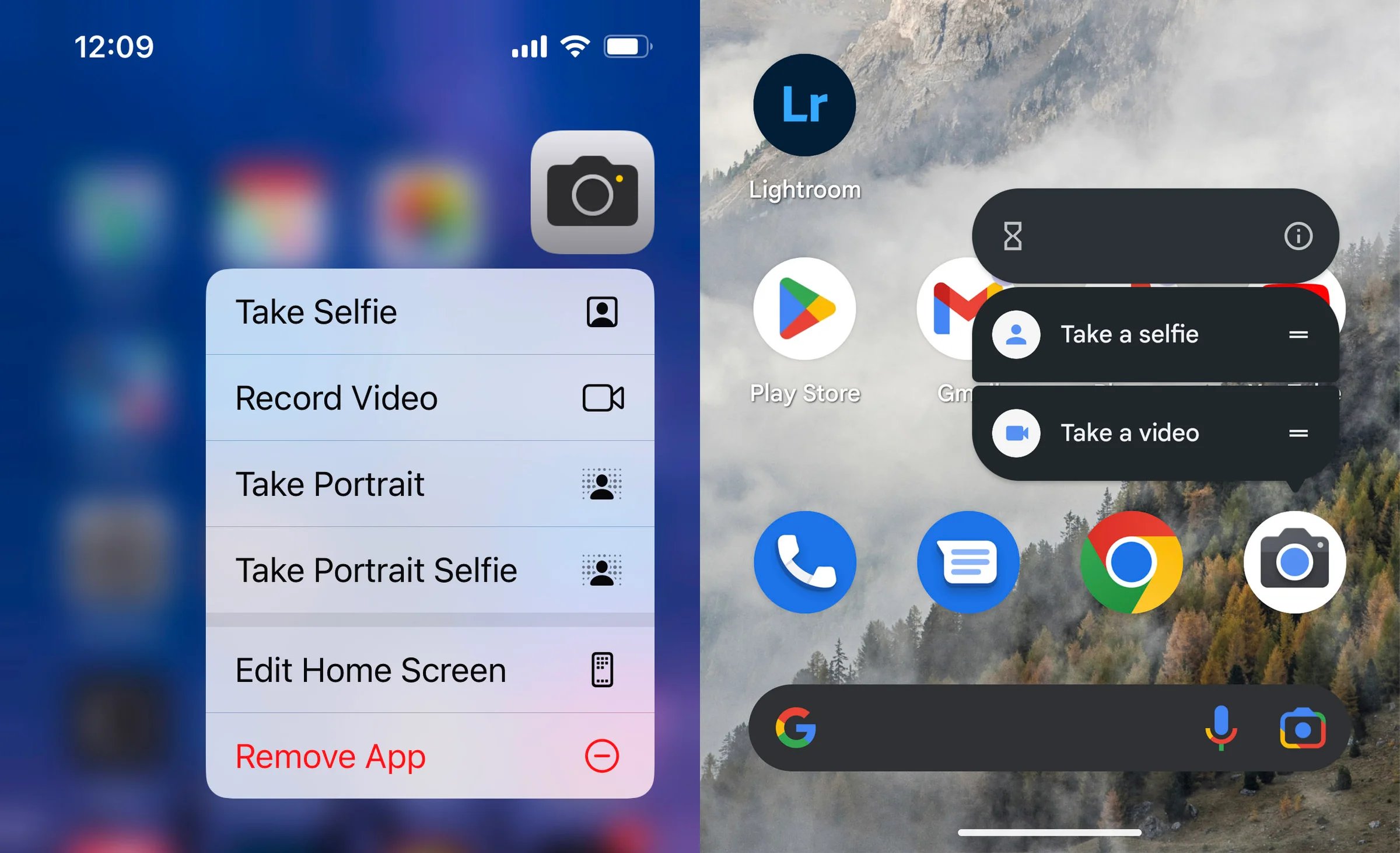
The Camera Control button on supported iPhone models is enabled by default. However, you can customize its sensitivity and functions by navigating to Settings, then selecting Camera, and tapping on the Camera Control menu to adjust how the button responds to your touch.
What is the camera button called?
The terminology varies by manufacturer. Apple refers to their implementation as Camera Control, while Sony typically calls it a dedicated shutter button or shutter key. In general photography terms, it is simply referred to as a physical shutter button.