Quick Facts
- Speed Boost: Disable featured content autoplay in preferences to cut UI lag instantly.
- Hidden HUD: Use the Select + Down shortcut to toggle the System X-Ray diagnostic overlay.
- Remote Reset: Hold Left + Menu + Back for 10 seconds to fix unresponsive controllers.
- Gaming Power: Pair a Bluetooth controller to access the Amazon Luna cloud gaming library.
- Hardware Hack: Use an OTG cable to expand storage for apps beyond the internal 8GB limit.
- One Remote: Enable HDMI CEC to control your TV volume and power using the Firestick remote.
To optimize Firestick performance in 2026, users should regularly clear the application cache and disable video/audio autoplay previews under Featured Content preferences to eliminate interface lag. Additionally, putting the device into Sleep Mode by holding the Home button ensures the hardware remains efficient when not in use.
The Ultimate Firestick Performance Optimization Fix
As someone who spends hours testing gaming peripherals and streaming hardware, I know that nothing kills the mood faster than a sluggish interface. The Fire TV OS is powerful, but it can get bogged down by background processes and heavy UI elements. The most effective Firestick performance optimization starts with the home screen itself. By default, Amazon loads high-resolution video previews and audio as soon as you hover over a title. This consumes system resources and bandwidth that could be better used for your actual streaming.
To take control, navigate to Settings > Preferences > Featured Content. Here, you will find options to turn off both Allow Video Autoplay and Allow Audio Autoplay. Once disabled, you will notice the navigation feels snappier and the device stays cooler. Beyond the UI tweaks, regular maintenance is key. Many users forget that every app they open leaves behind temporary files.
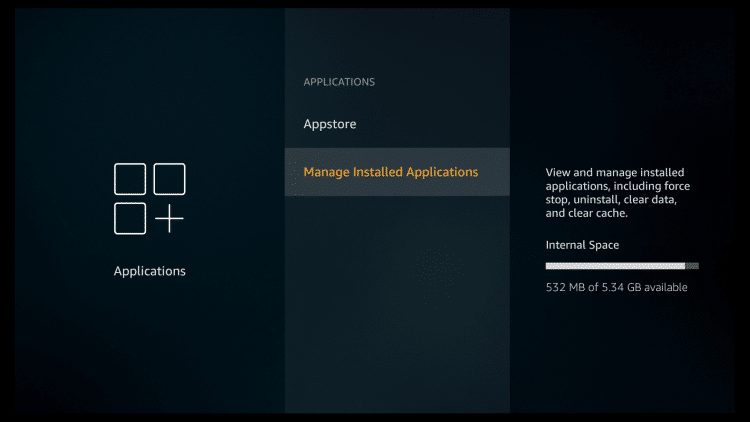
You should head to Settings > Applications > Manage Installed Applications. Sorting by size allows you to see which apps are hogging space. Select an app and choose Clear Cache. Note that you should avoid Clear Data unless you want to reset the app entirely and log in again. This simple routine is one of the most underrated Firestick performance optimization tips 2026 users can implement to keep their hardware running like new. Finally, never just turn off your TV and assume the stick is resting. Hold the Home button on your remote for three seconds and select Sleep. This puts the processor in a low-power state and clears out minor glitches.
Secret Button Combinations & Remote Shortcuts
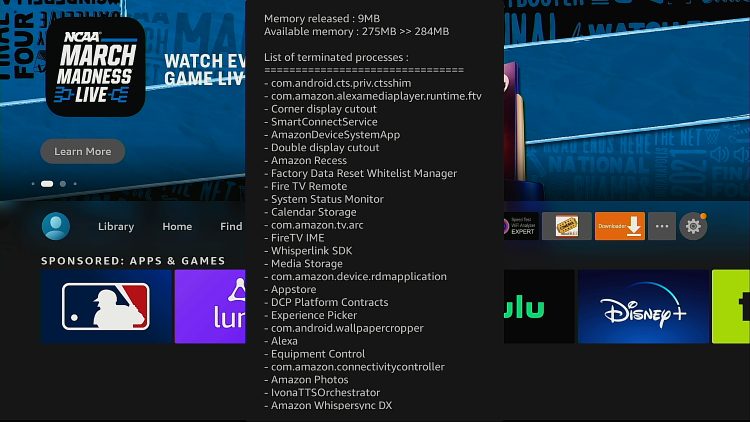
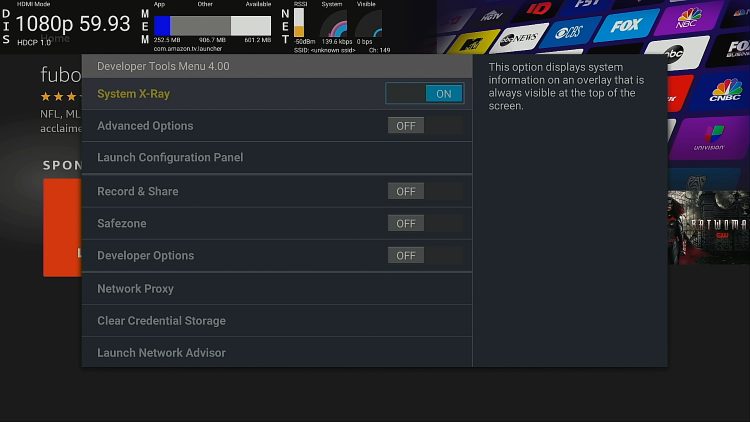
Most users only use the directional pad and the select button, but the Fire TV remote is a Swiss Army knife of hidden Firestick features. If you are a power user who wants to see exactly how your hardware is performing, you need to learn how to enable Firestick System X-Ray mode. This is a developer-grade diagnostic tool that displays real-time metrics for CPU usage, memory allocation, and network speeds right on your screen.
To activate it, hold the Select and Down buttons simultaneously for exactly five seconds, then quickly press the Menu button (the one with three horizontal lines). A transparent overlay will appear at the top of the screen. This is incredibly useful for gamers using Amazon Luna who want to monitor their ping or for streamers trying to diagnose why a 4K movie is buffering. If you find the text too small to read, don't forget that you can use Firestick accessibility features like screen magnifier by going to Settings > Accessibility.
Other essential Firestick tricks involve quick resets. If your device freezes, don't pull the power cord. Instead, hold Select and Play/Pause for five seconds to force a soft reboot. If your remote itself stops responding, a hardware reset usually does the trick: hold Left, Menu, and Back for 10 seconds. This unpairs the remote and clears its internal memory, allowing for a fresh connection. With roughly 36% of connected TV users in the United States relying on Fire TV devices, mastering these shortcuts is the best way to stay ahead of common technical hiccups.
Advanced Customization: Sideloading and Custom Launchers
While the official store provides access to a massive ecosystem—the Amazon Fire TV platform currently offers a library of over 83,000 available apps, including more than 56,000 free downloads—there is a whole world beyond the curated garden. Advanced users often look for Fire TV Stick tips that involve sideloading. Sideloading is the process of installing Android apps (APK files) that aren't officially listed in the Amazon store, such as specialized media players or system utilities.
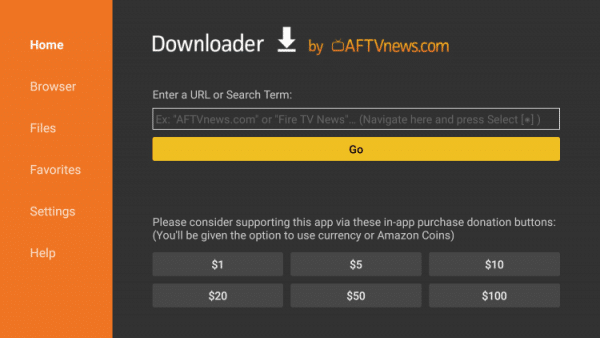
To start, you need to unlock Developer Options. Go to Settings > My Fire TV > About, and click on the name of your device seven times until a message says "You are now a developer." Now, go back to the My Fire TV menu, enter Developer Options, and enable Apps from Unknown Sources. The most efficient way to manage this is by installing an app called Downloader. This tool acts as a browser and file manager, allowing you to enter URLs for APK files directly.
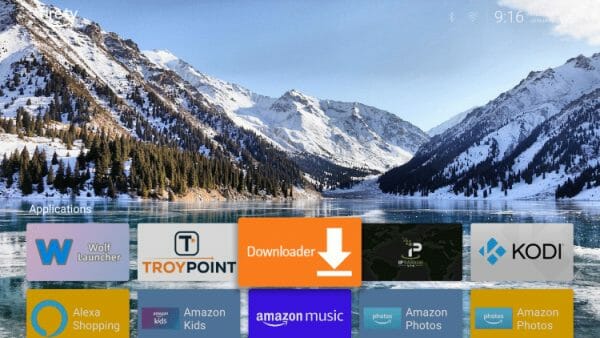
One of the most popular uses for sideloading is installing custom launchers. If you find the standard Fire TV OS interface too cluttered with advertisements and "Sponsored" content, you can use tools like Wolf Launcher to create a minimal, grid-based UI. This not only looks cleaner but can also improve speed by removing the heavy promotional banners that the standard home screen relies on. It’s one of those hidden Firestick features that completely changes your relationship with the hardware.
Hardware Hacks: Bluetooth, OTG, and HDMI CEC
The Firestick isn't just a software portal; it’s a capable piece of hardware that can be expanded with physical peripherals. One of the most common questions I get is how to connect Bluetooth headphones to Firestick for late-night gaming or movie sessions. It is remarkably simple. Navigate to Settings > Controllers & Bluetooth Devices > Other Bluetooth Devices and put your headphones into pairing mode. This is a game-changer for anyone living in a shared space who doesn't want to wake up the house during an intense session of Amazon Luna.
Another pro-level hardware tip involves the use of an OTG (On-The-Go) cable. Since most Firesticks only have 8GB of storage (much of which is taken up by the OS), you can quickly run out of room. An OTG cable allows you to connect a standard USB flash drive to your device. By going into Developer Options and enabling Force app override on external, you can move your largest apps to the flash drive, freeing up the stick’s internal memory for system updates and cache.
Finally, don't overlook HDMI CEC. This protocol allows your Firestick to "talk" to your TV through the HDMI port. In Settings > Display & Sounds > HDMI CEC Device Control, make sure this is turned on. Once enabled, you can usually control your TV’s volume and power button directly from the Firestick remote, effectively retiring your old TV remote. It streamlines your hardware setup and makes the whole entertainment center feel like a single, cohesive unit.
Privacy and Data Management Settings
In an era of digital tracking, your Firestick can be quite chatty with Amazon’s servers. If you value your privacy and want to reduce background data usage, there are several Firestick tricks you should apply. Start by going to Settings > Preferences > Privacy Settings. Here, you should toggle off Device Usage Data, Collect App Usage Data, and Interest-based Ads. Not only does this stop Amazon from tracking your every click, but it also reduces the number of background processes communicating with external servers, which can subtly improve your overall Firestick performance optimization efforts.
While you are in the preferences menu, look at the Data Monitoring section. If you are on a capped internet plan, you can set alerts that warn you when you have consumed a certain amount of GBs. You can also lower the video quality slightly to save bandwidth if you are streaming on a secondary TV where 4K isn't a priority.
Personalization is another area where users miss out. Instead of the default rotating stock photography, you can be using personal Amazon Photos for Firestick screensaver. Upload your favorite gaming captures or family vacation shots to the Amazon Photos app on your phone. Then, on your Firestick, go to Settings > Display & Sounds > Screensaver and change the source to your personal album. It’s a small touch, but it makes the device feel much more like your own piece of tech rather than just a portal for ads.
FAQ
What are the best hidden features of a Firestick?
The most powerful hidden features include the System X-Ray diagnostic tool for monitoring hardware performance, the ability to sideload third-party Android apps via the Downloader app, and the HDMI CEC control which allows your Firestick remote to manage your TV's power and volume. Additionally, the built-in Screen Magnifier and Text Banner accessibility tools are excellent for users who find the standard UI difficult to read.
How can I make my Firestick run faster?
To improve speed, you should regularly clear the application cache for your most-used apps and disable the video and audio autoplay settings under the Featured Content menu. Uninstalling unused apps and using a custom launcher to replace the ad-heavy standard home screen can also significantly reduce interface lag and improve responsiveness.
Can I use a Firestick without a subscription?
Yes, you can use a Firestick without any monthly subscriptions. You will still have access to thousands of free apps like YouTube, Pluto TV, and Tubi. While an Amazon Prime membership offers additional benefits like Prime Video and Amazon Photos storage, it is not a requirement to use the device or download the majority of the 83,000 apps available in the store.
How do I install third-party apps on a Firestick?
Installing third-party apps requires enabling Developer Options. Go to Settings, then My Fire TV, and click the About section seven times. Once enabled, go to Developer Options and turn on Apps from Unknown Sources. You can then use the Downloader app to enter the URL of an APK file to install apps that are not found in the official Amazon Appstore.
What are some useful remote control shortcuts?
Useful shortcuts include holding Select and Play/Pause for five seconds to restart the device, and holding the Home button for three seconds to quickly access the Sleep and Settings menu. For diagnostics, holding Select and Down for five seconds followed by the Menu button opens the System X-Ray overlay. To reset a glitchy remote, hold Left, Menu, and Back for 10 seconds.
Whether you are a casual viewer or a hardcore enthusiast, these Firestick tricks are designed to unlock the true potential of your hardware. As the platform continues to grow, staying updated on these hidden Firestick features ensures you get the best performance and privacy possible. Go ahead and try the System X-Ray mode today—you might be surprised by what's happening under the hood of your favorite streaming stick.