Quick Facts
- OS Architecture: Built on Arch Linux with the powerful KDE Plasma environment.
- Performance: Productivity performance is roughly comparable to an M1 MacBook Air for daily tasks.
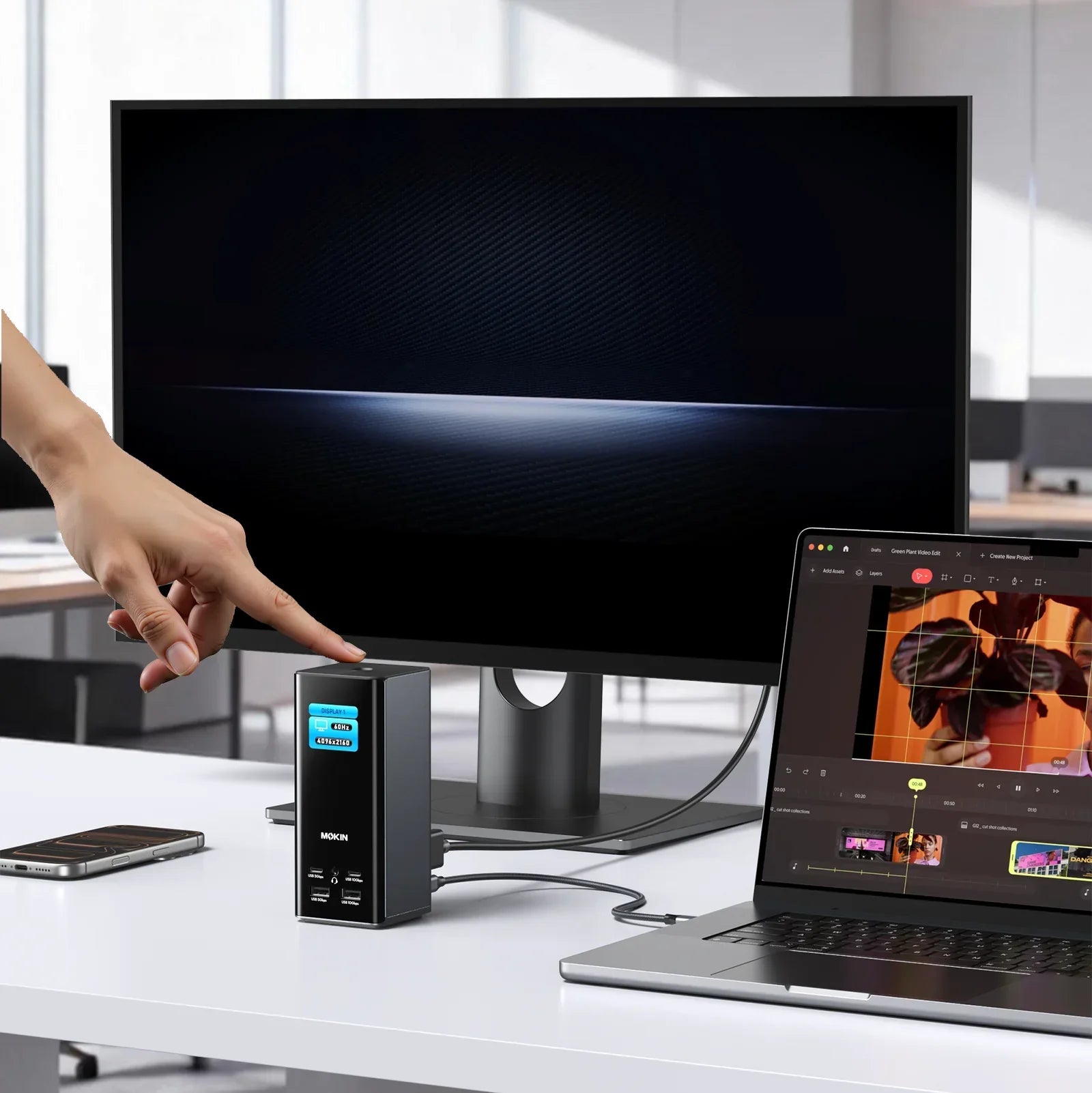
- Power Requirement: Use a 100W PD charger for the best steam deck docking station for desktop productivity setup.
- Key Shortcut: Press Steam + X to toggle the virtual keyboard in Desktop Mode.
- App Format: Uses Flatpaks via the KDE Discover store to ensure apps persist after system updates.
- Networking: Supports 1000Mbps Ethernet connectivity when using high-quality USB-C hub connectivity.
The Steam Deck is more than a console; it is a full Arch Linux PC. Beyond gaming, it serves as a portable workstation, a media hub, and even a server. To use the Steam Deck as a portable workstation, switch to Desktop Mode via the Power menu and connect a USB-C docking station. This allows you to attach external monitors, keyboards, and mice, effectively turning the handheld into a functional Linux-based PC. Users can install essential productivity tools, such as office suites and web browsers, directly through the built-in Discover app store, unlocking a world of Steam Deck non-gaming potential.
1. Portable Workstation: The Ultimate Laptop Replacement
Many users don't realize that the device in their hands is arguably the most versatile Steam Deck as a portable workstation available today. By entering the Steam Deck desktop mode setup, you gain access to a full KDE Plasma environment. This isn't a stripped-down mobile OS; it is a desktop-class experience where you can run Google Chrome, Firefox, and the entire LibreOffice suite.
For those curious about how to access steam deck desktop mode for non-gaming apps, the process is simple: hold the power button and select Switch to Desktop. Once there, the trackpads act as your mouse, but the real magic happens when you connect to a dock. If you are looking for the best steam deck docking station for desktop productivity setup, ensure it supports at least 65W to 100W power delivery to keep the battery topped up while driving an external 4K monitor.
| Feature | Steam Deck (LCD/OLED) | M1 MacBook Air (Entry) |
|---|---|---|
| Operating System | SteamOS (Arch Linux) | macOS |
| Primary Input | Trackpads/Grip Buttons | Trackpad/Keyboard |
| Portability | Handheld (approx. 1.5 lbs) | Laptop (approx. 2.8 lbs) |
| Desktop Mode | KDE Plasma | Native |
| External Display | Up to 4K 120Hz (via DP/HDMI) | Up to 6K 60Hz |
| App Ecosystem | Flatpak / Arch Repos | App Store / DMG |
The Deck is particularly effective for steam deck as a portable workstation for remote work because it fits in a small bag but provides enough horsepower to handle dozens of browser tabs and video conferencing via apps like Zoom or Microsoft Teams.

2. High-Fidelity Media Center and 4K Streaming
When you aren't using the device for productivity, it excels as a Home theater PC. Because the Deck features a high-bandwidth USB-C port, it can output a clean 4K signal to your living room television. This makes it an ideal candidate for a Steam Deck Linux software guide focused on entertainment.
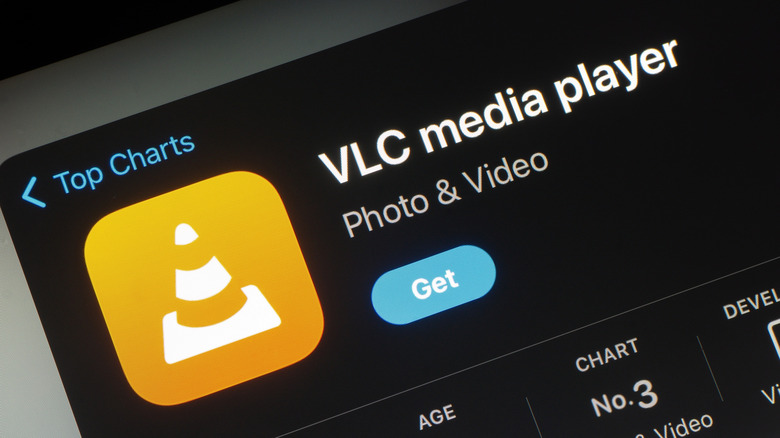
By visiting the KDE Discover store, you can install VLC for local file playback. Whether you have a library of high-bitrate 4K movies on an external drive or a microSD card, the Deck handles them without breaking a sweat. For streaming, you can use specialized Flatpak applications or simply use a web browser to access Netflix, YouTube, and Disney+ in high definition. If you prefer a more curated experience, you can even install Kodi or Plex to turn the Deck into a dedicated media hub.
3. Mobile Music Production and Digital Audio Workstations
One of the more niche but impressive Steam Deck non-gaming uses is professional audio work. The Linux kernel used in SteamOS is remarkably efficient for low-latency audio tasks. Musicians are increasingly using steam deck for music production with linux daws like Bitwig Studio and Reaper.
Because the Deck is a mobile unit, it serves as a fantastic field recorder and arrangement tool. You can connect a USB audio interface directly to the Deck, plug in a MIDI controller, and have a complete Digital Audio Workstation that fits on an airplane tray table. The built-in touch screen and trackpads offer unique ways to manipulate faders and synthesizers that a traditional laptop keyboard cannot match.

4. Lightweight Server Hosting: Minecraft and More
If you have an old Steam Deck lying around after upgrading to the OLED model, don't let it gather dust. It makes for a surprisingly capable, low-power server. Many enthusiasts are setting up a steam deck minecraft server for lan parties or hosting small private worlds for friends.
Using Docker virtualization, you can run various containers on the Deck, such as a Pi-hole for network-wide ad blocking or a Nextcloud instance for private file storage. The key to this setup is managing your power settings; you must configure the Desktop Mode settings to prevent the device from entering sleep mode when the lid (or screen) is closed and ensure it is connected to a reliable power source.
Warning: Immutable Filesystem SteamOS uses an immutable filesystem by default. This means system-level changes are wiped during updates. Always use Flatpaks from the Discover store or Distrobox for permanent software installations to avoid losing your data.
5. Technical Development and System Administration
For the IT professionals and developers, the Steam Deck is a dream for technical Steam Deck non-gaming tasks. Since it runs Arch Linux architecture, you have access to a powerful terminal. You can use the device for remote server management via SSH or even local coding.
If you need a specific environment like Ubuntu or Fedora to run certain tools, you can use Distrobox. This allows you to run any Linux distribution inside a container while still accessing the Deck's hardware. This makes it an essential best linux software for steam deck desktop mode guide tip for developers who want to test code in different environments without dual-booting.
6. Real-World Field Control: The ShaBlya System Case
Perhaps the most extreme example of the Steam Deck's reliability as a computer comes from the front lines of modern conflict. The Ukrainian military has utilized the Steam Deck to remotely operate the ShaBlya automated machine gun turret system from distances of up to 500 meters.
The choice of the Steam Deck for this task highlights its ruggedness and the flexibility of its control interface. The combination of high-quality joysticks, a clear screen, and a robust Linux backend allows it to handle specialized hardware modification tasks that would typically require expensive, proprietary industrial controllers. This proves that for any remote hardware control application, the Deck is a battle-tested option.

7. Digital Library: The Handheld E-Reader and Manga Hub
The 7-inch or 7.4-inch screen on the Steam Deck is perfectly sized for reading. While it might be a bit heavy for long novel-reading sessions, it is an incredible device for visual media. Many users are learning how to use steam deck as an e-reader for manga and comics by using apps like Komikku or YACReader.
The portrait orientation (achieved by rotating the screen in display settings) makes it feel like holding a physical volume of manga. With the Steam Deck non-gaming capabilities, you can sync your library across devices and enjoy high-resolution art that pops on the OLED display.
8. Amateur Photography and On-the-Go Photo Editing
While it won't replace a high-end Mac Studio for 8K video editing, the Steam Deck is surprisingly capable for photo management. You can plug in your camera's SD card via a hub and use GIMP or Darktable for professional-grade photo editing.
The color accuracy on the Steam Deck OLED is particularly impressive, making it a reliable tool for checking focus and applying basic color corrections while in the field. It’s a great way to utilize the KDE Plasma environment for creative tasks without needing to carry a bulky 15-inch laptop.
9. Learning Linux and Computer Science Basics
If you have ever wanted to learn how Linux works, the Steam Deck is the perfect "sandbox." Because it is a consumer device, it is hard to "break" the OS beyond repair—you can always re-image it with a USB drive. It provides a friendly introduction to terminal commands and the file structure of a Linux system.
Schools and hobbyists can use the Deck to teach Python programming or web development. By simply installing Visual Studio Code via the Discover store, the Deck becomes a complete development environment.
10. Secondary Monitor or Peripheral Control
Finally, the Steam Deck can act as a secondary touch-input device for your main PC. Using software like Weylus or Deskreen, you can turn the Deck's screen into a secondary monitor over Wi-Fi. This is particularly useful for streamers who want to keep their chat or OBS controls on a separate, touch-enabled screen without buying a dedicated Stream Deck (the button peripheral).
Essential Shortcuts and Productivity Tips
Navigating a desktop environment on a handheld can be tricky. To master the Steam Deck non-gaming experience, you should memorize these essential steam deck desktop mode keyboard shortcuts and gestures:
- Steam + X: Opens the virtual keyboard.
- Steam + Right Trackpad: Moves the mouse cursor.
- Steam + R2: Left mouse click.
- Steam + L2: Right mouse click.
- Three-finger swipe up: Opens the task switcher (KDE Plasma).
Pro Tip: Physical Keyboard is King While the virtual keyboard works for quick searches, if you plan on doing any real work, a Bluetooth keyboard or a USB-C hub connectivity setup is mandatory. The Steam + X shortcut is a lifesaver, but it won't help you write a 2,000-word report.
FAQ
Can you use the Steam Deck as a regular computer?
Yes, the Steam Deck is a fully functional PC. By switching to Desktop Mode, you have access to a traditional desktop interface where you can install any Linux-compatible software, manage files, and connect peripherals like monitors and printers.
Is the Steam Deck good for web browsing and office work?
Absolutely. It handles modern browsers like Chrome and Firefox with ease. For office work, you can use the LibreOffice suite or web-based tools like Google Docs. The performance is smooth, especially when using a mouse and keyboard.
Can the Steam Deck replace a laptop for productivity?
For many people, yes. If your work involves web-based tools, writing, or light coding, the Steam Deck paired with a portable monitor and keyboard can easily replace a traditional laptop. However, for heavy video editing or specialized Windows-only software, a dedicated laptop might still be necessary.
How do I access Desktop Mode on the Steam Deck?
Hold down the Power button on the top of the device until a menu appears. Select Switch to Desktop. The device will reboot into the KDE Plasma desktop environment. To return to the gaming interface, double-click the Return to Game Mode icon on the desktop.
Is the Steam Deck powerful enough for video editing?
It can handle 1080p video editing in apps like Kdenlive or Shotcut quite well. While 4K editing is possible, you may experience slower render times compared to a high-end workstation. It is perfectly adequate for social media content or short projects.
Can I watch Netflix and YouTube on a Steam Deck?
Yes. You can watch them directly through a web browser in Desktop Mode. You can also add these websites as non-steam games in your library so you can launch them directly from the gaming interface for a more console-like experience.
The Steam Deck has proven itself to be one of the most versatile pieces of hardware of the decade. Whether you are using it for steam deck non-gaming productivity or as a specialized tool for music and server hosting, the power of Linux in a handheld form factor is a game-changer for 2026 and beyond.