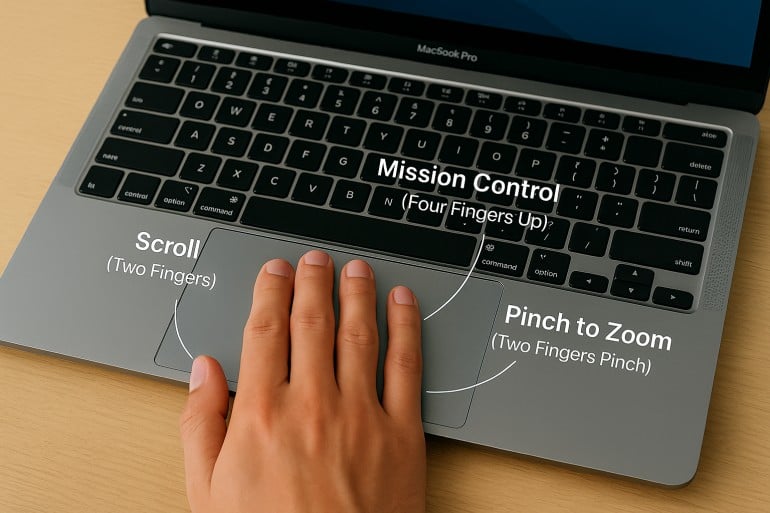
Quick Facts
- Taptic Engine: Modern Mac trackpads use haptic feedback to simulate clicks rather than mechanical parts.
- Efficiency Metric: Mastering MacBook trackpad gestures can save power users up to 2 seconds per minute of active work.
- Hidden Toggle: The highly useful three-finger drag feature is tucked away in Accessibility settings, not the main Trackpad menu.
- Force Click: This pressure-sensitive feature allows for instant file previews and dictionary lookups without clicking through menus.
- Navigation Speed: Four-finger swipes provide the fastest way to manage multiple windows and Desktop Spaces.
- Hardware Requirement: Force Touch features are available on MacBook Pro models from 2015 onwards and all MacBook Air Retina models.
Productivity on a Mac is significantly enhanced by mastering MacBook trackpad gestures. By reducing reliance on menus, features like Mission Control and Force Click streamline your workflow. In this guide, we explore the best macbook gestures for productivity to help you navigate macOS Sequoia with ease. These multi-touch features reduce reliance on traditional menus and significantly speed up window management and file interaction.
1. Force Click: The Power of Pressure Sensitivity
As someone who has disassembled countless laptops, I find the technology behind the modern MacBook trackpad fascinating. Since 2015, Apple has moved away from traditional mechanical "diving board" hinges. Instead, your trackpad utilizes a Taptic Engine. This component uses electromagnets to create a localized vibration that feels exactly like a click, even though the glass doesn't move. Because there is no mechanical movement, Apple can detect different levels of pressure, leading to the development of force touch gestures mac users often overlook.
The most powerful of these is the Force Click. By pressing deeper than a standard click, you trigger a second layer of functionality. This is incredibly useful in Finder; a Force Click on a file name allows you to rename it instantly. If you are browsing in Safari, a Force Click on a link generates a pop-up preview of the destination page without requiring you to open a new tab.
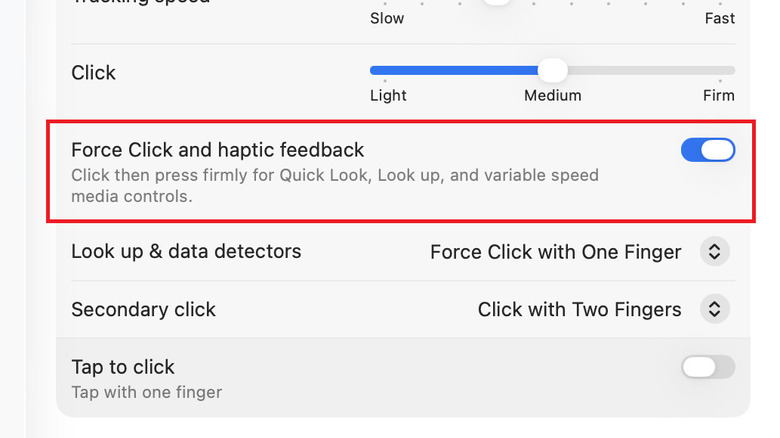
Furthermore, using force click on mac to preview files and look up words is a game-changer for writers and researchers. If you come across an unfamiliar term in a document or on a webpage, a firm press on the word brings up a dictionary and thesaurus entry immediately. This pressure sensitivity adds a third dimension to your input, allowing for more fluid navigation through dense information.
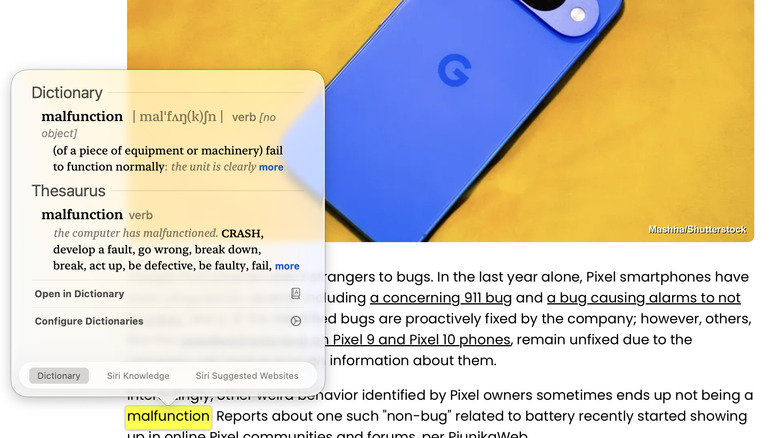
2. Mission Control and App Exposé: Mastery of Window Management
Managing a dozen open windows on a single 13-inch or 14-inch screen can be a nightmare. This is where the best mac trackpad gestures for mission control and app expose come into play. By swiping up with three or four fingers (depending on your preference in System Settings), you trigger Mission Control. This provides a bird's-eye view of every open application, spread out so nothing is hidden.
With the release of macOS Sequoia, window management has become even more sophisticated, but the trackpad remains the primary steering wheel. While swiping up shows everything, swiping down with three or four fingers triggers App Exposé. This focuses strictly on the application you are currently using, showing every open window within that specific app. If you are a coder with four VS Code windows open or a researcher with multiple PDFs in Preview, this is the fastest way to find the exact document you need.
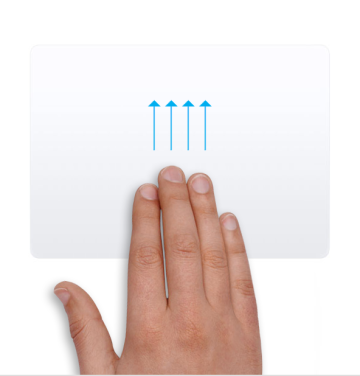
These gestures transform the Mac experience from a series of cluttered windows into organized Desktop Spaces. By integrating these movements into your muscle memory, you stop hunting for icons in the Dock and start moving through your digital workspace with professional-grade speed.
3. Three-Finger Drag: The Hidden Ergonomic Essential
If I could recommend only one change to a new Mac user's macos trackpad settings, it would be enabling the three-finger drag. Standard dragging requires you to press down and hold while moving your finger. Over several hours of work, this physical pressure can lead to finger fatigue and strain. Three-finger drag allows you to move windows and select text simply by placing three fingers on the glass and sliding—no clicking required.
Curiously, Apple hides this feature. You won't find it in the standard Trackpad menu. To enable it, navigate to System Settings and then click Accessibility. From there, select Pointer Control and then Trackpad Options. Here, you can toggle the dragging style to three-finger drag.
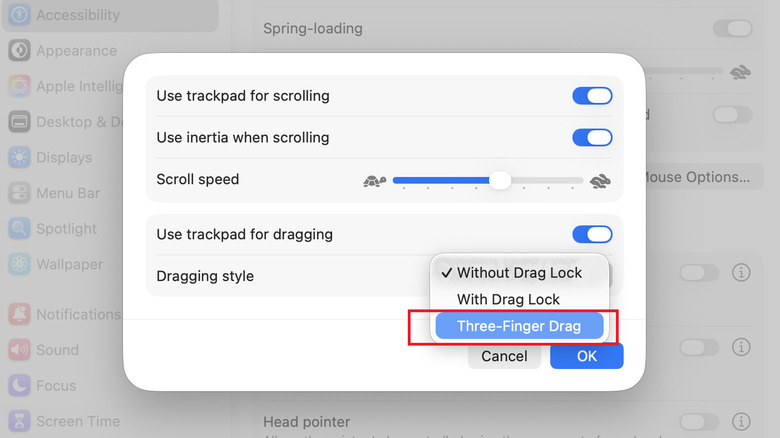
This is one of those macbook trackpad three finger drag accessibility settings that once discovered, becomes indispensable. It allows for effortless window management and reduces the mechanical load on your hand. For power users who spend eight to ten hours a day on their laptops, this ergonomic shift is vital for long-term comfort.
4. Seamless Navigation: Switching Full-Screen Apps
The modern workflow often involves moving between a browser, a communication tool like Slack, and a focused work environment. Many users waste time clicking the Dock or using Command-Tab. However, a horizontal three or four-finger swipe is the ultimate tool for fluid navigation between full-screen applications.
When you take an app full-screen, macOS creates a temporary Desktop Space for it. By swiping left or right, you can glide between these spaces instantly. This is particularly useful when you need to reference a spreadsheet while writing a report. You can have the spreadsheet on one "side" and your word processor on the other, switching between them with a flick of the wrist.
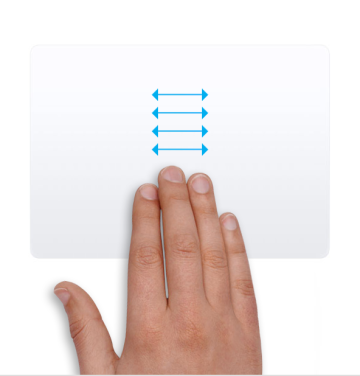
Mastering how to switch between full screen apps with mac gestures keeps you in a "flow" state. It eliminates the jarring transition of searching for a hidden window and keeps your eyes focused on the content rather than the UI. It is the digital equivalent of turning your head to look at a second monitor.
5. Precise Interaction: Smart Zoom and Pinch-to-Rotate
For content creators, photographers, and web developers, the ability to manipulate visuals with multi-touch technology is a major advantage. One of the most underrated macbook gestures for productivity is the Smart Zoom. By double-tapping with two fingers (not clicking, just tapping), macOS will intelligently zoom into the specific column of text or image you are hovering over.
This is a massive time-saver when reading dense technical documentation or verifying the alignment of elements on a webpage. To return to the original view, simply double-tap with two fingers again. This is much faster than the manual pinch-to-zoom, which can often be too sensitive or imprecise.
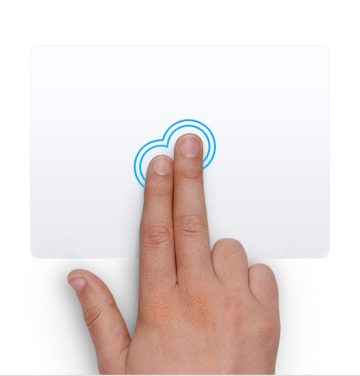
Combined with the pinch-to-rotate gesture in apps like Photos or Preview, the trackpad becomes an extension of your hands. Instead of looking for a "rotate" button in a menu, you simply use two fingers to turn the image. This intuitive interaction makes complex tasks feel more organic and less like a series of technical hurdles.
6. System Shortcuts: Notification Center and Launchpad
Keeping track of your schedule and incoming messages shouldn't require you to stop what you are doing. By swiping with two fingers from the right-hand edge of the trackpad toward the center, you can pull out the Notification Center. This gesture works even if you are in a full-screen app, allowing you to check widgets or clear notifications instantly.
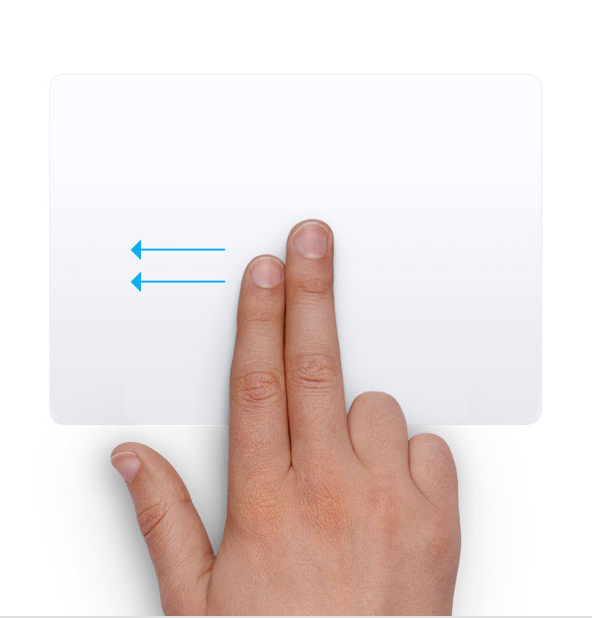
Another powerful system shortcut is the pinch with your thumb and three fingers to open the Launchpad. While many professionals use Spotlight (Command-Space) to open apps, Launchpad remains useful for visually browsing your installed software. Customizing macbook trackpad settings for faster navigation often involves finding the right balance between these system-level shortcuts and third-party tools. These gestures ensure that every part of the OS is just a swipe away.
7. Power User Tips: Customizing for 2026 Workflows
As we look toward advanced macbook trackpad features for power users 2026, the trend is moving toward even deeper customization. While the native macOS settings are robust, you can push the hardware further using third-party utilities like BetterTouchTool or Swish. These tools allow you to create custom gestures—such as a four-finger tap to mute your microphone or a circular swipe to adjust volume.
Within the native System Settings, you can also adjust the click firmness. If you find the Taptic Engine's feedback too loud or too subtle, you can choose between Light, Medium, and Firm settings. For a truly silent experience, you can even turn off "Silent clicking" to change the haptic profile.
I always recommend that users spend five minutes every few months reviewing their Trackpad settings. As your workflow evolves, a gesture you once found annoying might become your most-used tool. The key to productivity isn't just knowing these features exist; it's integrating them so thoroughly that you no longer have to think about them.
FAQ
How do I enable trackpad gestures on a MacBook?
To enable gestures, open System Settings and click on Trackpad in the sidebar. You will see three tabs: Point & Click, Scroll & Zoom, and More Gestures. From here, you can use the checkboxes to toggle specific movements like Mission Control, App Exposé, and Smart Zoom on or off.
What does Force Click do on a MacBook trackpad?
Force Click uses the Taptic Engine to detect a deeper press. It allows you to perform secondary actions such as previewing a website link in Safari, looking up a word's definition, or using Pressure-Sensitive Drawing in apps like Preview or Photoshop.
How do I turn on three-finger drag on MacBook?
This feature is located in the Accessibility menu. Go to System Settings, select Accessibility, then Pointer Control. Click on Trackpad Options and toggle the Dragging Style to three-finger drag. This allows you to move windows and select text without pressing down on the trackpad.
Can I use gestures with an external Magic Trackpad?
Yes, the Magic Trackpad supports almost all the same gestures as the built-in MacBook trackpad, including Force Click and multi-touch swipes. You can configure these in the same System Settings menu whenever the device is connected via Bluetooth or USB-C.
How to switch between full-screen apps on Mac trackpad?
You can switch between full-screen apps and Desktop Spaces by swiping left or right with three or four fingers. You can choose whether to use three or four fingers for this gesture in the More Gestures tab of the Trackpad settings pane.
Mastering these MacBook trackpad gestures is one of the single most effective ways to upgrade your computing experience. By utilizing the advanced haptic feedback and multi-touch technology available at your fingertips, you can move from a basic user to a power user, saving time and reducing physical strain every single day. Take a moment today to dive into your settings and turn on that three-finger drag—your wrists will thank you.