Quick Facts
- Display: 3.5-inch 550-nit touchscreen
- Connectivity: Wired USB-C for 30ms ultra-low latency
- Power: Draws 6% battery per 10 mins of 4K filming
- Compatibility: iPhone 15+ or Android with USB-C video-out
- Special Feature: Folding cover prevents accidental touches on the main phone screen
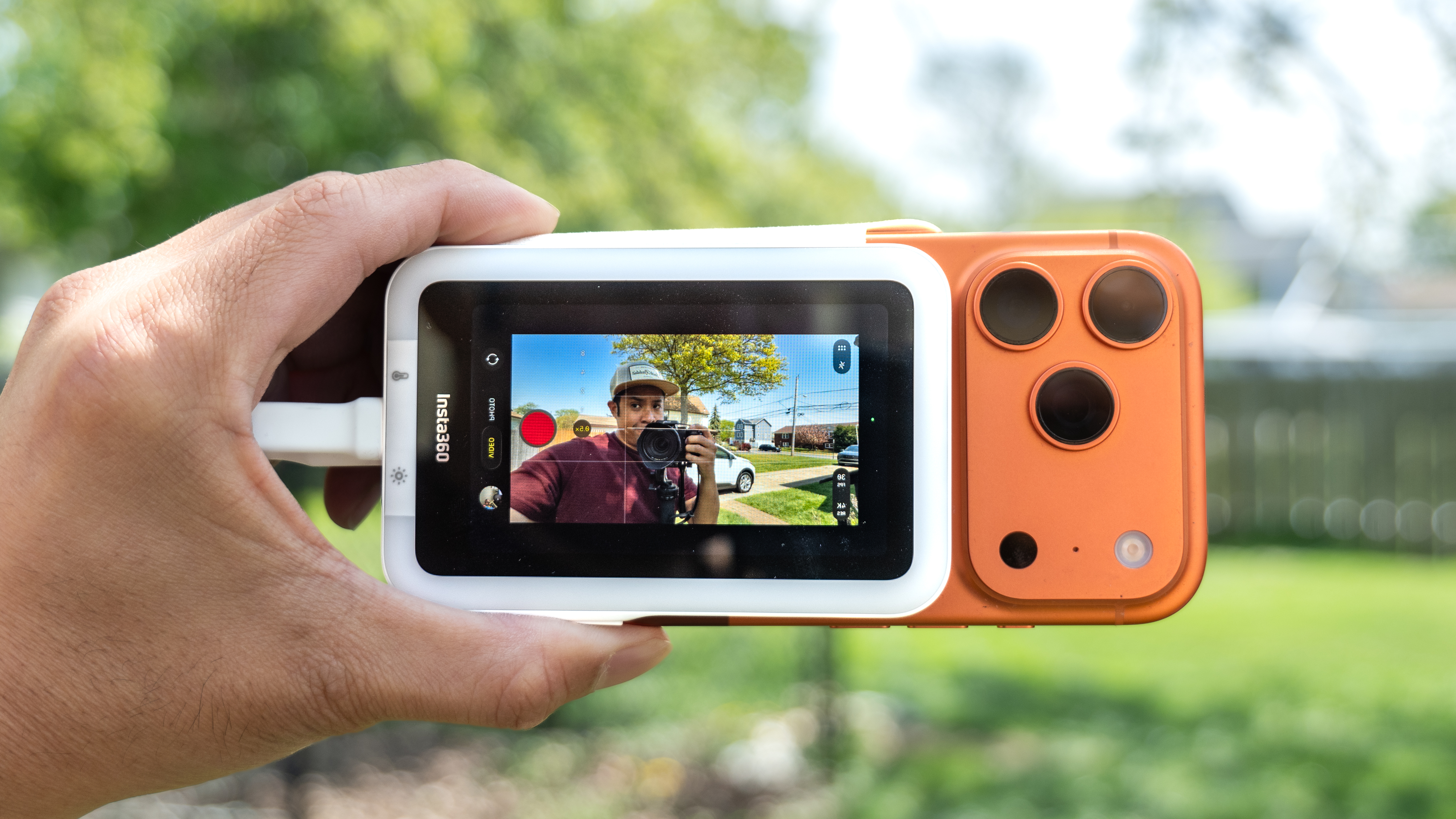
The Insta360 Snap Screen is a magnetic plug-and-play smartphone vlog monitor that allows content creators to use high-quality rear cameras for selfies by mirroring the display via a low-latency USB-C interface connection. By moving your preview to the back of the device, you eliminate the guesswork of framing while significantly upgrading your video resolution.
Why Your Smartphone Needs a Rear-Camera Monitor
As an editor who spends most of my day testing the latest mobile sensors, I can tell you that the "selfie camera" is almost always the weakest link in a flagship phone. Manufacturers pour their research and development budgets into the rear sensors—the ones with the largest pixels, the best optical stabilization, and the most advanced lenses.
When you flip your phone around to record a TikTok or an Instagram Reel using the front camera, you are essentially choosing to downgrade your content. For example, the Insta360 Snap is designed to utilize flagship smartphone rear cameras, which can offer three to five times the resolution of their front-facing counterparts. On the latest high-end hardware, this means moving from an 18MP front sensor to a 48MP main camera, providing a level of crispness and dynamic range that the front camera simply cannot match.
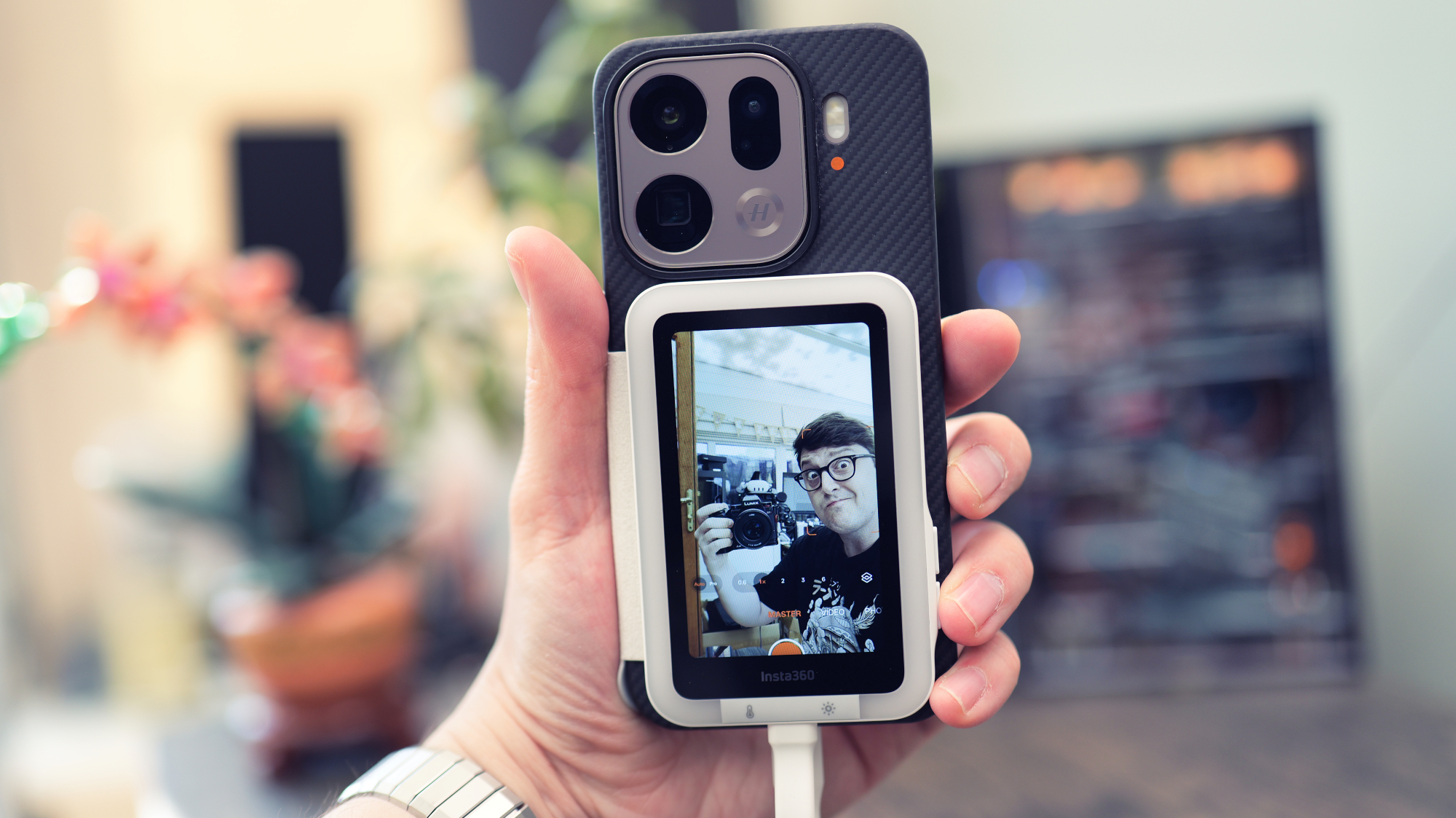
The problem, of course, has always been framing. Filming "blind" often leads to wasted takes where your head is cut off or the background is poorly composed. While some creators have tried to use wireless apps or Apple Watch mirroring to solve this, the lag makes it nearly impossible to time your movements. This is where the Insta360 Snap Screen changes the game for mobile cinematography. By utilizing a wired connection, it provides a real-time preview with approximately 30ms of latency, which is virtually undetectable to the human eye. This zero-latency experience makes it the best portable vlogging monitor for rear camera smartphone filming available today.
Step-by-Step Setup: Connecting iPhone and Android
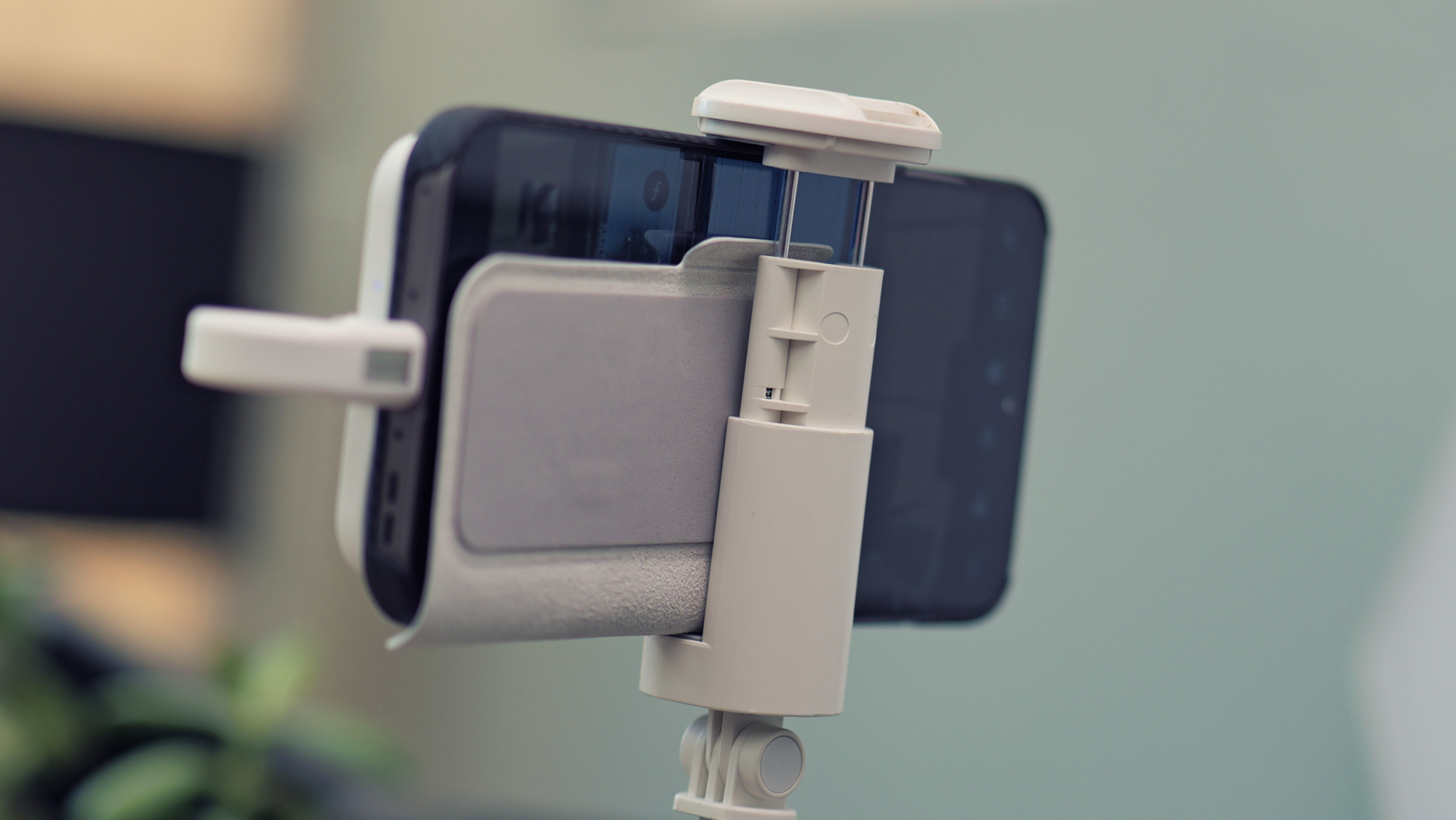
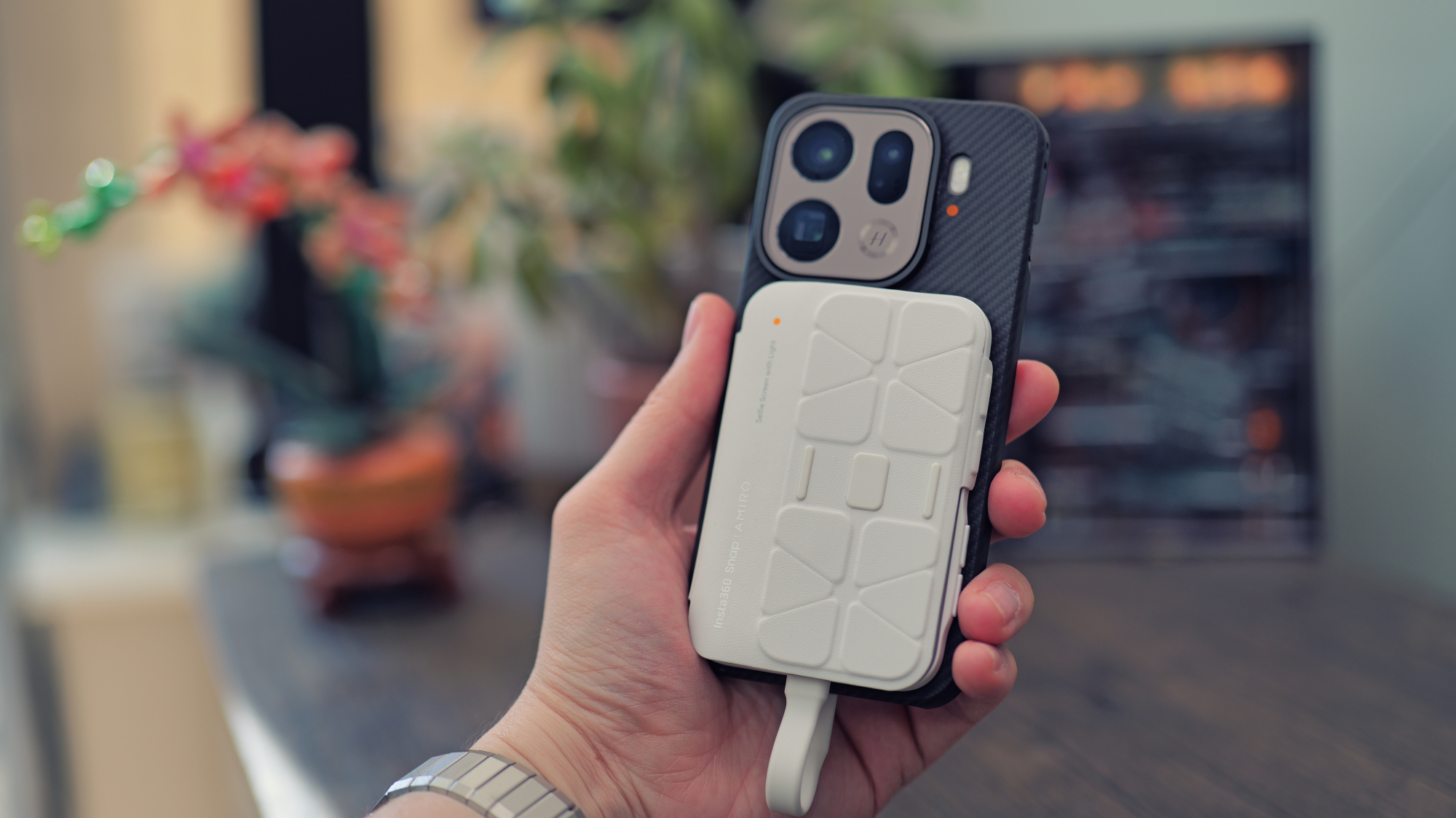
The design philosophy behind the Insta360 Snap Screen focuses on speed. When you are out in the field, you do not want to fumble with brackets or screws. The device attaches magnetically to the back of your phone, leveraging the MagSafe selfie screen standard for iPhone 12 and newer models.
For iPhone Users
If you have an iPhone 15 or later, the setup is incredibly straightforward. Since these models have transitioned to the universal USB-C standard, you simply snap the monitor onto the back of your phone and plug in the integrated cable.
- Align the Insta360 Snap Screen with the MagSafe magnets on the back of your iPhone.
- Connect the built-in USB-C cable to your phone’s charging port.
- Open your camera app of choice (native, Blackmagic Cam, or Instagram).
- The monitor will immediately begin mirroring your display.
For Android Users
Android compatibility is broad, provided your device supports DisplayPort Alt Mode through its USB-C port. Because not all Android phones have built-in magnets, the package includes a magnetic ring setup that you can adhere to the back of your phone or your case.
- Apply the included magnetic ring to your phone to ensure a secure magnetic mount.
- Snap the monitor onto the ring.
- Connect the USB-C cable to your device.
- Ensure your phone is set to "Mirror Display" if a prompt appears.
Pro Tip: If you are using a thicker case on your Android device, I recommend sticking the magnetic ring directly to the case rather than the phone to ensure the strongest possible hold during active movement.
The iOS Secret: Enabling Touchscreen via Zoom Settings
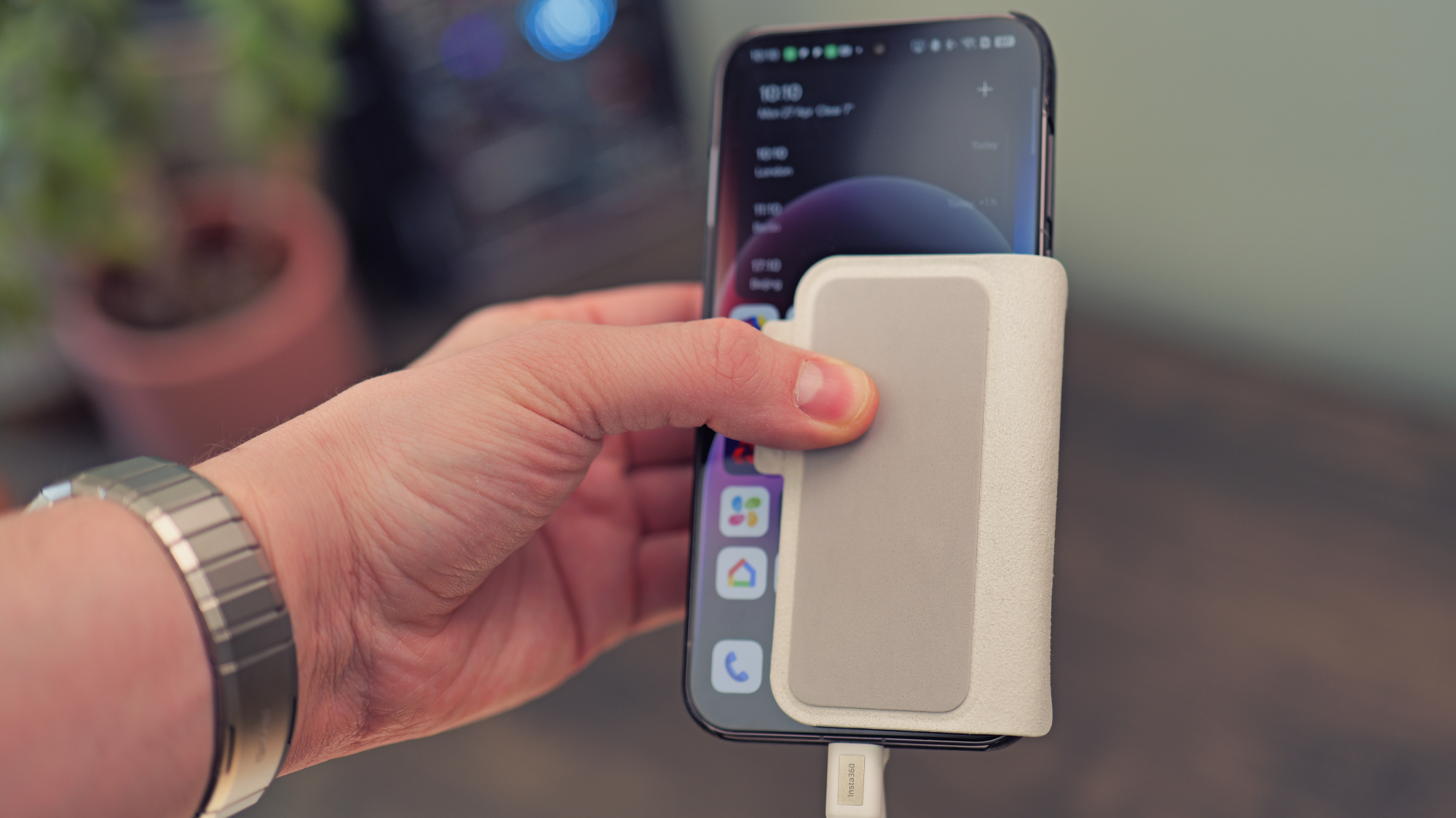
One of the most common points of confusion I see with the Insta360 Snap Screen involves the touchscreen functionality on Apple devices. While Android users get immediate touchscreen gestures support upon plugging in, iOS requires a specific accessibility tweak to allow the external monitor to send "touch" commands back to the iPhone.
Without this setting, you can see your image on the external monitor, but you cannot tap the screen to change focus points or hit the shutter button. To fix this, you must navigate to your phone's settings and enable the iOS Zoom feature.
How to enable touch control for iPhone:
- Go to Settings > Accessibility.
- Tap on Zoom and toggle it to On.
- Ensure the Zoom Region is set to "Full Screen Zoom" and the Zoom Filter is set to "None."
Once this is active, the Snap Screen effectively becomes an extension of your phone's interface. You can tap the 3.5-inch screen to adjust exposure, switch between photo and video modes, or zoom in on your subject. This step is crucial for unlocking the full potential of the display mirroring capabilities, allowing you to control your entire shoot without ever needing to look at the front of your phone.
Power and Performance: What to Expect During 4K Shoots
Because the Insta360 Snap Screen is designed to be as light and thin as possible, it does not contain an internal battery. Instead, it relies on a consistent power draw from your smartphone via the USB-C cable. For most content creators, this is a fair trade-off for the reduced weight, but it does mean you need to keep an eye on your phone's battery levels during long filming sessions.
In my testing, continuous 4K video recording with the monitor active typically results in a battery drain of approximately 15% to 20% during a standard hour of use. More specifically, you can expect to lose about six percent of your phone's total charge for every ten minutes of high-resolution filming.
Another performance factor to consider is outdoor visibility. A monitor is only useful if you can actually see it under the sun. The Snap Screen boasts a 550 nits brightness level, which is sufficient for most daylight conditions. While it may not rival the peak brightness of a flagship phone screen (which can hit 2000+ nits), the 550 nits brightness is enough to clearly see your framing and exposure even in bright environments.
Additionally, the device features a clever protective cover. When you are done filming, this cover folds over the monitor to protect it from scratches. During filming, however, you can fold it over your phone's primary display. This serves a dual purpose: it protects the phone screen and prevents accidental touches from your palm while you are holding the device to film yourself.
Standard vs. Light Ring Model: Which Should You Choose?
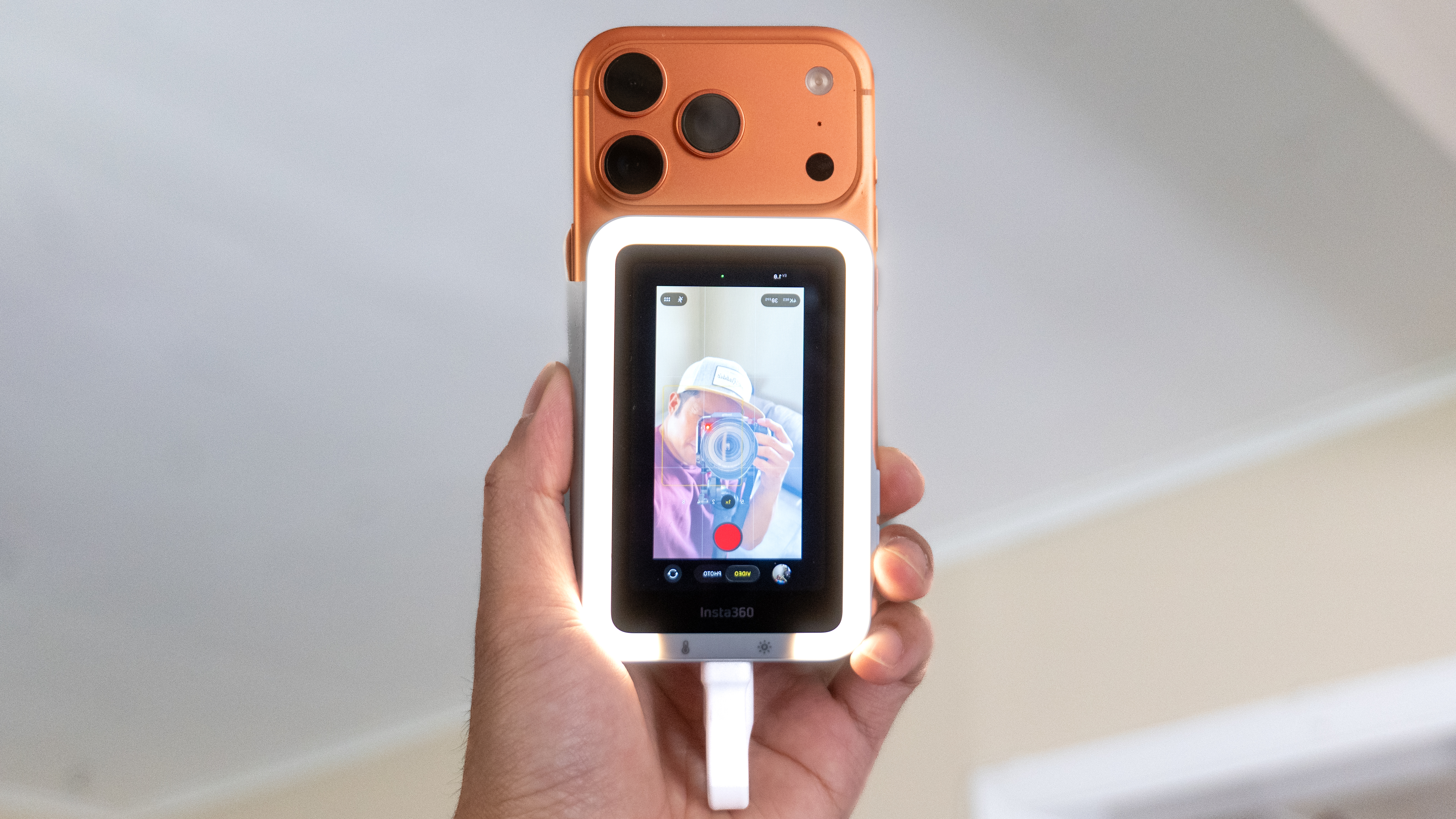
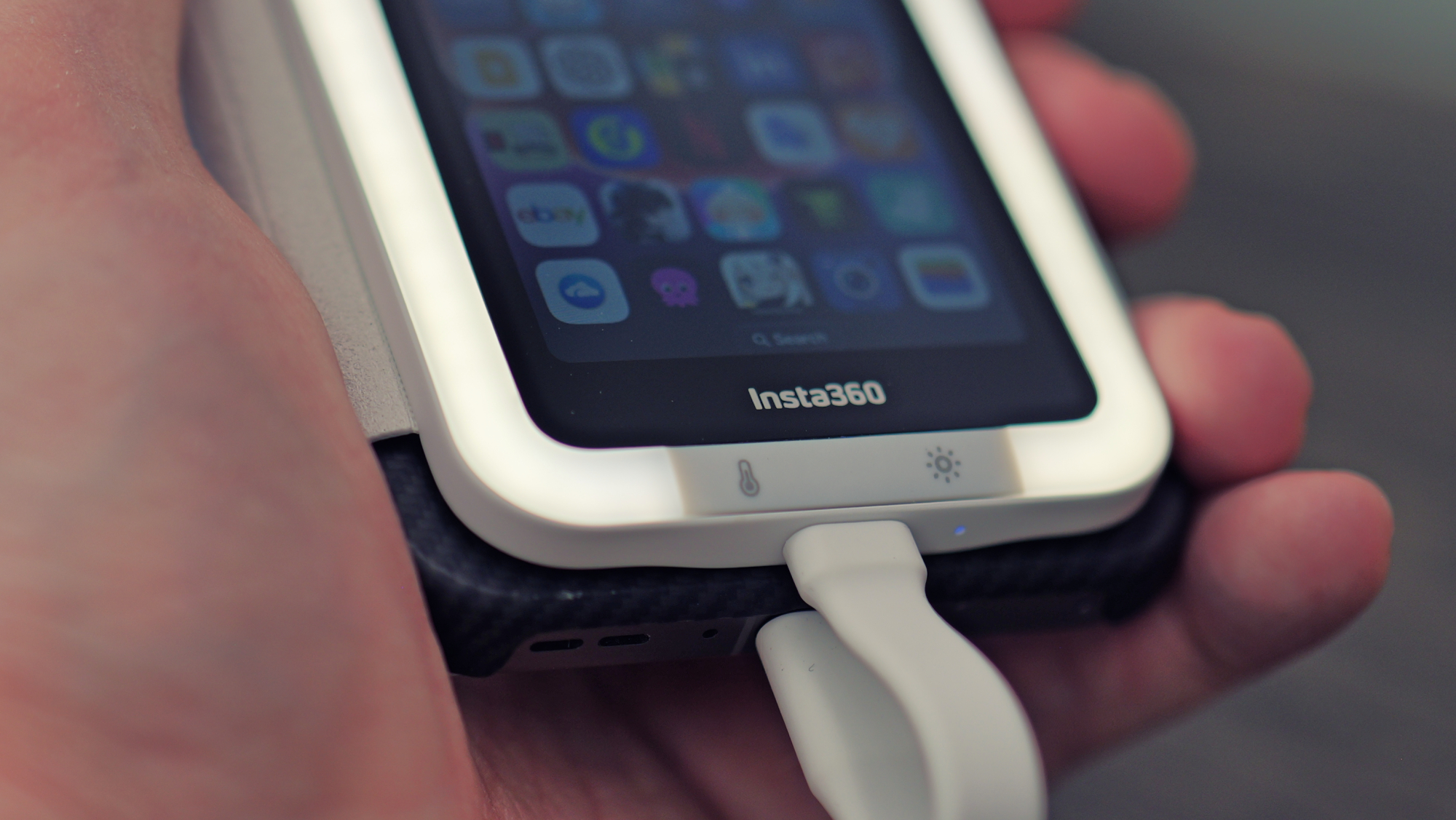
Insta360 offers two distinct versions of the Snap Screen. The standard model is the choice for purists who want the lightest possible setup, while the light-equipped model adds a built-in LED ring light around the perimeter of the screen.
| Feature | Standard Model | Light Ring Model |
|---|---|---|
| Weight | 75.5g | 88.6g |
| Price (Approx.) | $79.99 | $89.99 |
| Lighting | None | LED Ring Light |
| Adjustability | N/A | 3 Color Temps / 5 Brightness Levels |
| Best For | Daytime outdoor vlogging | Indoor, low-light, and beauty content |
The Light Ring model is particularly impressive because it includes dedicated hardware buttons on the side of the unit. These allow you to cycle through different color temperature settings—Cool, Natural, and Warm—without needing to dive into any software menus. With five different brightness levels, it provides enough fill light to erase harsh shadows on your face, making it an excellent external viewfinder for creators who do a lot of "talking head" style content in less-than-ideal lighting.
Choosing between them comes down to your primary shooting environment. If you mostly shoot outdoors in natural light, the weight savings of the standard model might be preferable. However, for a $10 difference, the added versatility of the LED ring light is hard to pass up for most professional workflows.
FAQ
What is an Insta360 Snap Screen?
It is a portable, magnetic touchscreen monitor that connects to your smartphone via USB-C to mirror the rear camera's view, allowing you to use high-quality sensors for selfies and vlogging.
How does the Insta360 flip screen work?
The device uses a wired USB-C connection to capture the video output from your phone and display it on its own 3.5-inch screen. It attaches via MagSafe or a magnetic ring for quick assembly.
Which Insta360 models have a flip-up touchscreen?
The Snap Screen itself is an accessory for smartphones rather than a standalone camera. However, it provides a similar "flip-up" experience found on cameras like the Insta360 Ace Pro for users who prefer filming with their phones.
What are the benefits of a flip screen for vlogging?
The primary benefit is being able to use the superior rear cameras of your phone while still being able to see your framing, focus, and settings in real-time, resulting in much higher quality content.
How do you adjust the brightness on an Insta360 screen?
On the model with the built-in light, you use dedicated physical buttons on the side of the device to toggle between five different brightness levels and three color temperature modes.
Conclusion & CTA
For serious content creators, the Insta360 Snap Screen is more than just a gadget; it is a fundamental upgrade to your production quality. By bridging the gap between the power of rear-facing cameras and the convenience of a front-facing preview, it allows you to produce professional-grade video with the device you already carry in your pocket. Whether you choose the standard version for its portability or the Light Ring model for its low-light capabilities, you are moving toward a workflow that prioritizes resolution and precision.