Quick Facts
- 2026 Benchmark: The US median download speed is projected to reach 308.11 Mbps by 2026; currently, any connection below 100 Mbps fails the FCC broadband standard.
- Placement Impact: Strategic router positioning can reduce dead zones by an average of 40% through better signal mapping.
- Hardware Cost: High-performance Wi-Fi 7 hardware, such as the TP-Link Archer BE230, is now available for approximately $100.
- Signal Pattern: Router antennas broadcast in a doughnut-shaped field, meaning they are strongest perpendicular to the antenna.
- Frequency Choice: The 2.4 GHz band is essential for smart home devices and providing signal strength through walls.
- Safety Standard: Wi-Fi utilizes non-ionizing radiation with exposure levels 50x lower than WHO health thresholds.
To increase wi-fi speed, place your router in a central location, manage network congestion by balancing devices across frequency bands, and ensure your router hardware supports your ISP's bandwidth. Most slow connections are caused by physical interference or outdated standards rather than just distance from the source.

We have all been there: you are in the middle of a crucial Zoom call or an intense gaming session when the spinning wheel of death appears. Your first instinct might be to blame your Internet Service Provider (ISP) or assume you need a $500 router. However, as someone who spends all day benchmarking computing hardware, I can tell you that the bottleneck is often sitting right on your desk or hidden in a cabinet.
In a recent survey of 3,780 respondents, it was found that 76% of households report experiencing weak or unreliable Wi-Fi in specific rooms, with home offices and bedrooms being the primary victims. Improving your connection does not always require a massive investment. Often, it just requires debunking the myths that dictate how we set up our home networks.
Myth 1: Pointing Antennas at Devices Improves Signal
It is a common sight: a router with four antennas, all angled precisely toward the sofa, the desk, and the kitchen. It looks like you are aiming a spotlight at your devices. In reality, Wi-Fi antennas are omnidirectional, meaning they broadcast in a doughnut-shaped pattern. The signal is strongest coming out of the sides of the antenna, not the tip.
Research into signal propagation demonstrates that strategic router placement can reduce Wi-Fi dead zones by an average of 40%. If you have a single-story home, the best antenna position for wi-fi router is perfectly vertical. This pushes the doughnut signal outward across the floor. If you live in a multi-story home, tilting one antenna horizontally can help the signal travel up and down between floors.
| Placement Scenario | Recommended Antenna Orientation |
|---|---|
| Single-Story Apartment | All antennas vertical (straight up) |
| Two-Story House | One vertical, one horizontal |
| Basement/Office Setup | Vertical with router placed on a high shelf |
While you cannot manually aim the signal like a flashlight, modern routers use a technology called beamforming. This is an automated process where the router identifies where your device is and focuses the radio signal in that specific direction. You do not need to move the physical antennas for this to work; the software handles the signal attenuation and phase shifting for you.
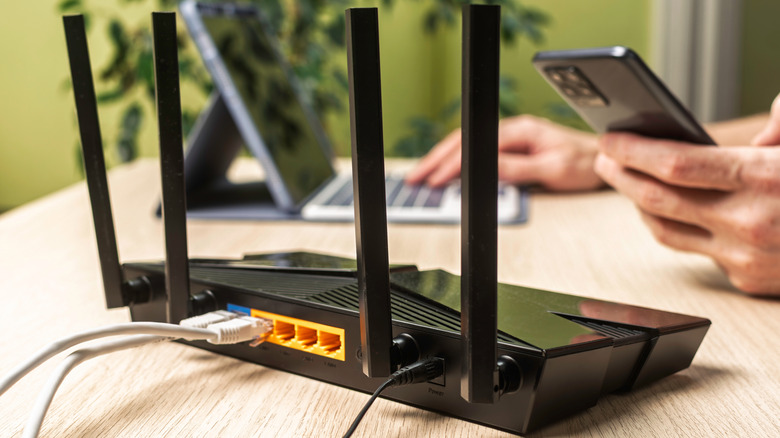
Myth vs. Reality Myth: I should point my router antennas directly at my computer to get the best signal. Reality: Antennas should be oriented vertically to broadcast a wide, horizontal signal across the room.
Myth 2: The 2.4 GHz Band is Obsolete and Should Be Disabled
With the arrival of 5 GHz and the ultra-fast 6 GHz band found in Wi-Fi 6E and Wi-Fi 7, many users think the old 2.4 GHz band is just cluttering up their network. While it is true that 2.4 GHz is slower, it is far from obsolete. Think of your frequency bands like highway lanes. The 5 GHz and 6 GHz bands are the high-speed express lanes, but the 2.4 GHz band is the heavy-duty truck lane that handles the long hauls.
The 2.4 GHz frequency band is restricted to only three non-overlapping channels (1, 6, and 11), which often leads to co-channel interference in crowded apartment buildings. However, this band is a champion when it comes to wi-fi signal strength through walls. High-frequency waves like 5 GHz struggle to pass through solid objects, while 2.4 GHz waves can penetrate brick and wood much more effectively.
For a smoother experience, use your router's tri-band capabilities to segregate your devices. Move your "smart" devices—like thermostats, light bulbs, and smart plugs—to the 2.4 GHz band. These IoT devices do not need much bandwidth, and moving them frees up the faster lanes for your laptop and 4K streaming TV. This reduces network congestion and ensures that your high-priority devices are not competing for airtime with a smart toaster.

Myth 3: A Fast Router Will Always Fix a Slow Connection
As a hardware editor, I love new tech. The latest Wi-Fi 7 routers, like the TP-Link Archer BE230, are incredible pieces of engineering. But a new router cannot fix a slow pipe from your ISP. If you are paying for a 100 Mbps plan, even a $1,000 router will only ever give you 100 Mbps.
The first step in any troubleshooting journey should be to check your ISP bandwidth. If your plan does not meet the 2024 FCC standard of 100 Mbps download and 20 Mbps upload, you will likely experience lag regardless of your hardware. Furthermore, the type of connection matters. Fiber optics typically offer symmetrical speeds (the same speed for uploading and downloading), whereas Cable internet often has high download speeds but very low upload speeds, which can cause issues during video calls.
| Connection Type | Typical Latency | Best For |
|---|---|---|
| Fiber | 5–20 ms | Gaming, 4K Streaming, Large File Uploads |
| Cable | 20–50 ms | General browsing, Netflix |
| DSL/Satellite | 100+ ms | Email, Basic web use |
Another common mistake is relying on cheap wireless extenders. Many people think that plugging an Ethernet cable into a wireless extender provides "wired" performance. In reality, that extender is still communicating wirelessly with your main router. This is known as wireless backhaul. If the extender has a weak link to the router, your "wired" device will still be slow. When considering wifi mesh vs extender for speed, a mesh system with a dedicated backhaul or a wired Ethernet connection between nodes is always the superior choice.
Myth 4: Wi-Fi Signals are Harmful to Your Health
There is a persistent fear that the radio waves bouncing around our homes are dangerous. Some people even turn their routers off at night to reduce exposure. From a technical and biological standpoint, this fear is unfounded. Wi-Fi uses non-ionizing radiation, which means the waves do not have enough energy to damage DNA or cells.
To put it in perspective, the energy emitted by a Wi-Fi router is significantly lower than that of a microwave oven or even a cell phone held against your ear. Regulatory bodies like the FCC and the World Health Organization (WHO) have set strict safety thresholds for radiofrequency exposure. Current Wi-Fi technology typically operates at levels 50 times lower than these international safety limits. So, if you are asking is wi-fi radiation harmful to humans, the consensus from the scientific community is a resounding no. Turning off your router at night might save a few pennies on your electric bill, but it is not doing anything for your physical health.

Myth 5: Signal Bars are the Only Metric for Speed
We often look at our phones and see "full bars" of Wi-Fi, yet the website won't load. This is because signal bars are a measure of signal strength, not necessarily signal quality or throughput. You can have a very strong signal that is completely "noisy" due to interference from a neighbor's router or a nearby microwave.
To truly understand your performance, you need to look at more than just the bars. You need to consider:
- Latency: The time it takes for a packet of data to travel from your device to the server and back (measured in milliseconds). High latency causes "lag."
- Jitter: The variation in latency over time. High jitter makes video calls choppy.
- Packet Loss: When data fails to reach its destination. This causes things to freeze or disconnect entirely.
The best way to diagnose your network is to perform a proper internet speed test. Don't just run it once; run it at different times of the day and in different rooms. This helps you identify dead zones where the signal strength might be high, but the actual data throughput is low. Also, ensure your router is running the latest firmware updates. Manufacturers often release patches that improve how the router handles WPA3 encryption and MIMO technology, both of which can significantly boost your overall wi-fi speed.

FAQ
What is good WiFi speed?
For most households, a good speed is at least 100 Mbps for downloading and 20 Mbps for uploading. This allows multiple people to stream HD video and participate in video calls simultaneously. For enthusiasts and gamers, speeds of 300 Mbps or higher are preferred to handle large downloads and minimize latency.
Does aluminum foil really boost WiFi?
Technically, yes, but it is not a practical solution. Aluminum foil can act as a reflector to bounce signals in a specific direction. However, it is difficult to calibrate and often creates more interference and "dead spots" in other parts of your home. It is much more effective to simply move your router to a central, elevated location.
What makes Wi-Fi fast or slow?
Wi-Fi speed is determined by a combination of your ISP plan, the router hardware (such as Wi-Fi 6 vs Wi-Fi 5), physical obstructions like walls or metal appliances, and network congestion from having too many devices on one frequency band.
How do I check if my WiFi is slow or fast?
You can use a free online tool to run an internet speed test. For the most accurate results, stand near your router and ensure no other heavy downloads are happening. Compare your results to the speed promised by your ISP plan to see if you are getting what you pay for.