Quick Facts
- Fraud Surge: Incidents of unauthorized SIM swap fraud in the United Kingdom surged by 1,055% in 2024, rising from 289 to nearly 3,000 cases.
- Financial Impact: In 2024, the FBI recorded 982 complaints regarding SIM hijacking in the United States, totaling approximately $25.98 million in reported financial losses.
- The 3-Attempt Rule: Entering the wrong PIN three times will lock the card, requiring a PUK code to restore access.
- The 10-Attempt Rule: Entering an incorrect PUK code ten times will permanently disable the SIM card, requiring a physical replacement.
- Default PINs: Most cellular service provider companies set a default code such as 0000, 1234, or 1111.
- Security Gap: Recent surveys indicate that 58.3% of users do not have a PIN enabled on their cards, leaving their digital identity safety at risk.
A SIM card lock is a security feature that requires a specific PIN to access cellular services and data on a mobile device. It is essential for protecting mobile account security and to prevent SIM swapping fraud, where attackers port your number to their own device to intercept sensitive two-factor authentication codes and gain access to your private financial and social accounts.
The Real Threat: How SIM Swapping Hijacks Your Identity
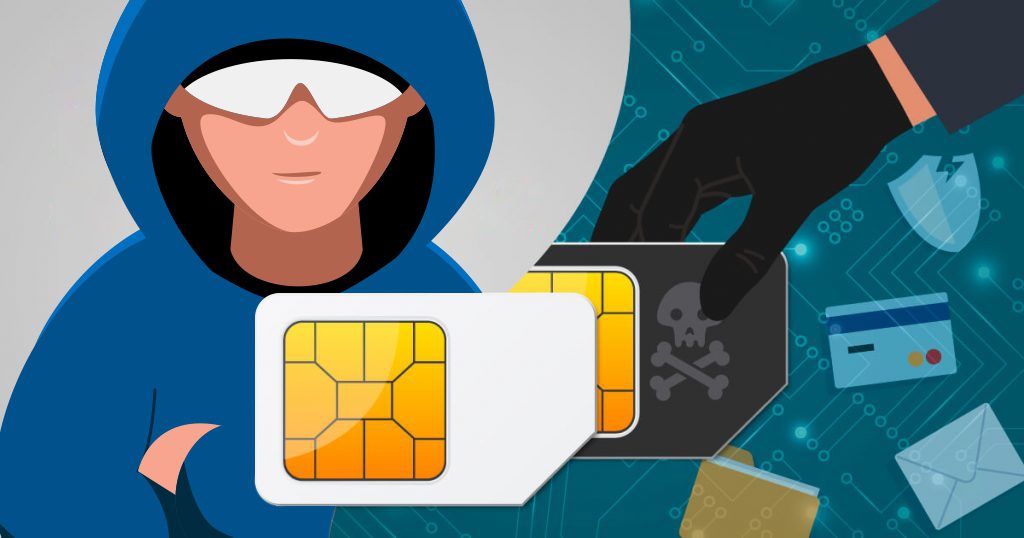
In my years testing the latest hardware at trade shows and in the lab, I have seen mobile security evolve from simple passcodes to advanced biometrics. However, one of the most significant vulnerabilities remains hidden inside the SIM tray. SIM swapping is a sophisticated form of identity theft prevention failure where a criminal convinces your cellular service provider to transfer your phone number to a SIM card in their possession. This process, often called an unauthorized number transfer, typically happens through social engineering—the attacker calls carrier support pretending to be you, claiming they lost their phone.
Once the attacker has control of your number, your device goes "dark," losing all signal. Meanwhile, the criminal begins resetting passwords for your bank accounts, email, and social media. Because most services rely on SMS-based verification for multi-factor authentication, the codes are sent directly to the attacker’s device. Without a SIM PIN setup in place, your SIM card is an open door. If someone steals your physical phone or successfully ports your number, they can simply move the SIM card to a new device and immediately begin receiving your private messages and calls.

This threat is no longer a fringe concern for the tech-elite. The data is sobering: according to 2024 reports, SIM swap fraud in the UK increased by 1,055%, proving that attackers are moving away from complex hacking and toward simpler, more lucrative identity theft. By establishing a SIM card lock, you add a hardware-level layer of protection that even the most convincing social engineer cannot bypass easily.
How to Set Up a SIM PIN on iPhone (iOS 19+)
Apple has streamlined the security and privacy settings in the latest versions of iOS, but the option to enable a SIM PIN is still tucked away where many users never look. Whether you are using a physical Nano-SIM or the newer eSIM technology, the steps remain largely the same.
To begin your SIM PIN setup on an iPhone, navigate to Settings and then select Cellular. Within this menu, look for an option labeled SIM PIN. If you use multiple lines (such as a work and personal line), you will need to select the specific line you wish to secure. Toggle the SIM PIN switch to the "On" position.
At this point, your iPhone will ask for the current PIN. If you have never set one up before, you must enter the default PIN provided by your cellular service provider. It is critical to get this right; check the table below for common defaults or log into your carrier's web portal to verify. Once the default is accepted, tap Change PIN to create a unique four-to-eight-digit code. Avoid using obvious sequences like 1234 or your birth year.
Warning: The 3-Attempt Limit You only have three attempts to enter the correct PIN. If you fail all three, the card will be locked, and you will see a prompt for a Personal Unblocking Key (PUK). Do not guess if you are unsure; a blocked SIM cannot make calls or use data, which can be a major issue during an emergency.
How to Enable SIM Card Lock on Android (2026 Edition)
Android’s fragmented ecosystem means the path to security might vary slightly depending on whether you are using a Google Pixel, a Samsung Galaxy, or a device from another manufacturer. However, for 2026, most flagship devices have unified their security and privacy settings to make this process more intuitive.
For standard Android 16+ or Pixel devices, go to Settings > Security & Privacy > More Security Settings > SIM card lock. Here, you can toggle the lock and update your PIN. If you are a Samsung user running One UI, the path is slightly different: open Settings, tap on Security and Privacy, then scroll down to Other security settings. From there, you will find Set up SIM card lock.
As with the iPhone, you will be prompted for a default code first. This is a crucial step in the steps to enable SIM card lock on Android 2026 devices. If you are using eSIM technology, the process is identical, though the "lock" is software-based rather than physical. Once enabled, every time you restart your phone or move the SIM card to a different device, the system will require the PIN before it can communicate with the tower. This effectively creates a firewall for your mobile account security.
| Carrier | Common Default PINs |
|---|---|
| Verizon | 1111 or 0000 |
| AT&T | 1111 |
| T-Mobile | 1234 |
| Vodafone | 0000 |
| EE | 0000 |
Troubleshooting: Recovering a Locked SIM with a PUK Code
If you find yourself locked out after three failed attempts, do not panic. This is where the Personal Unblocking Key, or PUK code, comes into play. The PUK is a unique eight-digit key tied specifically to your SIM card’s serial number. It is not something you create; it is assigned by the cellular service provider.
You can typically find your PUK code in one of three places:
- The original plastic card that your SIM was punched out of.
- Your carrier’s official mobile app or website under "Device Management" or "Account Security."
- By calling your carrier's customer support line and verifying your identity.
When you enter the PUK code correctly, the phone will ask you to reset your SIM PIN. However, be extremely cautious. While you have three attempts for the PIN, you generally have ten attempts for the PUK. If you enter the PUK incorrectly ten times, the SIM card becomes "hard-locked" or permanently deactivated. At that point, the chip is physically rendered useless to protect your data breach risk, and you will need to visit a retail store to purchase a new SIM. This is a common safety mechanism to prevent brute-force attacks by high-level hackers.
Beyond the PIN: Carrier Account Locks and 2FA Apps
While a SIM PIN setup is a powerful defense against physical theft and some porting attacks, it is only one part of a modern security strategy. To truly prevent SIM swapping, you should look at carrier-level protections. Most major providers now offer a feature called a "Port Block" or "Account Lock."
For example, through the myAT&T app or T-Mobile’s "Symmetry" security settings, you can toggle a feature that prevents your number from being transferred to another carrier unless you personally walk into a store with a government-issued ID. This stops the social engineering aspect of the attack before it even starts.
Furthermore, I strongly recommend that my readers move away from SMS-based verification. As we have seen, the mobile network itself can be a point of failure. Instead, use app-based multi-factor authentication tools like Google Authenticator, Authy, or hardware keys like YubiKey. These apps generate codes locally on your device hardware rather than receiving them over the air, meaning that even if an attacker successfully hijacks your phone number, they still cannot access your accounts because they don't have the physical device or the encrypted app data.

Managing your digital identity safety requires a proactive approach. In an era where our phone numbers are the keys to our entire lives—from banking to healthcare—taking five minutes to set up a SIM card lock is perhaps the highest-return investment you can make in your personal privacy.
FAQ
What is a SIM card lock and how does it work?
A SIM card lock is a security setting that requires a Personal Identification Number (PIN) to be entered whenever a phone is powered on or a SIM card is inserted into a new device. It works by locking the Subscriber Identity Module (SIM) at the hardware level, preventing it from connecting to a cellular network or accessing data until the correct code is provided. This ensures that even if someone steals your SIM card, they cannot use your cellular plan or receive your messages.
What happens if I enter the wrong SIM PIN too many times?
If you enter the wrong PIN three times, the SIM card will automatically lock itself as a security precaution. At this stage, you will no longer be able to use any cellular services, including making calls, sending texts, or using mobile data. To regain access, you will be required to enter a Personal Unblocking Key (PUK), which is a longer, unique code provided by your mobile carrier.
How can I unlock a SIM card without a PUK code?
It is essentially impossible to unlock a SIM card without a PUK code once the PIN attempts have been exhausted. This is by design to ensure maximum security. You should never try to guess the PUK, as you only have ten attempts before the SIM is permanently disabled. If you do not have the PUK on hand, you must contact your cellular service provider via their website, app, or customer service line to retrieve it.
Where can I find my SIM card's default PIN?
The default PIN is usually found on the packaging that your SIM card originally came in. If you have discarded that, many carriers use standard defaults such as 0000, 1111, or 1234. You can also find this information on the carrier's official support website or by logging into your account portal. It is highly recommended to change this default to a personalized code immediately after enabling the lock.
Does a SIM card lock protect my contacts and messages?
On older devices, a SIM card lock protected contacts and messages that were physically stored on the SIM card's limited memory. However, on most modern smartphones, contacts and messages are stored in the phone's internal storage or synced to cloud services like iCloud or Google Drive. While the lock might not protect the data on the phone itself, it protects your privacy by preventing attackers from receiving new SMS-based verification codes and hijacking your accounts.