Quick Facts
- Charging Peak: The 16-inch MacBook Pro supports up to 140W fast charging via USB-C (PD 3.1).
- Speed King: Thunderbolt 5 reaches up to 120Gbps on the latest high-end models.
- Display Limit: Standard Apple Silicon chips (M1-M3) natively support only one external display.
- Power Reality: Most 100W USB-C hubs reserve 15W for internal circuits, delivering only 85W to the laptop.
- Daisy-Chaining: Thunderbolt 4 allows for connecting up to six devices through a single port.
- Hidden Shortcut: Hold the Option key in macOS Display settings to reveal the Detect Displays button.
MacBook USB-C uses include high-speed data transfer (up to 120Gbps), Power Delivery charging, and 8K video output. By utilizing Thunderbolt-certified cables and multiport adapters, users can expand a single port into a full workstation hub.
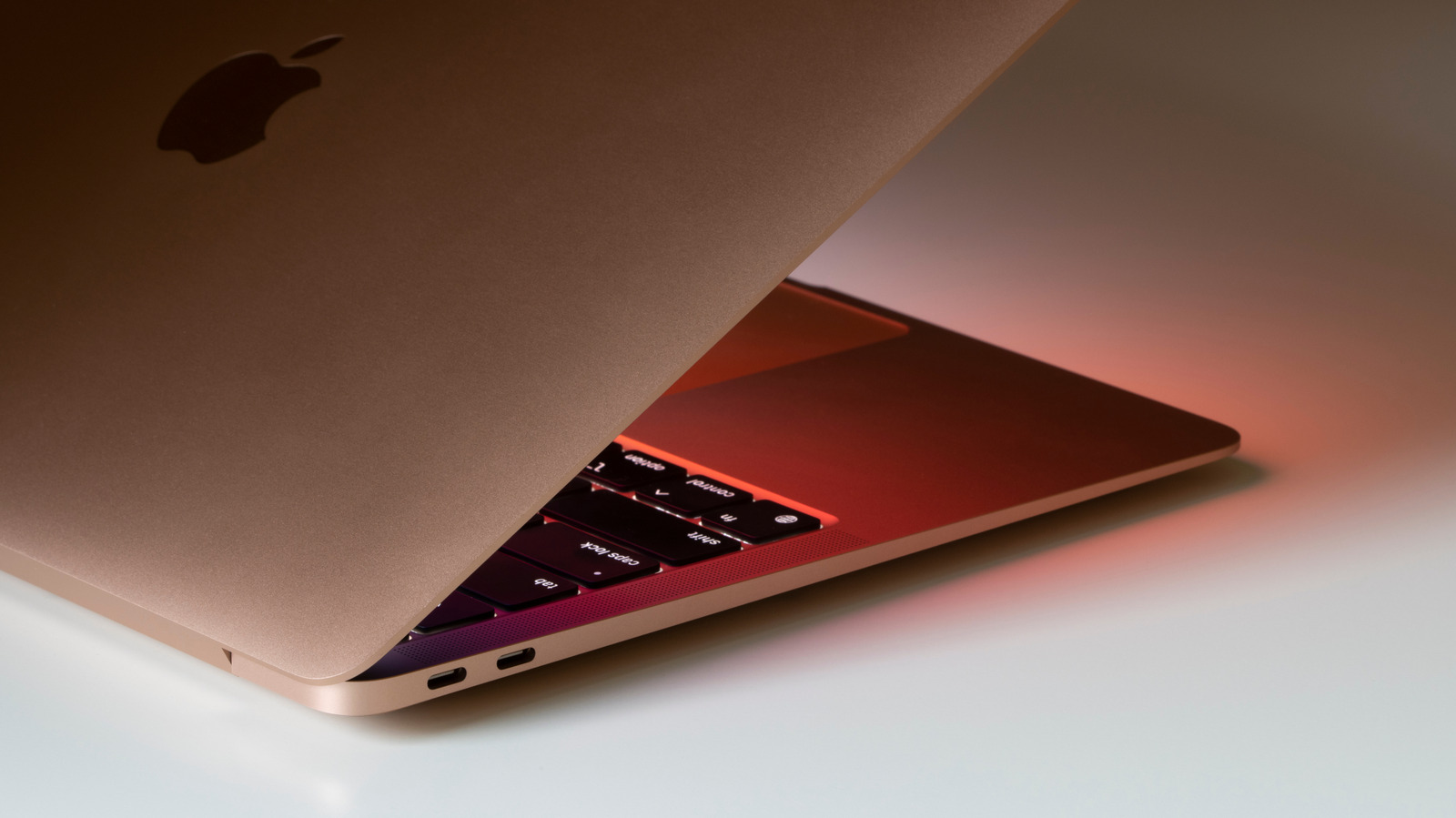
Your MacBook's USB-C ports are more than just charging slots; they are high-speed gateways for data, power, and video. Whether you're using a MacBook Air or the latest M4 MacBook Pro, understanding specific MacBook USB-C uses is key to a professional workflow. To the uninitiated, these oval-shaped holes look identical, but as someone who spends all day testing computer components, I can tell you that what you plug into them matters just as much as the machine itself.
1. Master the Wattage: Fast Charging Secrets
One of the most common questions I get from readers is why their MacBook isn't charging as fast as advertised. The answer almost always lies in the combination of the port, the cable, and the power brick. Not all MacBook USB-C uses for charging are equal. For example, the MacBook Air generally requires a 67W or higher adapter to enable fast charging, while the 16-inch MacBook Pro models released in 2023 and later support fast charging at up to 140 watts through their USB-C ports using the USB Power Delivery 3.1 standard.
To hit these speeds, you cannot use just any cable you found in a drawer. You need a cable rated for 140W or higher, specifically one that supports PD 3.1. If you use a standard 60W cable, your 16-inch Pro will still charge, but it will be a slow trickle compared to the firehose of power it is capable of receiving.
Pro Tip: If you are traveling and using a bus-powered hub, remember that the hub itself consumes power. If you plug a 100W charger into a hub, your MacBook might only see 85W because the hub reserves about 15W for its own internal chips and any peripherals like a mouse or keyboard. Effective cable management starts with knowing your total power budget.

2. Hub vs. Dock: Choosing Your Desktop Brain
When expanding your setup, you’ll inevitably face the MacBook USB-C hub vs docking station dilemma. For a professional home office, the choice depends on your specific workflow. A hub is usually a small, portable device that dangles from your port, while a docking station is a powered, stationary beast that sits on your desk.
| Feature | USB-C Multiport Adapter (Hub) | Thunderbolt Docking Station |
|---|---|---|
| Portability | High - fits in a pocket | Low - requires a power brick |
| Data Speed | Typically 5-10 Gbps | Up to 40-120 Gbps |
| Monitor Support | Usually 1x 4K | 2x or 3x 4K/60Hz+ |
| Power Delivery | Pass-through (subtracts 15W) | Dedicated high-wattage supply |
| Best For | Coffee shops and presentations | Permanent MacBook USB-C hub vs docking station for home office |
One technical nuance many overlook is bandwidth allocation. Standard USB-C hubs share bandwidth between your USB ports and the video output. This is why some hubs drop the refresh rate of your monitor to 30Hz if you are also transferring files from an SSD. A dedicated docking station handles this much better because Thunderbolt 4 ports on MacBooks provide a minimum of 15 watts for bus-powered peripherals, ensuring that your connected drives don't disconnect when your monitor wakes up.
3. The Multi-Monitor Maze: Bypassing Chip Limits
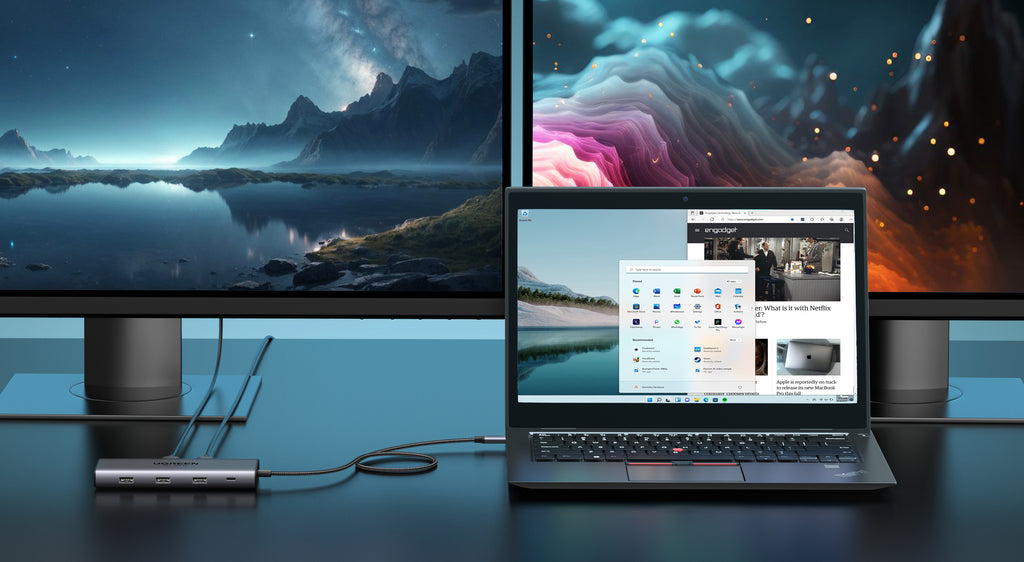
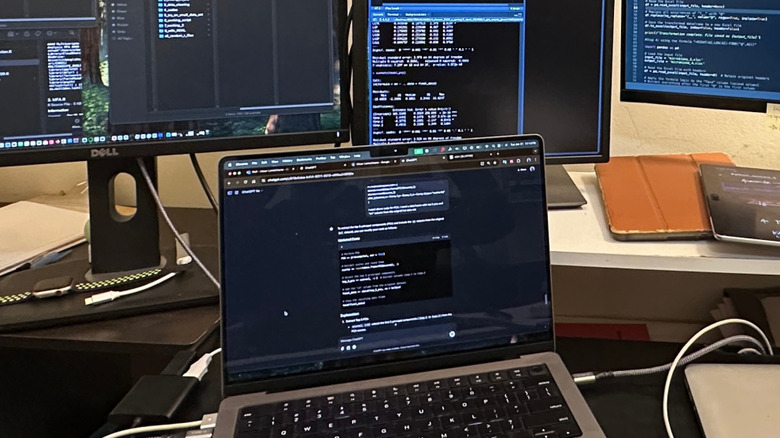
Setting up a MacBook external display USB-C setup is one of the most rewarding upgrades you can make, but Apple’s Silicon chips have some fine print. Base M1, M2, and M3 chips natively support only one external display. If you want a MacBook external display USB-C setup for dual monitors on a base MacBook Air, you’ll need to look into DisplayLink technology—a specialized driver and hardware combo that bypasses the native GPU limits.
For those with M3 Pro or M3 Max chips, you can connect multiple displays directly. When shopping for cables, look for ones that support DisplayPort Alt Mode. This allows the USB-C port to send a raw video signal to your monitor without needing a bulky adapter.
Pro Tip: If your Mac isn't seeing your second monitor, don't restart just yet. Go to System Settings > Displays, and then hold down the Option key. You will see a hidden Detect Displays button appear in the bottom right. It’s a lifesaver for finicky HDMI connections.
4. Thunderbolt 5 and Beyond: Maximum Data Speeds
We have lived in a 40Gbps world for a long time with Thunderbolt 4, but the goalposts are shifting. The latest MacBook Pro models are beginning to introduce Thunderbolt 5, which offers a massive jump in Thunderbolt transfer speeds for MacBook users—up to 120Gbps in its boosted mode. Even if you are still on Thunderbolt 4, you are getting impressive performance: Thunderbolt 4 ports on MacBooks support a maximum data transfer speed of 40 Gbps and allow for daisy-chaining of up to six devices through a single connection.
To get these speeds, you must use a cable with the Thunderbolt logo (the lightning bolt) and the number 4 or 5 on it. A generic USB-C cable, like the one that comes with a Nintendo Switch or a pair of headphones, will often be capped at a miserable 480Mbps (USB 2.0 speeds). When comparing Thunderbolt 4 vs Thunderbolt 5 transfer speeds for MacBook, the difference is mostly felt in high-end video editing where you are pulling raw 8K footage from an NVMe SSD.
5. Troubleshooting: Fix Port & Hub Connectivity Issues
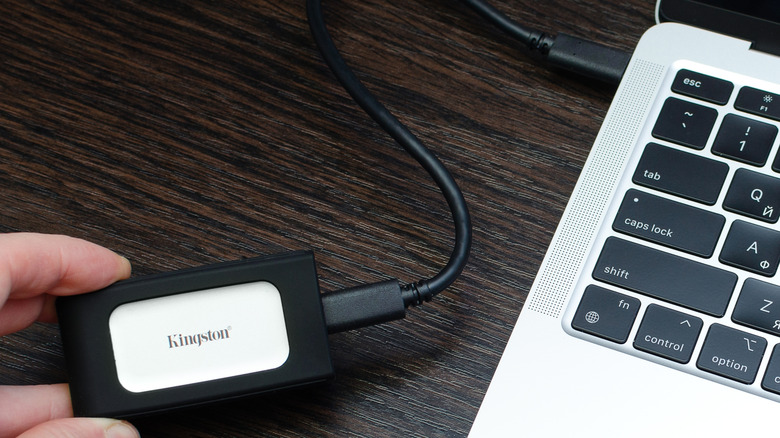
Even the best hardware has bad days. If you find yourself asking how to fix MacBook USB-C hub not recognized, start with the basics: firmware updates. Many people don't realize that high-end Thunderbolt docks have their own firmware that Apple updates occasionally through macOS. Make sure your OS is current.
Another issue is heat. Aluminum hubs are designed to get hot—they are literally acting as a heatsink for the chips inside. If your hub is plastic and gets scorching hot, it may throttle data speeds or drop the connection to your mouse. For those still using legacy USB-A devices, I always recommend a dedicated multiport adapter from a reputable brand rather than a cheap "no-name" dongle, as poor shielding in cheap adapters can actually interfere with your MacBook’s 2.4GHz Wi-Fi signal.
FAQ
What can you do with the USB-C port on a MacBook?
The USB-C ports on a MacBook are incredibly versatile. You can use them for fast charging the laptop, connecting high-resolution external monitors (up to 8K), transferring data at speeds up to 120Gbps, and powering peripherals like audio interfaces or external SSDs. They also support daisy-chaining, allowing you to connect multiple Thunderbolt devices in a row using just one port on the Mac.
Can I charge my MacBook through any USB-C port?
Yes, on modern MacBooks, every USB-C/Thunderbolt port is capable of receiving power. While some MacBook Pro models come with a dedicated MagSafe 3 port for charging, the USB-C ports serve as a perfectly valid alternative, which is great if you forgot your MagSafe cable but have a high-wattage USB-C charger handy.
What is the difference between USB-C and Thunderbolt on a MacBook?
USB-C refers to the physical shape of the connector, while Thunderbolt refers to the data protocol running through it. Every Thunderbolt port on a Mac uses the USB-C shape, but not every USB-C cable supports Thunderbolt speeds. Thunderbolt offers much higher bandwidth (40-120Gbps) and guaranteed power delivery for accessories compared to standard USB-C.
Can I connect a monitor to a MacBook via USB-C?
Absolutely. You can connect a monitor directly using a USB-C to USB-C cable if the monitor supports DisplayPort Alt Mode. If your monitor uses HDMI or DisplayPort, you will need a USB-C to HDMI adapter or a docking station. Keep in mind that base-level Apple Silicon chips usually only support one native external monitor.
Are all MacBook USB-C ports the same speed?
Not necessarily. While they look the same, the speed depends on the generation of the chip inside your Mac. Older models may have Thunderbolt 3 (40Gbps), while newer ones have Thunderbolt 4 or the latest Thunderbolt 5 (up to 120Gbps). Always check your specific model's technical specifications to see the maximum bandwidth per port.
How do I connect a mouse to a MacBook with only USB-C?
You have three main options: use a Bluetooth mouse to keep your ports free, buy a USB-C to USB-A adapter (often called a dongle), or use a USB-C hub that includes traditional USB-A ports. Many modern productivity mice now come with USB-C charging or even USB-C receivers to match modern laptop designs.
Managing your ports is ultimately about matching the right cable to the right task. Your MacBook is a powerhouse of connectivity, but it requires the right infrastructure to truly shine. Whether you are building a dual-monitor command center or just trying to charge your laptop faster, these practical uses for MacBook USB-C ports will ensure you get every bit of performance you paid for.