Quick Facts
- Top Optimization: Unlock Gallery Labs by tapping the version number seven times in the settings menu.
- Camera Fix: Use Minimum Intelligent Optimization to eliminate shutter lag and capture moving subjects instantly.
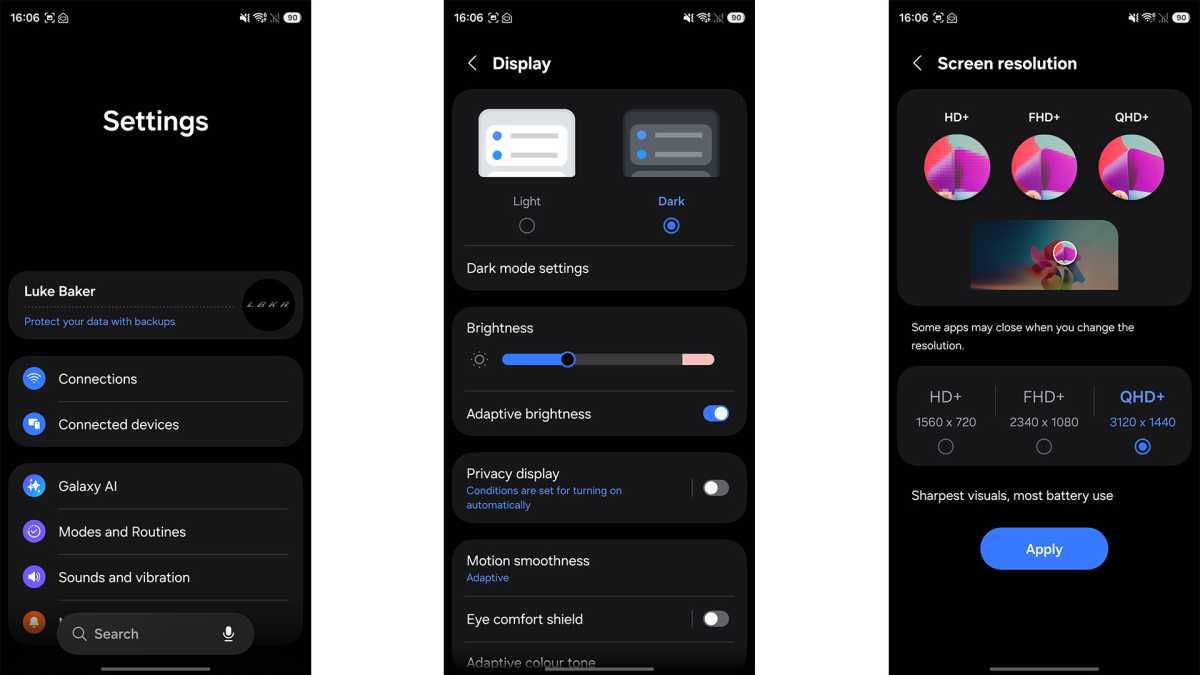
- Display Tip: Manually enable QHD+ resolution to utilize the full pixel density of your premium screen hardware.
- Productivity: Use the Samsung keyboard OCR tool to extract text from physical documents directly into any app.
- Connectivity: Activate Auracast in Bluetooth settings to broadcast audio to multiple sets of headphones simultaneously.
- Statistics: Samsung aims to expand the Galaxy AI platform to reach more than 400 million handheld devices globally by the end of 2025.
Your Samsung phone is more powerful than you think. While millions use Galaxy AI, few know about the hidden menus that unlock pro-level tools. This guide reveals 5 Samsung hidden features that change how you use your device. To access Samsung hidden features like Gallery Labs, go to Gallery Settings > About Gallery and tap the version number seven times. This unlocks a secret menu for biometric album locking and advanced photo management tools.
The Photographer’s Secret: Unlocking Gallery Labs
One of the most powerful Samsung hidden features is a secret menu designed for developers and testers, yet it is accessible to anyone who knows the handshake. Much like the standard Android developer options, Gallery Labs is a gateway to experimental features that Samsung is still refining for the One UI interface.
To unlock this menu, follow this path:
Gallery > Menu (three lines) > Settings > About Gallery
Once you are on the About Gallery page, find the version number and tap it seven times in rapid succession. You will see a toast notification at the bottom of the screen saying "Gallery Labs is enabled." When you back out to the main settings menu, a new entry for Gallery Labs will appear at the bottom.
Inside Gallery Labs, you can find tools that completely change your photo management. My favorite is the Album Lock feature. While Samsung has a Secure Folder for high-level encryption, Album Lock allows you to lock individual folders within the Gallery app using your fingerprint or PIN. This is perfect for when you want to show a friend your vacation photos without them accidentally swiping into your private screenshots or sensitive work documents.
Another hidden gem here is the ability to create instant GIFs from any video or group of photos with more granular control over compression. You can also enable a feature that lets you save photos as PDFs directly from the share sheet, which is a massive help for mobile productivity.
Trade-off: Because these are lab features, they may occasionally cause the app to lag or crash. If you notice stability issues, you can simply toggle Gallery Labs off, though most users find the album locking and PDF tools to be remarkably stable.
Speed Over Everything: Reducing Camera Shutter Lag
For years, the biggest complaint from Galaxy users has been shutter lag. You press the button, and by the time the camera actually captures the frame, your pet has moved or your kid has stopped smiling. This happens because Samsung’s default Camera app is doing a tremendous amount of background processing to ensure every photo looks like a professional shot.
However, you can bypass this by diving into the camera-specific Samsung hidden features. Samsung recently introduced a setting called Intelligent Optimization. By default, it is set to Maximum, which prioritizes image quality through heavy AI processing. If you value speed over everything, you should change this.
Camera App > Settings > Intelligent Optimization
| Setting | Processing Level | Shutter Speed | Best Use Case |
|---|---|---|---|
| Maximum | High (AI Enhanced) | Slower | Landscapes and Portraits |
| Medium | Balanced | Moderate | General daily photography |
| Minimum | Low (Raw Data) | Instant | Sports, pets, and children |
By selecting Minimum, you force the camera to prioritize the shutter release. The photo might have slightly more noise in low light, but you will actually capture the moment you intended. This is an essential part of Galaxy phone optimization tips for anyone who feels the stock camera is too slow.
Many users don't realize their hardware is capable of so much more. In fact, a survey showed that about 19% of Galaxy S22 users were unaware of their device's built-in Dolby Atmos support, simply because the feature is disabled by default. Similarly, many users never touch the camera optimization settings, missing out on the true speed of their sensors.
While you are in the settings, look for the Advanced Intelligence options. You can toggle off features like "Scene Optimizer" if you want a more natural look to your photos. For power users, this is the first step in reclaiming control over the hardware you paid for.
High-End Privacy: The S26 Privacy Display & Secure Folder
As we move toward a future defined by One UI 8.5 and the upcoming hardware generations, Samsung is doubling down on privacy. One of the most talked-about Samsung hidden privacy display settings involves a technology currently being refined for the Ultra models. It allows the screen to limit viewing angles through software-driven pixel masking, making it harder for people sitting next to you on a train to see what you are typing.
While that feature is rolling out to more devices, every modern Galaxy user already has access to the Secure Folder. This isn't just a hidden folder; it’s a virtualized instance of Android. You can install a second version of WhatsApp, keep a separate set of banking apps, or store photos that are completely invisible to the rest of the system.
Settings > Security and Privacy > Secure Folder
For a cleaner digital footprint, you can also use the "Hide Status and Navigation Bars" feature for screenshots. This is tucked away in the Advanced Features submenu.
Settings > Advanced Features > Screenshots and Screen Recorder > Hide status and navigation bars
When this is enabled, your screenshots will no longer show your battery percentage, service bars, or notifications. This creates much cleaner images for sharing on social media or in professional presentations. It is a small UI tweak that significantly elevates the professional look of your shared content.
Next-Level Productivity: Auracast and Keyboard OCR
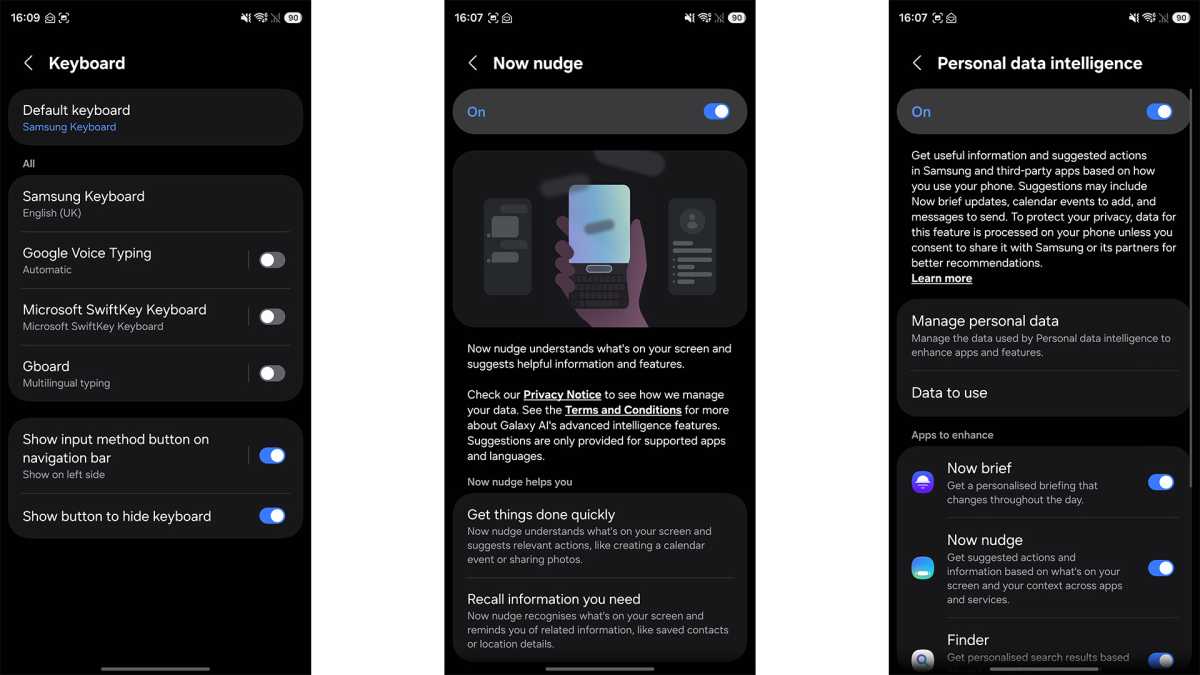
Samsung Galaxy productivity tools are often hidden in plain sight, especially within the Samsung keyboard. Most people use the keyboard only for typing, but it actually houses a sophisticated optical character recognition (OCR) engine.
If you are looking at a physical business card, a menu, or a flyer, you don't need to take a photo and then open a separate app to extract text from images Samsung keyboard allows you to do it natively.
- Open any messaging app or note-taking app.
- Tap the three dots on the keyboard toolbar or find the "T" icon (Extract Text).
- Point your camera at the document.
- Watch as the text is highlighted and instantly pasted into your text field.
This tool is a lifesaver for students and professionals who need to digitize physical notes quickly. It uses the same neural processing units that drive the One UI interface to recognize characters with incredible accuracy.
On the audio front, Samsung Auracast audio sharing setup is a game-changer for shared media. Auracast is part of the Bluetooth LE Audio standard. It allows your Galaxy phone to act as a mini-radio station. If you and your friends are at a gym or on a plane and all have compatible Galaxy Buds, you can broadcast your audio to everyone at once. No more sharing a single earbud; everyone gets their own high-quality stereo stream directly from one device.
Power User UI: Developer Options and Animation Hacks
To truly master Galaxy phone optimization tips, you have to venture into the Developer options menu. This is the ultimate playground for anyone who wants to customize the feel of their device.
To unlock this:
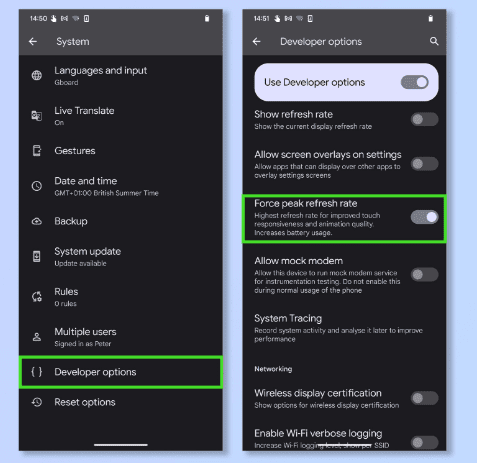
Settings > About Phone > Software Information > Tap Build Number 7 times
Once unlocked, navigate back to the main Settings menu and scroll to the very bottom. Inside, look for three specific settings:
- Window animation scale
- Transition animation scale
- Animator duration scale
By default, these are set to 1x. If you change them to 0.5x, your phone will feel twice as fast. The animations will be snappier, the app drawer will open instantly, and the overall One UI interface will feel significantly more responsive. This doesn't actually overclock your processor, but it removes the artificial waiting time built into the system's visual transitions.
As we look toward the future, the One UI 8.5 multitasking gestures guide suggests even more ways to use these developer tweaks. For example, you can enable "Force activities to be resizable," which allows you to use almost any app in split-screen mode, even those that don't officially support it.
Combining these system performance tuning steps with adaptive battery management ensures that your phone stays fast and efficient. Samsung is committed to this ecosystem, with plans to push their AI capabilities to hundreds of millions of users, but the real power will always lie in these granular, user-controlled hidden settings.
FAQ
What are the best hidden features on a Samsung Galaxy?
Some of the most impactful hidden features include Gallery Labs for advanced photo management, Auracast for multi-headphone audio sharing, and the ability to reduce camera shutter lag through Intelligent Optimization settings. Additionally, using the built-in OCR in the Samsung keyboard is a top-tier productivity hack.
How do I access secret settings on my Samsung phone?
Secret settings are typically found by tapping version numbers or build numbers in the About Phone or About App menus. For system-wide secret settings, tap the Build Number seven times in Software Information. For the hidden Gallery menu, tap the version number seven times within the Gallery app's About section.
Are there secret camera features on Samsung devices?
Yes, you can access hidden camera optimizations by adjusting the Intelligent Optimization setting to Minimum for faster shutter speeds. You can also download the Camera Assistant app from the Galaxy Store, which is an official Samsung app that unlocks even more hidden granular controls for the camera hardware.
How can I customize my Samsung phone using hidden options?
You can customize the speed and feel of your phone by entering Developer Options and reducing animation scales to 0.5x. You can also customize your privacy by using the hidden Privacy Display settings or by enabling the option to hide status bars in screenshots for a cleaner look.
How do I use the Secure Folder feature on Samsung?
To use Secure Folder, go to Settings, then Security and Privacy, and select Secure Folder. You will need to sign in with your Samsung Account and set a biometric or PIN lock. Once set up, you can move apps and files into this encrypted space, where they remain invisible to the rest of the device.