Quick Facts
- Fix 1: Network Reset: Restarting your router and switching to a wired Ethernet connection often bypasses NW-102417-5 timeouts.
- Fix 2: DNS Manual Config: Manually setting your DNS to 1.1.1.1 can solve persistent communication issues with PlayStation Network.
- Fix 3: Restore Licenses: This tool re-verifies digital ownership to fix locked DLC and CE-107880-4 errors.
- Fix 4: Safe Mode Rebuild: Rebuilding the database repairs file corruption to stop CE-108255-1 system crashes.
- Fix 5: Cache Clearing: Power cycling the console by unplugging the cord flushes temporary data that causes UI freezes.
- Fix 6: Check Server Status: Always confirm PSN is online before attempting hardware troubleshooting.
Facing a PS5 error code can feel like a game-over screen, but most issues are solvable without a repair shop. Whether it's the dreaded CE-108255-1 crash or NW-102417-5 network timeout, we have the solutions. To fix common PS5 error codes, start by checking PSN status and power cycling your router; if issues persist, use the Safe Mode menu to rebuild your database or restore licenses in the Settings menu.
Understanding the "Why" Behind Your PS5 Errors
There is nothing quite as disruptive as settling in for a session of Helldivers 2 or Final Fantasy only to be greeted by a cryptic alphanumeric string. As a hardware editor, I have seen these codes evolve from the "Red Ring of Death" era to the highly specific diagnostics we see today. The PlayStation 5 is a technical marvel, but it is also a complex computer. Sony recently reported that the PlayStation 5 has become its most profitable hardware generation to date, with cumulative sales exceeding $136 billion. With tens of millions of users online, even a minor server hiccup or a tiny bit of data corruption can trigger a system-wide alert.
Most PS5 error codes are divided into categories: CE (Common Engine), NW (Network), WS (Web Service), and SU (Software Update). Identifying the prefix is your first step in troubleshooting ps5 network connection errors or system-level failures. Let’s dive into the five most effective ways to get your console back into peak performance.
Fix 1: Resolve Network Timeouts (NW-102417-5 & WS-116332-6)
Network errors are the most frequent disruptors of modern gaming. Codes like NW-102417-5 often signal that the console is having trouble communicating with the server within a set timeframe. Before you panic about your hardware, always visit the official PlayStation Network Service Status page. If all lights are green, the problem is likely local to your home environment.
The first thing you should do is perform a full power cycle of your networking gear. Do not just press the reset button; unplug your router and modem from the wall for at least 60 seconds. This flushes the temporary memory of the router and forces a fresh handshake with your ISP.
If a restart does not fix ps5 connection errors, the issue might be your DNS (Domain Name System). Your ISP’s default DNS can often be congested or slow. I highly recommend switching to a public provider like Cloudflare or Google.
- Navigate to Settings > Network > Settings > Set Up Internet Connection.
- Press the Options button on your controller over your current network and select Advanced Settings.
- Change DNS Settings to Manual.
- Set Primary DNS to 1.1.1.1 and Secondary DNS to 1.0.0.1 (Cloudflare).
- Restart your console.
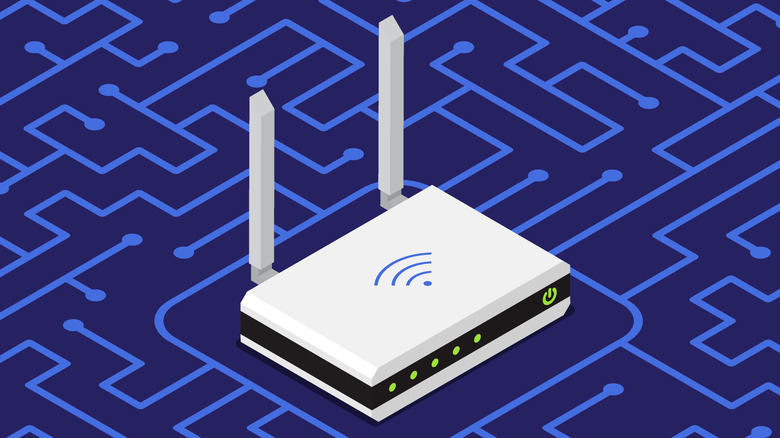
Pro Tip: If you are gaming on Wi-Fi, try switching to a wired Ethernet connection. This eliminates signal interference and is often the only way to bypass ps5 error code nw-102417-5 network timeout issues in high-density living areas.
Fix 2: Restore Licenses for Digital Content (CE-107880-4)
Have you ever tried to launch a game only to see a small padlock icon next to the title? This usually triggers error code CE-107880-4. It essentially means the console cannot verify that you own the license to play that specific piece of software or its DLC. This is particularly common if you share your digital library or have recently moved your data from a PS4.
To initiate ps5 restore licenses troubleshooting, follow this path: Settings > Users and Accounts > Other > Restore Licenses.
Select Restore and wait for the process to complete. This does not delete any of your game data; it simply refreshes the "permission slips" that allow your console to talk to the PlayStation Store servers. This is a vital step if you find that specific game add-ons or pre-order bonuses are missing from your inventory.
Fix 3: Rebuild Database via Safe Mode (CE-108255-1)
If your console is crashing back to the dashboard with a CE-108255-1 message, you are dealing with a more serious software conflict. This code indicates a general system software issue or specific game file corruption. While it can be intimidating, the ps5 rebuild database safe mode guide is your best tool here.
Rebuilding your database is like defragmenting an old PC, but specialized for the PS5’s high-speed SSD. It scans the drive for corrupted data and reorganizes the file structure to make it more efficient.
- Turn off your console completely (not Rest Mode).
- Press and hold the power button. Release it only after you hear a second beep, which occurs about seven seconds after the first.
- Connect your DualSense controller using a USB cable (Bluetooth does not work in Safe Mode).
- Select Option 5: Rebuild Database.
This process can take anywhere from a few minutes to an hour depending on how much data you have stored. It is a highly effective ps5 ce-108255-1 game crash fix that resolves the majority of "broken" installations without requiring a full factory reset.
Fix 4: Clear System Cache and Update Firmware (SU-101312-8)
A "Software Update" error (prefix SU) often happens when a firmware download gets stuck in a loop. Sometimes, the console's temporary system cache becomes cluttered, causing the UI to lag or the store to fail. Clearing ps5 system cache to fix errors is a hidden trick that many gamers overlook because it requires a physical power cycle rather than a software restart.
To clear the cache:
- Shut down the console.
- Unplug the power cable from the back of the PS5.
- Wait for at least 30 to 60 seconds.
- Plug it back in and restart.
If you are still unable to update through the normal menu, you can force an update through Safe Mode. Using the same "two-beep" method mentioned above, select Update System Software and then Update Using Internet. This bypasses the standard UI and uses a more direct path to the Sony servers, which can circumvent common installation glitches.
Fix 5: Use Error History to Identify Hidden Issues
Sometimes a game might crash without showing an immediate pop-up, or you might miss the code while you are busy venting your frustration. The PS5 keeps a detailed log of every hiccup it encounters. This is an invaluable tool if you ever need to contact Sony Support for a warranty claim.
Go to Settings > System > System Software > Error History.
Here, you will see a chronological list of every code that has occurred. You might notice a recurring CE-107857-8 during application loading, which could indicate a faulty M.2 SSD expansion if you have one installed. Having this data ready allows support representatives to diagnose your console much faster.

Common PS5 Error Code Reference Table
| Code Prefix | Likely Cause | Suggested First Action |
|---|---|---|
| CE | System or Game Software | Rebuild Database in Safe Mode |
| NW | Local Network Connectivity | Power cycle router and check DNS |
| WS | PSN Web Service | Check PSN Status page for outages |
| SU | System Update Failure | Update firmware via Safe Mode |
| WV | Web View / Browser | Clear system cache and restart |
FAQ
How do I fix common PS5 error codes?
Start by verifying the PlayStation Network status online. If servers are green, perform a power cycle on both your console and router. For software-specific codes, navigate to settings to restore licenses or use the Safe Mode menu to rebuild the database and clear the system cache.
What does error code CE-108255-1 mean?
This is a general system software error that usually occurs during a game crash. It often points to corrupted game files or a conflict in the system software. The most effective solution is to ensure the game and console are fully updated, followed by a database rebuild in Safe Mode.
How do I fix the PS5 database corrupted error?
To fix a corrupted database, turn off your console and hold the power button for seven seconds until you hear a second beep. Connect your controller via USB, enter the Safe Mode menu, and select Rebuild Database. This reorganizes your storage and repairs damaged files without deleting your games.
How do I update PS5 system software to fix errors?
If the standard update fails, enter Safe Mode by holding the power button for two beeps. Select Update System Software and choose Update Using Internet. This provides a more stable installation environment than the standard dashboard update.
How do I clear the cache on PS5 to fix errors?
Turn off your console completely. Unplug the power cord from the back of the PlayStation 5 for at least 30 seconds. Plug it back in and restart the system. This flushes temporary data that can cause UI lag or installation errors.
Dealing with PS5 error codes is a rite of passage for many modern gamers, but it shouldn't be the end of your night. By understanding the difference between a network timeout and a database error, you can spend less time looking at alphanumeric codes and more time in the game. If you have tried all the steps above—including a full factory reset—and the issues persist, it may be time to contact Sony for a hardware evaluation. Keep your console clean, your firmware updated, and your DNS optimized for the best possible experience.