Quick Facts
- Standard Power Output: Typical downstream ports provide 2.5W (USB 2.0) to 4.5W (USB 3.0), suitable for low-power peripherals but not fast charging.
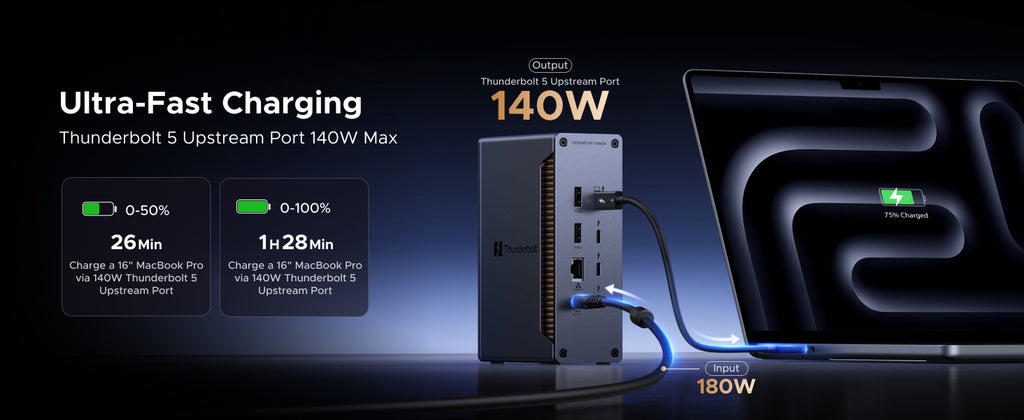
- Max Power Delivery: High-end displays featuring Thunderbolt 4 or advanced USB-C can offer up to 140W Power Delivery PD, enough to charge a high-performance workstation laptop.
- Best Peripherals: Low-bandwidth HID (Human Interface Devices) like keyboards, mice, and webcams are ideal candidates for these ports.
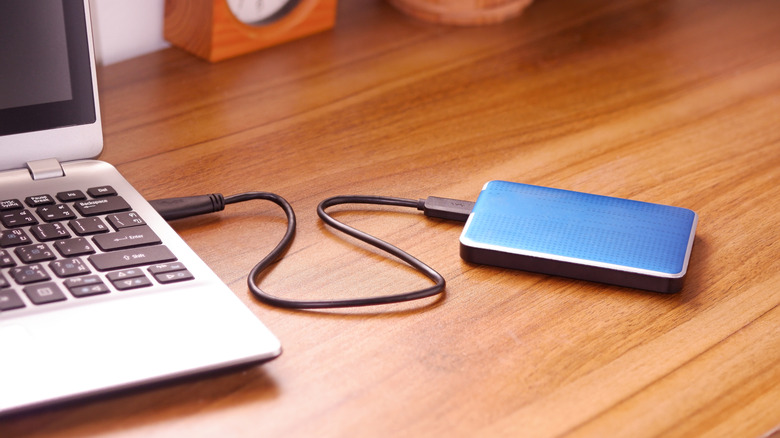
- Storage Warning: Avoid connecting high-speed external SSDs to a monitor usb hub as power-saving sleep cycles can cause data corruption or bandwidth bottlenecks.
- Productivity Gains: Research shows that a well-optimized dual-monitor setup can increase productivity by approximately 42% compared to single-screen environments.
- Market Trends: Modern multi-port USB hubs now command more than 55% of the global market share, reflecting the shift toward centralized workstation connectivity.
A monitor usb hub functions through an upstream connection—typically via a USB-B or USB-C cable—that links the display to a laptop or PC. This connection enables the monitor's built-in ports to act as a peripheral extension, allowing users to consolidate cable management for keyboards, mice, and webcams. For the hub to work, the monitor must support monitor usb passthrough and be connected to the source device with the appropriate data cable.
Connecting Your Hub: The Upstream Secret
In my years of building PCs and testing hardware, I have seen many users frustrated because the ports on the side of their monitor don't do anything when they plug in a mouse. The issue is almost always a missing upstream connection. Unlike a simple power outlet, the USB ports on your monitor do not automatically communicate with your computer just by plugging the monitor into a wall and an HDMI port. You need a dedicated data path back to the PC.
Most monitors utilize one of two methods for this. Older or mid-range displays often require a specific monitor usb hub cable, usually a USB-B to USB-A cable. The square-ish USB-B end goes into the monitor's upstream port, while the standard USB-A end goes into your PC. Modern displays have moved toward a single-cable solution. A monitor with usb connection to laptop using a USB-C cable can handle video, data, and power simultaneously. This relies on DisplayPort Alt Mode, which allows the USB-C cable to carry a DisplayPort video signal while also acting as the data bridge for your peripheral hardware.
If you are looking to maximize desk real estate, you might even consider a monitor stand with usb hub integrated into the base. This provides even easier access to ports without reaching behind the screen or under the desk. Regardless of the form factor, the logic remains the same: the hub is a "downstream" bridge that requires an "upstream" host connection to function.
Device Tiering: Best Peripherals for Monitor USB Ports
Not all devices are created equal when it comes to shared bandwidth. When I design a workspace, I use a tiering system to decide what gets plugged into the monitor and what gets plugged directly into the motherboard or laptop. This is crucial because a study found that 58% of office workers feel that physical clutter hinders focus. Using your monitor as a hub is the best way to clear that clutter, but you have to be smart about it.
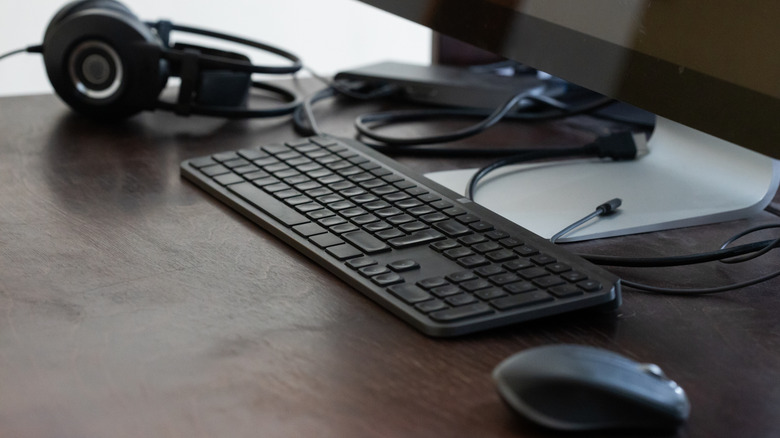
Low-bandwidth devices like keyboards and mice are perfect because they barely register on the total bandwidth of a USB 3.0 connection. Webcams are also excellent candidates, as keeping the cable short and running it directly to the monitor prevents a long cord from dangling across your desk. However, I always warn users about 2.4GHz wireless dongles. These can sometimes suffer from RF interference when placed too close to active USB 3.0 ports. If your wireless mouse feels "jittery," try using a short extension cable to move the dongle away from the monitor's chassis.
| Safe Devices (HID & Low Bandwidth) | Risky Devices (High Bandwidth/Power) |
|---|---|
| Wired Keyboards | External NVMe SSDs |
| Wired Mice | Audio Interfaces (Latent-sensitive) |
| Webcams | RAID Arrays |
| Wireless Dongles (with caution) | Smartphone Rapid Charging |
| USB Desk Fans/Lamps | High-End Printers |
The biggest mistake people make is connecting an external SSD to their monitor. While convenient, monitor usb passthrough is often subject to the monitor’s power state. If your monitor enters power-saving mode, it may temporarily drop the data connection. For a mouse, this is a minor annoyance. For a drive in the middle of a file transfer, it can lead to devastating data corruption.
Balancing Power and Bandwidth
Technical performance optimization is where most users get tripped up. When you use a usb-c monitor with hub capabilities, you are often working with a limited amount of total bandwidth. In the industry, we call this "lane splitting." If you are running a 4K resolution at 144Hz, the monitor might have to sacrifice USB data speeds to prioritize video. You might see an option in the monitor's OSD (On-Screen Display) settings to switch between USB 2.0 (which leaves more bandwidth for high-refresh-rate video) and USB 3.0 (which might cap your refresh rate).
Then there is the issue of Power Delivery PD. A single-cable solution is the dream for any laptop user. High-end monitors can provide anywhere from 65W to 140W of power. This is enough to keep your laptop charged while you work. However, be aware that many budget-friendly monitors only offer 15W or 27W. While this is fine for charging phone with monitor usb port functionality, it won't be enough to charge a laptop during heavy use; it might only slow the battery drain.
Ryan’s Tip: If you notice your laptop is losing charge while plugged into your monitor, check the wattage in the monitor's manual. Most laptops require at least 60W for a steady charge. If your monitor doesn't meet this, you'll still need your laptop’s original power brick.
Advanced Workflows: macOS and Pro Setups
For the creative professionals and Power Users, a basic monitor usb hub might not be enough. If you are running multiple screens, you need to understand Daisy chaining. This involves connecting your PC to one monitor and then connecting that monitor to a second one via a DisplayPort-out port. This works beautifully on Windows PCs, but macOS has a notorious limitation regarding Multi-Stream Transport (MST). Mac users will find that Daisy chaining usually results in "mirroring" (the same image on both screens) rather than "extending" the desktop, unless they use a Thunderbolt 4 monitor specifically.
Another "Pro" feature to look for is a built-in KVM switch. A KVM (Keyboard, Video, Mouse) switch allows you to connect two different computers—say, a work laptop and a gaming desktop—to the same monitor and peripherals. With the press of a button, the monitor will switch the video input and the hub data simultaneously. This is the holy grail of clean, functional workspaces, as it eliminates the need for two sets of keyboards and mice.
Troubleshooting: Monitor USB Hub Not Working
When a monitor usb hub not working troubleshooting situation arises, I always start with the physical layer. It sounds simple, but 90% of the time, the upstream cable is either loose or plugged into the wrong port. Remember, many monitors have multiple USB ports that look similar; ensure the one labeled "Upstream" or "PC" is the one connected to your host device.
If the hub provides power (your mouse lights up) but no connectivity (the cursor won't move), the issue is likely logical. Start by checking your computer’s device manager. You should see a "Generic USB Hub" or something similar appear and disappear when you plug and unplug the upstream cable. If you see a yellow exclamation mark, it’s time to update your USB drivers or the monitor's firmware. Manufacturers like Dell, LG, and Samsung frequently release firmware updates to address compatibility issues with newer laptop hardware or OS updates like Windows 11.
In some cases, the problem is just voltage. If you have five high-power devices plugged into the hub, the monitor might not be able to provide enough current to all of them simultaneously. Try unplugging everything and adding devices back one by one to see where the failure point is. Adding external power to the monitor (plugging it into a wall outlet rather than relying on a secondary hub) is also a mandatory step.
FAQ
Can you connect a USB hub to a monitor?
Yes, you can connect an external USB hub to one of the monitor's downstream ports to further expand your connectivity. However, be mindful of the bandwidth bottlenecks this may create, especially if you are daisy-chaining multiple high-speed devices through a single upstream connection to your PC.
What does a monitor USB hub do?
A monitor USB hub acts as a bridge between your computer and your peripherals. It allows you to plug your keyboard, mouse, or webcam directly into your screen. This simplifies cable management and is especially useful for laptop users who want to connect multiple devices through a single cable.
Do monitor USB hubs add latency?
For general productivity and even most gaming, the latency added by a monitor usb hub is negligible. However, professional competitive gamers who require the absolute lowest input lag possible may still prefer to plug their mouse and keyboard directly into the motherboard's primary ports to avoid any potential signal processing delay.
Is it better to connect a monitor through USB-C or HDMI?
If your laptop and monitor both support it, USB-C is generally better because it supports a single-cable solution for video, data, and Power Delivery PD. HDMI only carries video and audio signals, meaning you would still need a separate monitor usb hub cable to make the USB ports on the screen functional.
How to connect monitor to PC via USB?
To enable the hub features, you must connect an upstream cable (typically USB-B to USB-A or USB-C to USB-C) from the monitor to the PC. Once this data path is established, the monitor will act as a hub. Note that for video to work over USB, the port on your PC must support DisplayPort Alt Mode or Thunderbolt.