Quick Facts
- The Core Technology: Frame interpolation, also known as MEMC, creates artificial frames to fill gaps in movement.
- The Main Advantage: Using motion smoothing for sports significantly reduces motion blur during high-speed action like soccer or hockey.
- Broadcast Standards: While movies use 24 frames per second, sports are typically broadcast at 60 frames per second.
- Brand Variations: Look for LG TruMotion, Sony MotionFlow, or Samsung Picture Clarity in your settings menu.
- The Golden Rule: Generally, you should turn on motion smoothing for sports and keep it off for cinematic movies and TV shows.
- Visual Trade-offs: While fluidity increases, aggressive settings can cause the soap opera effect or visual artifacts around players.
Motion smoothing is a video processing feature that adds artificial frames between existing ones to make on-screen motion look more fluid and life-like. While it traditionally creates an unnaturally smooth soap opera effect that ruins the cinematic feel of movies, it is highly recommended to enable motion smoothing for sports to help viewers track fast-moving objects and players across large, modern displays.
Introduction: Why Your TV Needs Help for the Big Game
There is a specific kind of frustration that comes with watching a high-stakes football match on a brand-new 4K television, only to realize that the ball looks like a blurry smear every time the quarterback makes a long pass. You spent thousands on a high-refresh rate panel, yet the movement feels jagged and unclear. This happens because modern displays are incredibly fast, and the way they handle motion can sometimes highlight the limitations of the broadcast signal.
As a gaming and entertainment editor, I spend most of my time telling people to turn off every unnecessary piece of image processing to ensure the lowest possible input lag and the most color-accurate image. However, when Sunday comes around and the pads start clashing, the rules change. The very feature that home theater purists despise is exactly what you need for a better viewing experience on game day.
What is motion smoothing on tv exactly? At its core, it is the TV’s attempt to fix the disconnect between a broadcast signal and the physical capabilities of the screen. By utilizing a technique called MEMC (Motion Estimation, Motion Compensation), your TV analyzes two consecutive frames and calculates what a "middle" frame would look like, then inserts that artificial frame into the sequence. This fills the gaps in motion, making the flight of a baseball or the slide of a hockey puck appear much crisper to the human eye.
The Technical Gap: 24fps vs. 60fps and 120Hz Displays
To understand why you need to adjust these settings, we have to look at the math behind the image. Most major motion pictures and high-end TV dramas are shot at 24 frames per second. This frame rate provides that "dreamy" cinematic look we associate with professional storytelling. When you apply motion smoothing to a 24fps movie, the TV tries to make it look like 60fps or 120fps, resulting in that jarring, hyper-realistic soap opera effect that makes a Hollywood blockbuster look like a home video.
Sports are a different beast entirely. Most professional sports broadcasts are delivered at a native 60 fps specifically because fast-action sequences require more visual data to remain clear. If you tried to watch a tennis match at 24fps, the ball would practically disappear during a serve.
However, even at 60fps, we encounter a problem with modern 120Hz and 240Hz televisions. Because the pixels on an OLED or high-end LCD panel can change state almost instantly, the "jump" from one frame to the next can look like a stutter, a phenomenon known as judder. On older CRT televisions, the image naturally faded between frames, which our brains perceived as smooth motion. On a modern display, that transition is too sharp. Frame interpolation bridges that gap, using image processing to create a bridge between those native 60 frames, effectively utilizing the full refresh rate of your high-end display.
Terminology Cheat Sheet: What Your Brand Calls It
One of the most confusing aspects of TV calibration is that no two manufacturers use the same name for their motion smoothing tv features. While they all essentially do the same thing—using an MEMC chip to insert frames—they market them under proprietary labels.
If you are digging through your advanced picture settings, use the table below to identify the specific motion smoothing for sports setting for your hardware:
| Brand | Primary Feature Name | Common Sub-Settings |
|---|---|---|
| LG | TruMotion | De-Judder, De-Blur, OLED Motion |
| Sony | MotionFlow | Smoothness, Clearness, Cinemotion |
| Samsung | Picture Clarity (formerly Auto Motion Plus) | Judder Reduction, Blur Reduction, LED Clear Motion |
| TCL | Action Smoothing | LED Motion Clarity, Judder Reduction |
| Hisense | Motion Enhancement | Ultra Smooth Motion, Motion Clearness |
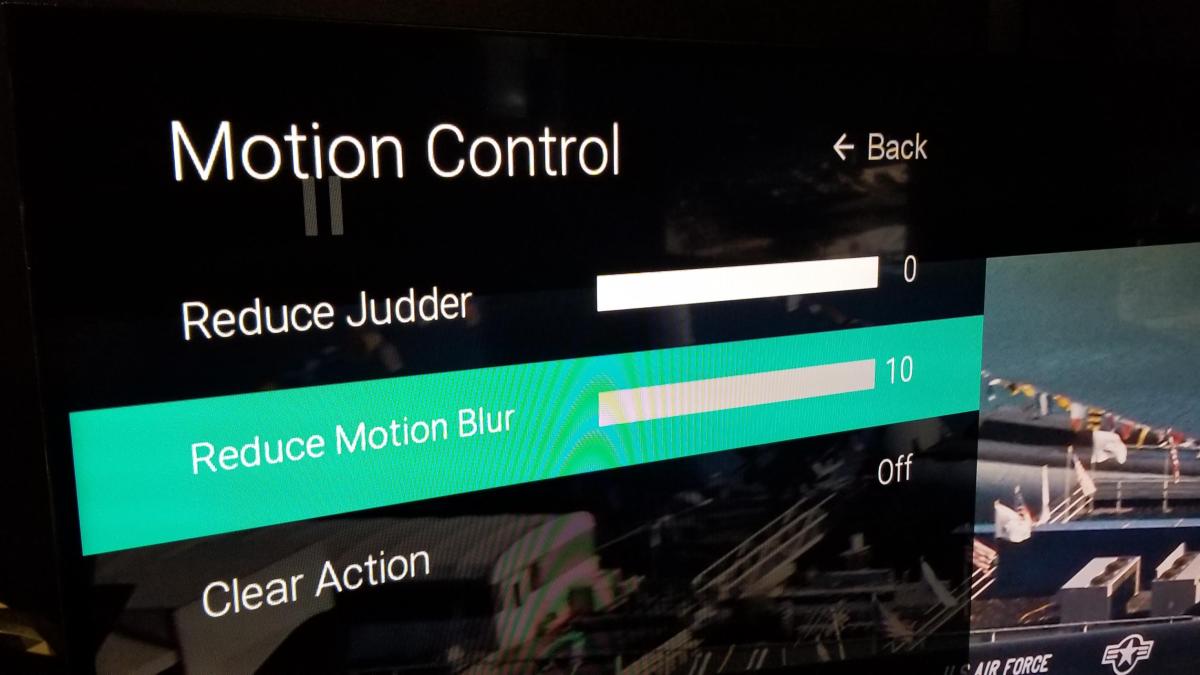
| Vizio | Motion Control | Judder Reduction, Motion Blur Reduction |
Identifying these terms is the first step toward reclaiming your Sunday afternoon. Most budget TVs will have a simple on or off toggle, while premium models from Sony or LG offer granular sliders that allow you to balance how much processing is being applied. Knowing how to turn off motion smoothing or turn it up specifically for the game is a vital skill for any modern sports fan.
Step-by-Step: How to Turn On Motion Smoothing specifically for Sports
Navigating the labyrinth of modern TV menus can be daunting. Manufacturers often hide these settings deep within "Expert" or "Advanced" menus because they know these features can be polarizing. Here is exactly where to look for the most popular brands on the market.
Samsung TV Settings
If you want to adjust the settings on a Samsung TV, you will find them under the Picture menu.
- Press the Home button and navigate to Settings.
- Select All Settings > Picture > Expert Settings.
- Look for Picture Clarity Settings.
- To specifically optimize for the game, you can set this to Auto or select Custom to manually adjust the sliders. If you need to revert later, this is also where you go to turn off motion smoothing samsung tv.
LG TV Settings
LG is known for its excellent TruMotion engine, which is particularly effective on their C-series and G-series OLED panels.
- Open the Settings menu and go to All Settings.
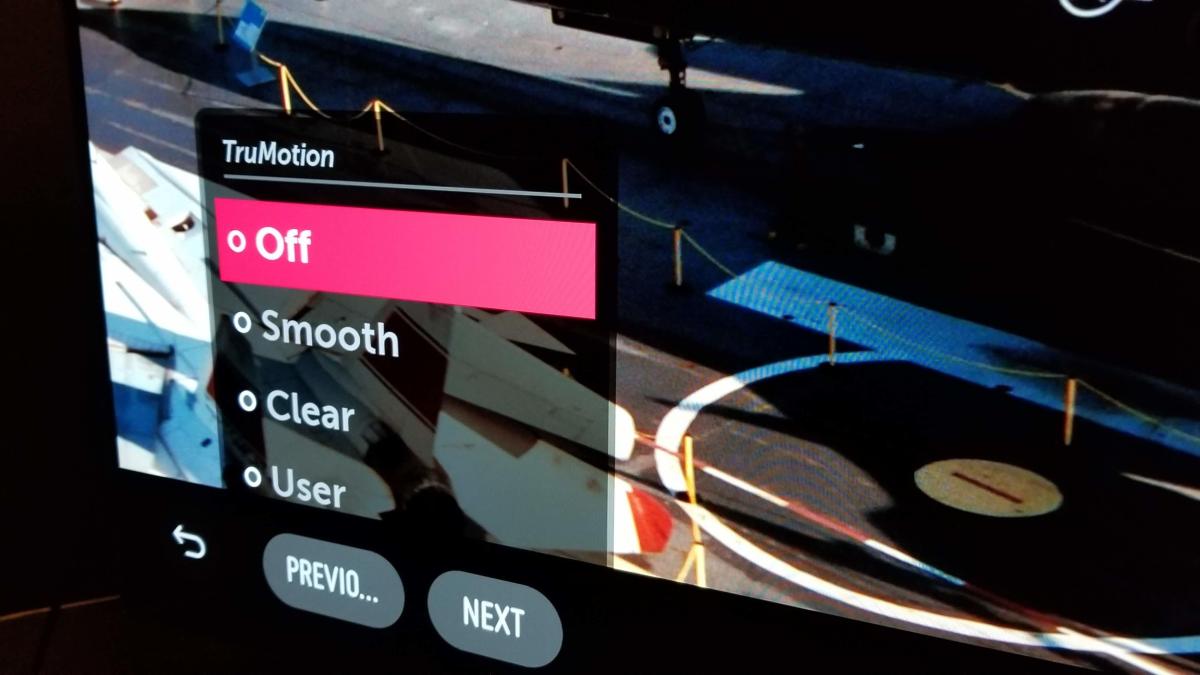
- Select Picture > Advanced Settings > Clarity.
- Click on TruMotion.
- You will see several presets like Cinematic Movement, Natural, and Smooth Movement. For the best experience, select Smooth Movement or use the User Selection to fine-tune it yourself.
Sony TV Settings
Sony’s image processing is widely considered the gold standard in the industry. Their sony motionflow settings for soccer are legendary for maintaining detail even during rapid camera pans.
- Press the Quick Settings button on your remote.
- Navigate to Picture > Motion.
- Select MotionFlow.
- Set it to Custom. You will typically see a Smoothness slider (which adds frames) and a Clearness slider (which uses black frame insertion to sharpen the image).
TCL and Hisense
For mid-range champions like TCL and Hisense, hisense motion enhancement for sports is usually found by navigating to Settings > Picture > Advanced Settings. Look for terms like Motion Enhancement or Action Smoothing. These brands often include a dedicated Sports Mode which automatically cranks these settings to the maximum.
Fine-Tuning: Finding the Balance Between Fluidity and Artifacts
While the "Auto" or "Smooth" presets work for many, the true enthusiast will want to use the Custom setting. When you open the custom motion menu, you will almost always see two distinct sliders: De-Judder and De-Blur.
The De-Blur slider is your best friend when watching sports. It specifically targets high-frequency motion, helping to keep the ball or the players from looking like ghosts as they move across the screen. I generally recommend setting this to a high value (8 to 10) for sports.
The De-Judder slider is more dangerous. This is the one that controls the frame interpolation that causes the soap opera effect. If you turn this up too high, you might notice visual artifacts—weird shimmering or "halos" around players’ heads or limbs as they move. For a natural but smooth look, I recommend keeping De-Judder around a 3 or 4. This provides enough stabilization to clean up the image without making the broadcast look like a cheap daytime drama.
Another tool at your disposal is black frame insertion (BFI). Manufacturers call this LED Clear Motion or OLED Motion. Instead of adding artificial frames, BFI inserts a black frame between the real ones. This mimics the way older screens worked and results in incredible motion clarity. The downside? It makes the screen look significantly dimmer. If you are watching a game in a dark room, BFI is fantastic. If you are in a bright living room with the sun shining in, you are better off sticking to standard motion smoothing.
When the final whistle blows and you want to switch over to a movie, look for filmmaker mode on your remote or in the settings. This is a "one-touch" solution that disables all motion smoothing, returning the TV to its native 24fps configuration so you don't have to manually undo all your hard work.
FAQ
What is motion smoothing?
It is a technology used in modern televisions to reduce motion blur and judder by inserting extra, digitally created frames between the original frames of a video broadcast. This makes movement appear more fluid and continuous, which is particularly helpful for live sports.
What is motion smoothing and why is it bad?
It is considered bad for movies because it eliminates the intentional motion blur of 24fps film, creating a hyper-realistic look known as the soap opera effect. This can make high-budget films look like cheap video, stripping away the artistic intent of the director and cinematographers.
Should I keep motion smoothing on or off?
The choice depends on what you are watching. You should keep it on for live sports, news broadcasts, and some video games to improve clarity. You should almost always turn it off when watching movies, scripted TV dramas, or cinematic content to preserve the intended visual style.
Does motion smoothing increase fps?
Yes, technically. While it does not change the source signal coming from your cable box or streaming device, the TV's internal processor generates new frames to increase the effective frames per second displayed on the screen, often aiming to match the native refresh rate of the panel.
Which TVs have motion smoothing?
Nearly every modern 4K and 8K TV from major brands like Samsung, LG, Sony, TCL, Hisense, and Vizio includes some form of this technology. However, the quality of the interpolation varies significantly based on the power of the TV’s internal image processor.
The debate over motion smoothing on vs off will likely rage as long as we have 120Hz displays, but the consensus for sports fans is clear: use the tools your TV provides. By taking five minutes to dive into those expert menus, you can transform a blurry, stuttering broadcast into a crisp, professional-grade viewing experience. Just remember to toggle it back before you start your next movie marathon.