Quick Facts
- Reset Combo: Volume Down + Power Button
- Reset Duration: 10 Seconds
- Success Signal: Flashing white LED light
- Pairing Mode: Hold Power for 5 seconds
- Total Battery: 40 hours
- Quick Charge: 5 mins = 3 hours playback
Experiencing audio drops or connection issues? Learning how to reset Beats Solo 3 can solve most software glitches. This guide covers the exact 10-second button combination and pairing steps for iOS and Android. To reset Beats Solo 3, press and hold the volume down button on the left earcup and the power button on the right earcup simultaneously for 10 seconds until the Fuel Gauge flashes white.
Pre-Reset Checklist: Troubleshooting First
Before we dive into the beats solo 3 factory reset instructions, I always recommend a few basic checks. As an editor who spends hundreds of hours testing wireless gear, I have seen many connectivity issues resolved without a full hardware reboot. Most of the time, what feels like a hardware failure is actually a minor software hiccup or environmental factor.
First, check your battery level. Locate the battery fuel gauge on the right earcup. If you see a single flashing red light, your headphones lack the power to maintain a stable Bluetooth handshake. If the battery is low, remember that these headphones feature Fast Fuel technology; just five minutes of charging provides approximately three hours of playback time when the battery is critically low.
Next, investigate potential Bluetooth signal interference. Are you standing near a microwave, a crowded Wi-Fi router, or other high-power wireless devices? Sometimes simply moving to a different room or toggling Bluetooth off and on within your host device settings can fix beats solo 3 bluetooth connection issues.
Finally, check your firmware version. If you are using an Android device, open the Beats app to see if a software update is pending. For iOS users, firmware updates happen automatically when the headphones are connected to your iPhone. Also, ensure the micro-USB charging port is clear of lint or debris, as a poor physical connection can sometimes interfere with the internal logic of the headphones.
Step-by-Step: How to Perform a Beats Solo 3 Factory Reset
If the basic troubleshooting steps failed, it is time for a factory reset. This process clears all existing Bluetooth profiles and restores the headphones to their original out-of-the-box state. It is the most effective way to resolve persistent audio distortion or an unresponsive hardware state.
Follow these steps to perform a hard reset unresponsive beats solo 3:
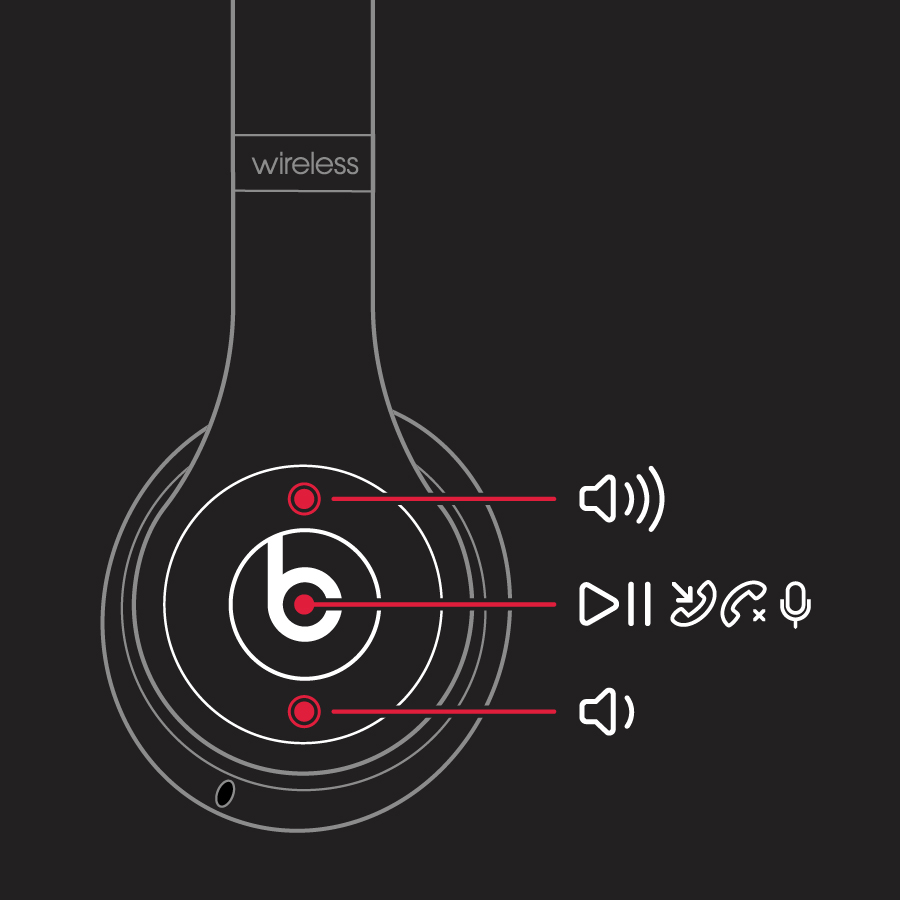
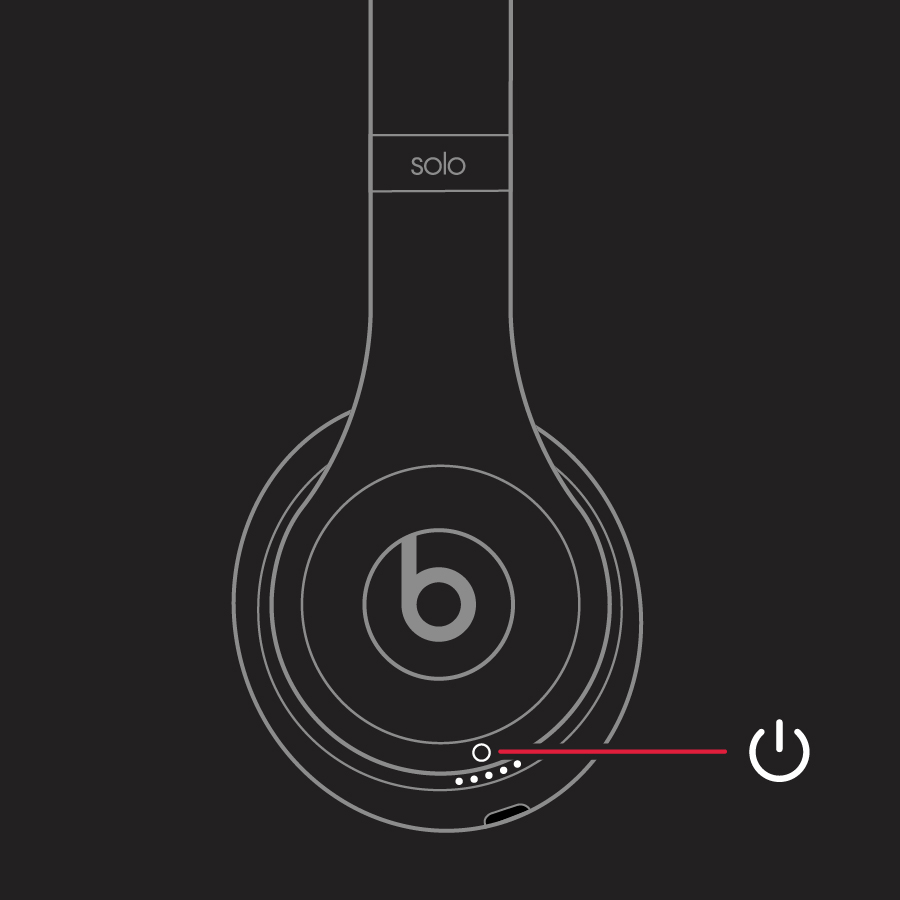
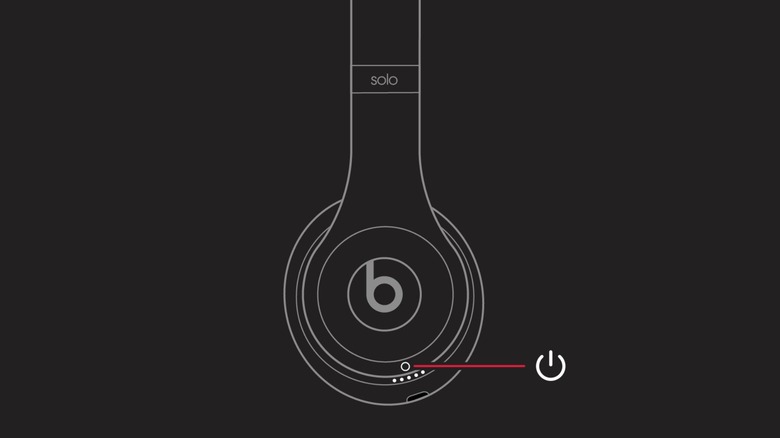
- Locate the Buttons: On the left earcup, you will find the volume down button (part of the "b" button housing). On the right earcup, you will find the small, circular Power Button.
- The 10-Second Hold: Simultaneously press and hold the Volume Down button and the Power Button. You must hold them for approximately 10 seconds without letting go.
- Watch the LED Fuel Gauge: Keep your eyes on the five small LED lights on the right earcup.
- Confirm the Reset: Once the LED status indicators flash white, release both buttons.
This specific beats solo 3 reset button combination triggers a hardware reboot. Once the lights stop flashing, your headphones are reset. Keep in mind that you will now need to go through the pairing process again on all your devices, as the previous pairings have been erased from the headphone memory.
Reconnecting: How to Pair Beats Solo 3 with Any Device
After the reset, your Beats Solo 3 will be in a "clean" state. Thanks to the W1 chip integration, the pairing process is remarkably smooth, especially within the Apple ecosystem. This chip allows for seamless Apple ecosystem syncing, meaning once you pair with your iPhone, the headphones are automatically recognized by your iPad, Mac, and Apple Watch signed into the same iCloud account.
To pair Beats Solo 3 headphones with a new device, you must first put them into discoverable mode.
For iOS Users:
- Turn on Bluetooth on your iPhone or iPad.
- Hold the Power Button for about 5 seconds until the Fuel Gauge begins to flash.
- Hold the headphones within two inches of your unlocked device.
- A setup animation will appear on your screen. Tap "Connect."
For Android and PC Users:
- Open the Bluetooth settings on your device.
- Hold the Power Button on the headphones for 5 seconds until you see the beats solo 3 flashing white light after reset.
- Select your headphones from the list of available Bluetooth devices.
- If you are on Android, I highly recommend using the Beats app to manage your connection and keep track of your battery life and firmware version.
The Beats Solo 3 offers an impressive 40 hours of battery life on a single charge, making them one of the most reliable on-ear options for long-distance travel or long work weeks. Ensuring a solid initial pairing is key to enjoying that longevity without interruption.
Decoding the Lights: What Your Beats Solo 3 is Telling You
The LED status indicators on the right earcup are your primary window into the health and status of your headphones. Understanding these patterns can help you diagnose issues before they require a full reset.
| LED Pattern | Meaning | Action Required |
|---|---|---|
| Solid White Lights | Shows current battery charge level | No action; enjoy your music. |
| Flashing White (Single) | Headphones are in discoverable mode | Ready to pair with your device. |
| Five Flashing White Lights | Factory reset successful | Proceed to re-pair with your devices. |
| Flashing Red (Single) | Battery is low (less than 1 hour left) | Connect to a micro-USB charging port. |
| Flashing Red and White | Error/Update required | Try a reset or check the Beats app for updates. |
When you are charging the device, the lights act as a progress bar. Once all five lights are solid and stay lit, your headphones have reached a 100% charge.
FAQ
How do I factory reset my Beats Solo 3?
To perform a factory reset, you need to use a specific button combination. Press and hold the volume down button on the left earcup and the power button on the right earcup at the same time. Maintain this hold for exactly 10 seconds. When the LED fuel gauge lights flash white, the process is complete, and your headphones have been restored to factory settings.
Why won't my Beats Solo 3 connect to Bluetooth?
Connectivity issues are often caused by signal interference, outdated firmware, or a "glitched" Bluetooth profile. First, try toggling Bluetooth on your phone. If that fails, ensure your headphones are not currently connected to another nearby device. If the problem persists, performing a factory reset is the most reliable way to clear the error and establish a fresh connection.
How do I put Beats Solo 3 headphones in pairing mode?
To enter discoverable mode, make sure the headphones are powered on. Then, press and hold the power button for approximately 5 seconds. You will see the LED lights begin to pulse or flash white, indicating that the headphones are now visible to nearby Bluetooth devices like your smartphone, tablet, or laptop.
What do I do if my Beats Solo 3 won't turn on?
If your headphones are unresponsive, first plug them into a power source using the micro-USB charging port for at least 15 minutes. Sometimes a deep discharge prevents the power button from responding. If they still won't turn on after charging, attempt the 10-second reset combination while they are disconnected from the charger to force a hardware reboot.
What does it mean when Beats Solo 3 flashes red and white?
When you see the LED lights alternating between red and white, it usually signifies a communication error or a failed firmware update. This can also happen if the headphones detect a hardware fault. Before contacting support, try the factory reset process described in this guide. If the flashing persists after a reset, you may need to connect them to a computer and use the Beats Updater tool or the mobile app to fix the firmware.
Can you reset Beats Solo 3 while they are plugged in?
It is generally recommended to perform a reset while the headphones are disconnected from the charging cable. Performing a reset while plugged in can sometimes interfere with the internal power cycling required for a full hardware reboot. For the most consistent results, unplug the micro-USB cable, perform the 10-second hold, and then reconnect to power if you need to continue charging.