Quick Facts
- Primary Goal: Repurpose aging hardware into a fast DIY Chromebook.
- Minimum RAM: 4GB required for smooth performance.
- Storage: 16GB internal storage needed.
- The Hook: Millions of Windows 10 devices will reach end-of-support in October 2025.
- Energy Efficiency: Up to 19% less energy consumption than standard OS.
- Direct Answer: To install ChromeOS Flex, you need a 64-bit Intel or AMD processor, 4GB of RAM, and a bootable USB drive created via the Chromebook Recovery Utility.
To install ChromeOS Flex, your computer requires an Intel or AMD x86-64-bit compatible processor, at least 4GB of RAM, and 16GB of internal storage. While it works on many legacy devices, Google maintains a list of certified models to ensure full compatibility with hardware components like Wi-Fi, Bluetooth, and internal graphics. By replacing a resource-heavy operating system with this cloud-first architecture, you can effectively boost old laptop performance and extend the life of your hardware.
Why Switch? The 2025 Windows 10 EOL Problem
We are approaching a significant crossroads in the computing world. In October 2025, Windows 10 will officially reach its end-of-support date. For many users, this sounds like a minor software update issue, but for the environment and your wallet, the implications are massive. Research suggests that approximately 240 million Windows 10 devices are projected to reach end-of-support in 2025, many of which do not meet the strict hardware requirements for Windows 11. Without a viable alternative, these perfectly functional machines are destined for the landfill.
This is where sustainable technology comes into play. Instead of contributing to the e-waste reduction crisis, you can repurpose old laptop as Chromebook hardware. By switching to a lighter operating system, you bypass the bloat of modern Windows versions. ChromeOS Flex is built specifically for legacy hardware optimization, stripping away the background processes that usually cause an old CPU to chug.
Beyond just staying out of the trash, there is a clear green benefit to this transition. Devices running ChromeOS Flex consume an average of 19% less energy than comparable operating systems, allowing businesses and home users to realize significant emissions reductions. It is a rare win-win situation where your computer runs faster and your carbon footprint gets smaller.
Hardware Audit: What You Need Before You Start
Before you dive into the installation, we need to perform a quick hardware audit. While Google designed this OS to be lightweight, it still requires a specific baseline to function correctly. The most important factor is the architecture; you need an Intel or AMD x86-64-bit compatible processor. If you have an ancient 32-bit machine from the mid-2000s, it unfortunately won't make the cut.
Here is the ChromeOS Flex hardware requirements checklist:
- Processor: 64-bit Intel or AMD CPU.
- RAM: 4GB (2GB might boot, but it won't be a smooth experience).
- Storage: 16GB of internal disk space.
- BIOS: Full administrative access to change boot priority.
- USB Drive: At least 8GB of space for the installer.
It is also worth noting that some older graphics components are specifically excluded because they lack modern driver support. If your laptop uses Intel GMA 500, 600, 3600, or 3650 graphics, you will likely encounter a black screen or significant stability issues. For those wondering how to repurpose old macbook with chromeos flex guide, the hardware requirements are largely the same, provided it is an Intel-based Mac.
Google maintains a comprehensive Google Certified models list. If your device is on that list, Google guarantees that the Wi-Fi, Bluetooth, and internal webcam will work out of the box. If it isn't listed, it might still work perfectly, but you are entering the DIY territory where some minor hardware quirks might exist.
Step-by-Step ChromeOS Flex Installation Guide
The process of transforming your sluggish laptop into a fast machine is surprisingly straightforward. You don't need to be a systems administrator to handle this; you just need about 20 minutes and a stable internet connection.
1. Create the Recovery Media
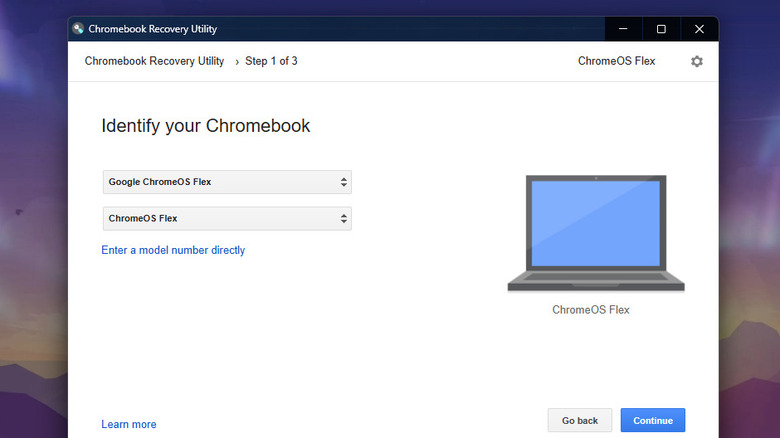
First, you need to create a bootable flash drive. On a functioning computer (it can be Windows, Mac, or ChromeOS), open the Google Chrome browser and install the Chromebook Recovery Utility extension. Once installed, launch the utility and click the gear icon to select "Use local image" if you downloaded it manually, or simply select "ChromeOS Flex" from the list of manufacturers. Insert your USB drive and follow the prompts to create the installer.
2. Configure BIOS and UEFI
This is the part that intimidates most people, but it is just a matter of hitting the right key at the right time. Shut down your target laptop and insert the USB drive. When you turn it back on, you need to immediately tap the boot menu key.
| Brand | Common Boot Menu Keys |
|---|---|
| Dell | F12 |
| HP | F9 or Esc |
| Lenovo | F12 or Fn+F12 |
| Apple (Intel) | Option (Alt) |
| ASUS / Acer | F12 or F2 |
Once inside the BIOS and UEFI settings, ensure that your USB drive is set as the primary boot device. Save the changes and exit.
3. Launch the Installer
The laptop should now boot into the ChromeOS Flex welcome screen. You will be presented with a choice: "Install ChromeOS Flex" or "Try it first." I always recommend the latter to ensure your hardware is fully compatible before you commit to wiping your hard drive.
Try Before You Wipe: The Live USB Mode
One of the best features of this guide is the ability to test the system without any risk. When you choose to try the OS from the USB drive, it runs entirely in the RAM of your computer. This means your existing Windows or macOS files remain untouched while you explore the interface.
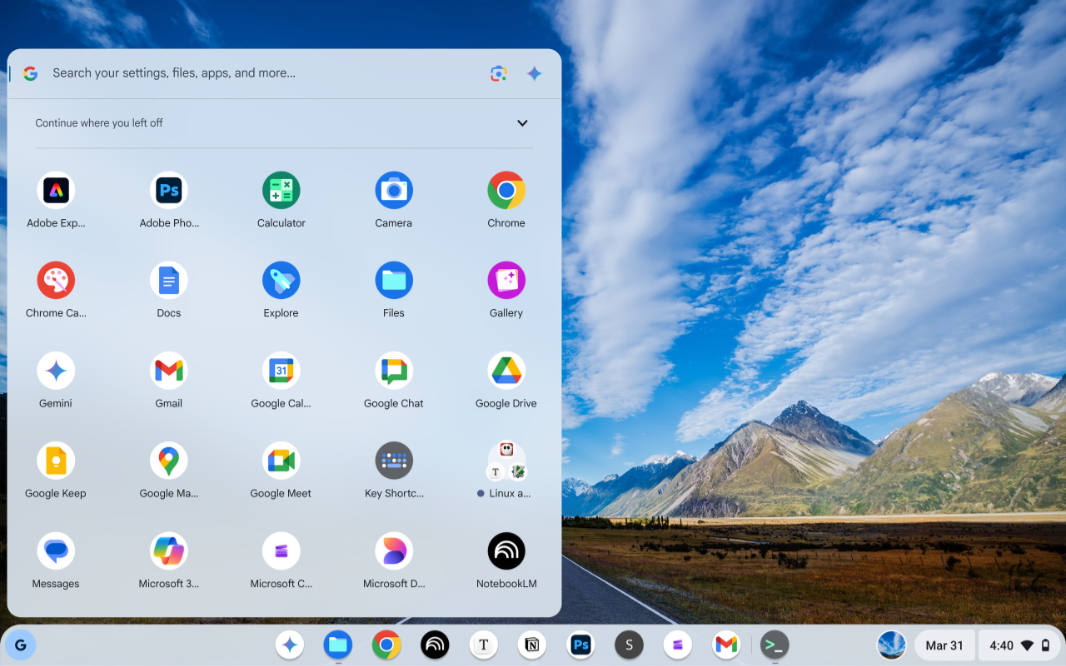
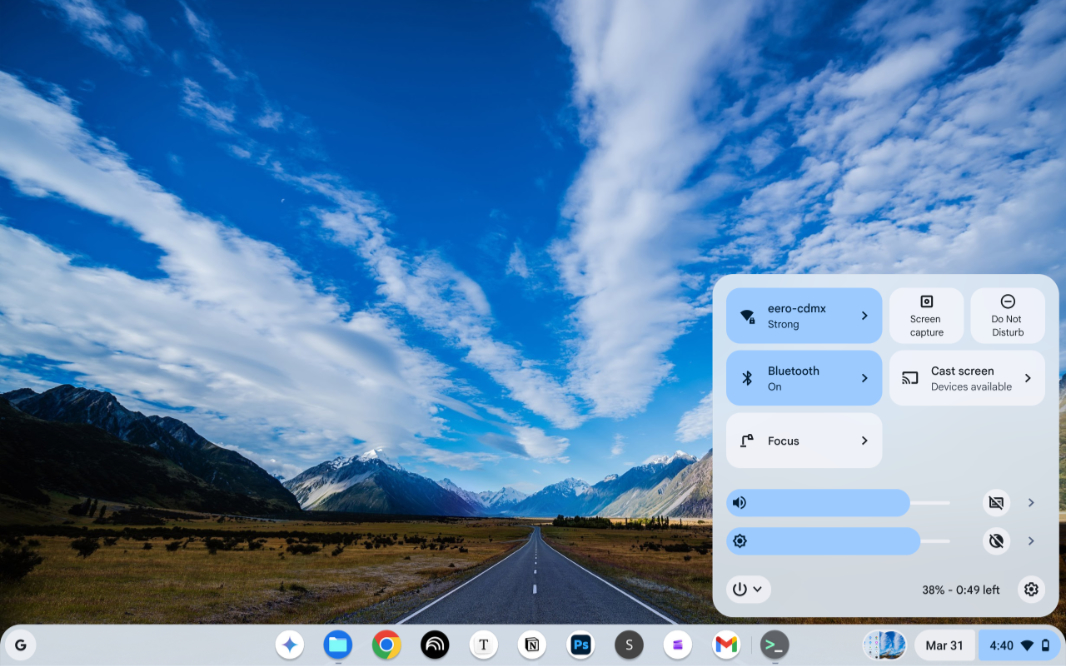
This is the perfect time to test your web-based workflows. Open the browser, log into your Google account, and see how the machine handles Google Workspace or YouTube streaming. Check the quick settings panel to ensure your Wi-Fi is connecting and your speakers are working. If everything feels snappy and the hardware is responding well, you can then click the "Install ChromeOS Flex" button located in the sign-in screen to make the change permanent.
The Reality Check: What You Gain and What You Lose
While the boost old laptop performance using chromeos flex is dramatic, it is important to understand the trade-offs. You are essentially turning a general-purpose computer into a cloud-first machine. This brings incredible speed and security, but it also removes certain features you might be used to.
ChromeOS Flex utilizes a cloud-first architecture that prioritizes sandboxing and security. Every tab and app runs in its own isolated environment, making it much harder for malware to infect your system. Additionally, you get automatic background updates, so you never have to sit through a "Windows is updating" screen for 45 minutes again.
| Feature | ChromeOS Flex | Standard Chromebook |
|---|---|---|
| Performance | Fast on old hardware | Optimized for hardware |
| Android Apps | No | Yes |
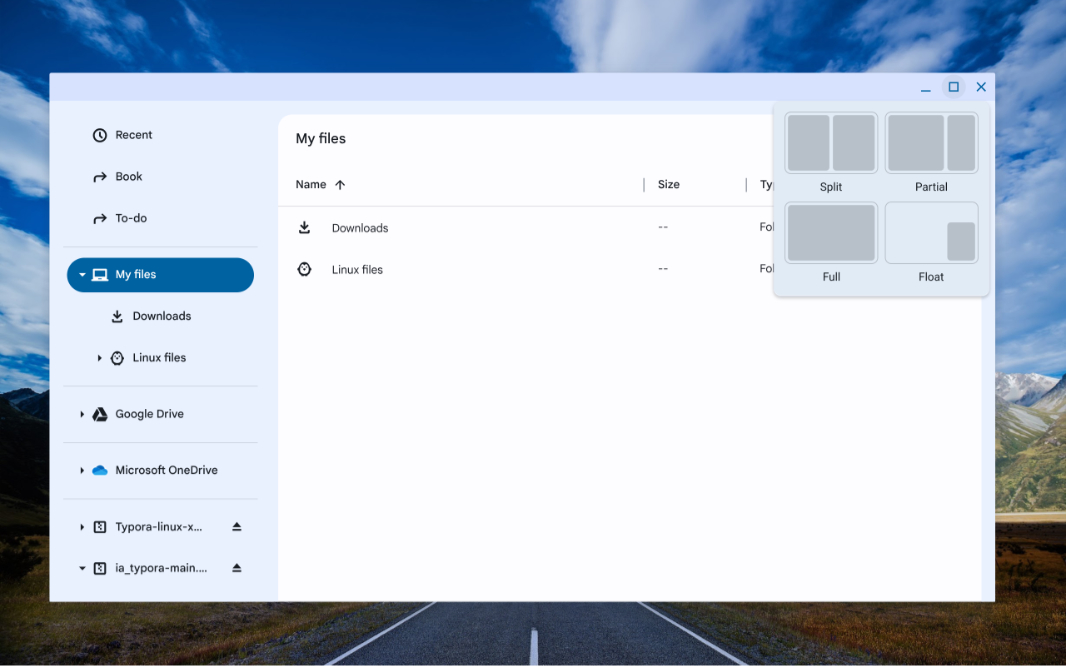
| Linux Support | Yes (on most models) | Yes |
| Google Assistant | Yes | Yes |
| Hardware Security Chip | Software-based | Google Titan C/H |
The biggest "loss" for most users is the lack of the Google Play Store. You cannot run Android apps on ChromeOS Flex. It is strictly a web-based and Linux-based experience. If you rely on specialized Windows software like the full Adobe Creative Cloud or specific gaming clients, this won't be a replacement for your primary workstation. However, for a secondary device or a student laptop, it is nearly perfect.
FAQ
What are the system requirements for ChromeOS Flex?
To run the OS, you need a 64-bit Intel or AMD processor, at least 4GB of RAM, and 16GB of internal storage. The computer must also be able to boot from a USB drive, which requires access to the BIOS or UEFI settings.
How do I create a ChromeOS Flex bootable USB?
You need a USB drive with at least 8GB of space. Install the Chromebook Recovery Utility extension in a Chrome browser, select ChromeOS Flex as the product, and follow the on-screen instructions to format and flash the drive.
Will ChromeOS Flex run Android apps?
No, ChromeOS Flex does not support the Google Play Store or Android applications. It is designed for web-based applications and professional Linux environments. If you require Android apps, you would need to purchase a retail Chromebook.
Can I try ChromeOS Flex without installing it?
Yes, you can select the "Try it first" option when booting from the USB. This allows you to run the entire operating system from the flash drive to test compatibility with your Wi-Fi, Bluetooth, and hardware before performing a permanent installation.
Does ChromeOS Flex support Linux apps?
Yes, ChromeOS Flex supports a full Linux development environment on most modern hardware. This allows you to run desktop-class applications like LibreOffice, GIMP, or VS Code, provided your processor supports virtualization and has enough resources.