Quick Facts
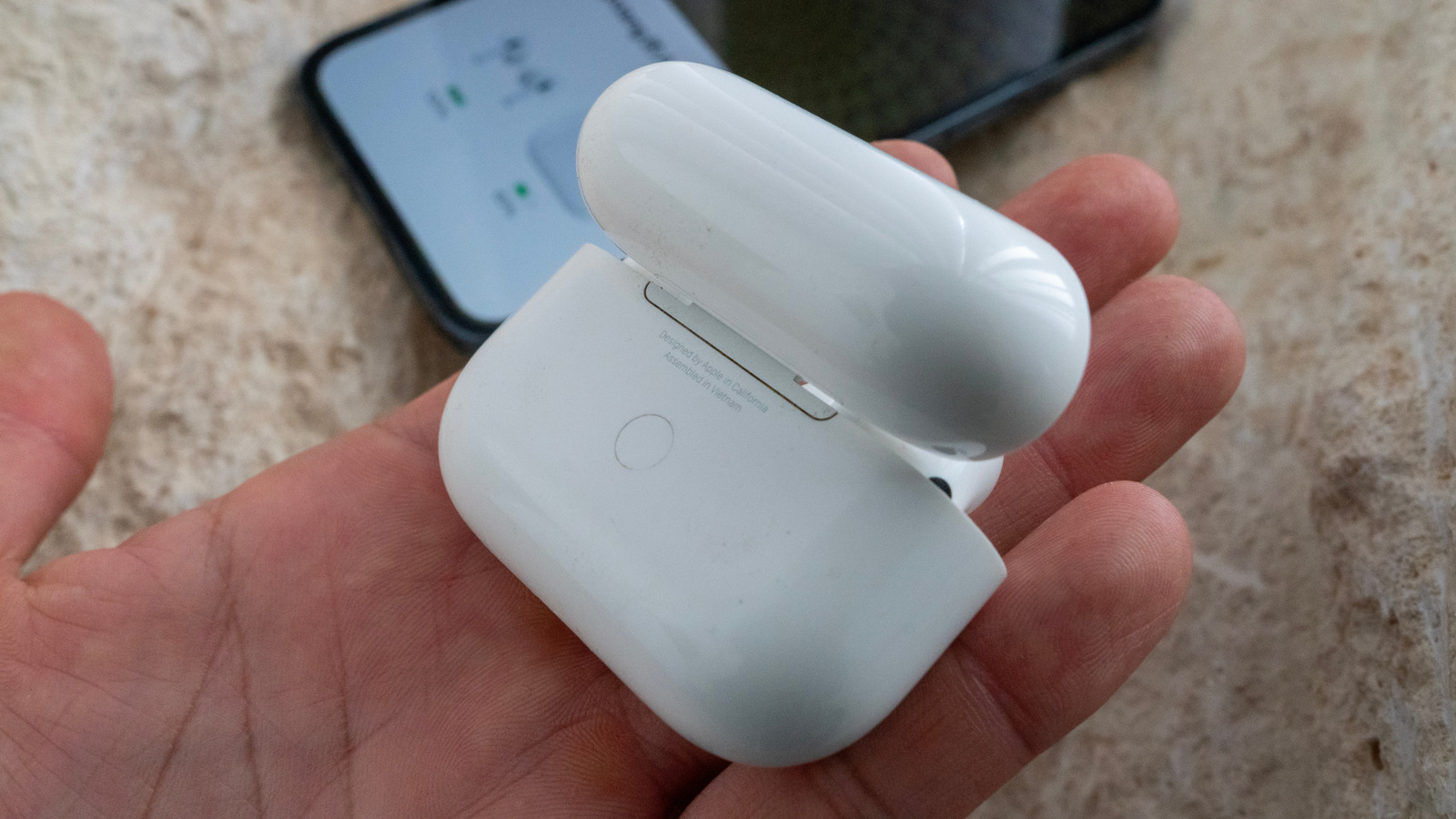
- Method for Gen 1-Pro: Physical button located on the back of the charging case.
- Method for AirPods 4: Capacitive sensor on the front; requires a triple double-tap sequence.
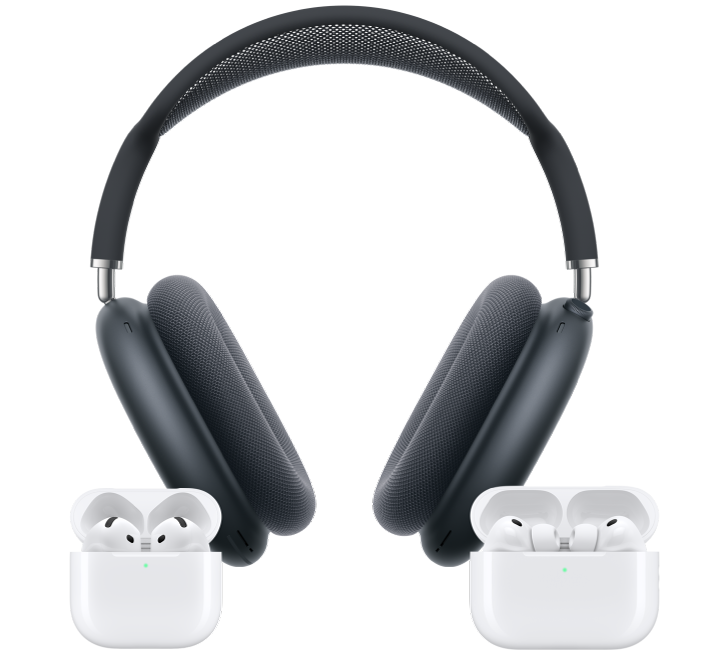
- Method for AirPods Max: Dedicated noise control button on the right ear cup.
- Pairing Timing: Hold the button or tap for approximately 5 seconds for discovery mode.
- Reset Timing: Hold for 15 seconds until the LED flashes amber, then white.
- Success Signal: A pulsing or flashing white LED indicator confirms the device is in pairing mode.
- Compatibility: Works as a standard wireless audio peripheral with any Bluetooth-enabled device.
To put AirPods into manual pairing mode, place them in the charging case with the lid open and hold the setup button or tap the capacitive sensor until the status light flashes white. This enables discovery mode for any Bluetooth-compatible wireless audio peripheral, allowing you to bridge the gap between your Apple gear and the rest of your tech stack.
Mastering the manual AirPods pairing process is a rite of passage for any audio enthusiast who refuses to be locked into a single ecosystem. While the seamless pop-up window on an iPhone feels like magic, connecting these buds to a high-end Windows workstation or a custom Android build requires a more hands-on approach. As of 2024, Apple's AirPods accounted for approximately 34.4% of the wireless earbud market in the United States and 19% of the global market, proving that they are the go-to choice for millions, many of whom use them across multiple non-Apple platforms.
Step 1: Locating Your AirPods Setup Button
The first hurdle in the manual sync process is simply finding the airpods setup button location, which has become increasingly difficult as Apple moves toward a more minimalist, button-less aesthetic. For the vast majority of users owning the AirPods Gen 1, 2, 3, or either generation of the AirPods Pro, the button is a small, flush circle located on the back of the charging case. It is nearly invisible to the touch, requiring you to look closely or feel for the slight indentation.
With the release of the AirPods 4 and the anticipated AirPods Pro 3, Apple has moved away from physical mechanical switches. There is no button on the back of these cases. Instead, the airpods setup button location for different models in this new generation is actually a hidden capacitive sensor located on the front of the case, near the status LED. Understanding this shift is vital because traditional "pressing" won't work here; it requires a specific tactile interaction with the front surface.
Before you attempt to trigger the pairing mode, I always recommend checking your charging case contacts. If dust or lint has accumulated at the bottom of the case, the earbuds might not register as being "docked," which will prevent the pairing firmware from initiating. A quick blast of compressed air or a clean cotton swab ensures the hardware is ready to communicate with the non-Apple ecosystem you are trying to join.
Step 2: Triggering Pairing Mode by Model
Once you have identified your hardware, the execution of the manual sync depends entirely on the specific model in your hands. The goal across all models is to reach the discovery mode state, where the AirPods broadcast their signal using the standard Bluetooth protocol.
AirPods 1, 2, 3, and AirPods Pro
For these classic models, the process is straightforward but requires precise timing.
- Place both earbuds inside the case and ensure they have at least some charge.
- Open the lid and keep it open throughout the process.
- Locate the physical setup button on the back.
- Press and hold the button for about 5 seconds.
- Watch the LED indicator states; once the light begins flashing white, the device is ready.
AirPods 4 and AirPods Pro 3
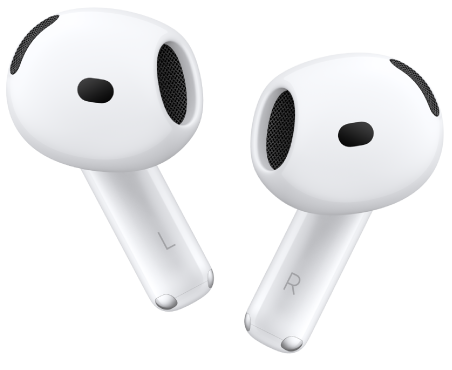
The AirPods 4 introduced a learning curve for long-time users. Since there is no physical button, you must interact with the hidden front-case double-tap method.
- Open the charging case lid with the earbuds inside.
- Double-tap the front surface of the case, right where the status light is located.
- Repeat this double-tap three times in quick succession.
- The status light will transition from its steady state to a flashing white light.
AirPods Max
The over-ear AirPods Max follow a different logic because they lack a charging case for pairing. To initiate the signal, locate the noise control button on the top of the right ear cup. Hold this button down for approximately five seconds. You will see a small LED on the bottom of the same ear cup begin flashing white. This is how you handle manually pairing airpods max using noise control button without needing an iPhone nearby.
Step 3: Connecting to Android, Windows, or Smart TV
With your AirPods now pulsing with a white light, they are essentially acting as a generic wireless audio peripheral. Now you must navigate the system settings menu of your target device to finalize the handshake. While Apple notes that AirPods work with any Bluetooth-supported device, the experience varies depending on the operating system.
Pairing with an Android Phone
To begin pairing airpods with android phone manual steps, swipe down from the top of your screen and long-press the Bluetooth icon. Ensure Bluetooth is toggled on, then look for your AirPods under the "Available Devices" or "Pair New Device" section. Once you see them appear, tap the name. You may be asked to confirm a pairing code; simply hit pair. Keep in mind that features like automatic ear detection and customized touch controls will not be natively available here without third-party apps.
How to Connect AirPods to Windows PC via Bluetooth
On a Windows 10 or 11 machine, press the Windows key and type Bluetooth. Select "Bluetooth and other devices settings." Click on "Add device," then choose "Bluetooth" from the pop-up list. Ensure your AirPods are still in their discovery mode state (flashing white). Once they appear in the list, click them to establish the connection. Windows can sometimes be finicky with firmware synchronization, so if the audio sounds "tinny," you may need to go into the Sound Control Panel and ensure the AirPods are set as "Headphones" rather than "Headset."
Manually Pairing AirPods with Smart TV
Most modern Smart TVs from Samsung, LG, or Sony support Bluetooth audio. Navigate to your TV's Settings, find the "Sound" or "Accessories" menu, and select "Bluetooth Speaker List." Put your AirPods into pairing mode using the steps mentioned earlier. When the TV identifies them, select "Pair and Connect." This is an excellent way to enjoy late-night movies without disturbing the household, though be aware that Bluetooth latency can sometimes cause a slight delay between the video and audio.
Troubleshooting: When Pairing Fails
Even for experienced audiophiles, tech friction is inevitable. If your AirPods refuse to appear in the Bluetooth menu, or if you find yourself asking why is my airpods case not flashing white when pairing, the most likely culprit is a hung firmware state or an existing "Find My" lock from a previous owner.
The most effective solution is a factory reset. This clears the memory of the onboard W1 or H1/H2 chips and prepares the device for a fresh manual sync process. To perform the airpods factory reset steps:
- Place the earbuds in the case and close the lid for 30 seconds.
- Open the lid and leave it open.
- Hold the setup button on the back (or use the front-tap method for newer models) for a full 15 seconds.
Pro Tip: During a factory reset, watch the LED indicator carefully. It will first flash white, then transition to a distinct amber light signal. Once it returns to flashing white, the reset is complete.
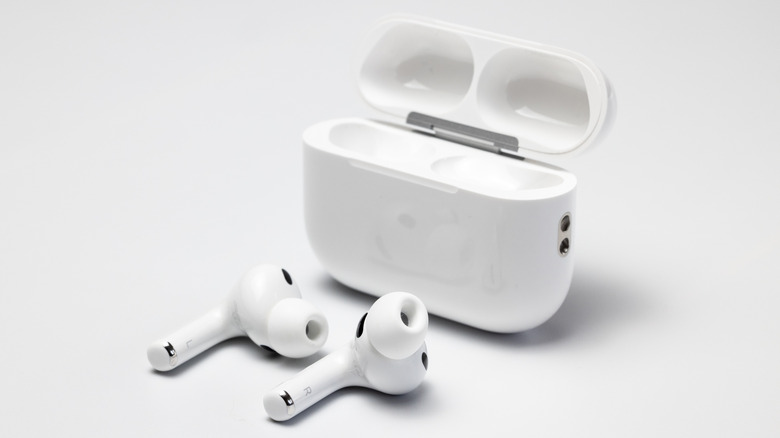
If you are factory reset airpods to fix pairing issues and still see no light, check the battery levels. AirPods often require at least 50% battery to successfully initiate a reset or a high-power Bluetooth broadcast. Furthermore, if you are connecting to a new device, it helps to unpairing airpods from previous device before manual setup to prevent the "Automatic Switching" feature from hijacking the signal back to your iPad or Mac.
Lastly, remember that specific software versions are required for full functionality. For example, if you are using the AirPods 4, the source device generally needs to support modern Bluetooth protocols to handle the high-bitrate audio stream effectively.
FAQ
How do I put AirPods in pairing mode?
To put AirPods into pairing mode, place the earbuds in their case with the lid open. Press and hold the setup button on the back of the case for about five seconds until the status light flashes white. For AirPods 4, you must triple double-tap the front of the case near the LED light instead of pressing a button.
Why are my AirPods not connecting to Bluetooth?
If your AirPods are not connecting, they may still be linked to a previous device or the battery might be too low. Ensure Bluetooth is enabled on your host device and try a factory reset by holding the setup button for 15 seconds until the light flashes amber and then white.
How do I pair AirPods with an Android phone?
First, put your AirPods into pairing mode until the light flashes white. On your Android phone, go to Settings, then Bluetooth, and ensure it is turned on. Look for your AirPods in the list of available devices and tap them to finish the connection process.
Can I connect AirPods to a Windows laptop?
Yes, you can connect AirPods to a Windows laptop by opening the Bluetooth settings on your PC and selecting Add Device. Put your AirPods into pairing mode by holding the setup button on the case until the LED pulses white, then select them from the list on your computer screen.
How do I reset AirPods to pair them again?
Place your AirPods in the charging case and close the lid for 30 seconds. Open the lid, then press and hold the setup button on the back of the case for about 15 seconds. The status light will flash amber and then white, indicating the reset is successful and they are ready to pair again.
What does the white flashing light mean on the AirPods case?
The white flashing light indicates that your AirPods are in discovery mode. This means they are actively broadcasting a Bluetooth signal and are ready to be paired with a new device, such as a smartphone, tablet, or computer.