Quick Facts
- New Hub: Google officially launched the July 2025 Manage Subscriptions dashboard that allows Gmail users to view all active email subscriptions in one place.
- One-Click Rule: Since February 2024, Google requires bulk senders delivering over 5,000 messages daily to include a one-click unsubscribe button in their emails.
- Processing Time: Standard unsubscribe requests typically take between 48 hours and 14 days to fully process.
- Safety First: Native buttons are safer than clicking links inside the email body because they utilize the List-Unsubscribe header.
- Fastest Path: Sorting by sender frequency within the new hub is the fastest way to reach inbox zero gmail 2026.
Gmail's Manage Subscriptions feature is a centralized hub available on both the web and mobile app that lists active email subscriptions. It uses algorithms to scan incoming mail for promotional content and provides a native unsubscribe button at the top of messages. Users can access this tool to quickly opt out of newsletters or block senders to keep their primary inbox organized.
The Secret Tool: Accessing the Gmail Manage Subscriptions Hub
Finding the right way to declutter Gmail inbox used to mean hunting through hundreds of individual emails for a tiny, grayed-out link at the bottom of the page. That changed with the rollout of the Gmail manage subscriptions dashboard. This tool represents a major shift in the Gmail interface, moving away from reactive deletion toward proactive mailing list management.
To find the Gmail manage subscriptions hub location, you no longer need to rely on third-party extensions. In the sidebar of the web version, look for the Subscriptions label or the Manage Subscriptions button often found at the top of the Promotional tab. On mobile, tap the three-line hamburger menu and scroll down to the new Subscriptions section. This hub uses machine learning to aggregate every recurring sender that has hit your inbox in recent months.
The power of this feature lies in its organization. Once you enter the hub, you will see a list of senders sorted by how many emails they have sent you in the last few weeks. This frequency-based sorting logic makes it incredibly easy to identify the "ghost subscriptions"—those newsletters you signed up for years ago but haven't opened in months. By identifying the highest-volume senders, you can address the biggest sources of noise first. This is arguably the fastest way to reach inbox zero gmail 2026 because it tackles the volume of mail at the source rather than message by message.
Gmail Unsubscribe vs Block vs Report Spam: Which One to Choose?
When you are looking to reclaim your digital space, you have three primary weapons in your arsenal. Understanding when to use the Gmail unsubscribe feature versus simply hitting the block button is crucial for maintaining a healthy sender reputation and long-term email security.
- Unsubscribe: This is the "polite" way to leave. When you click the native button, Gmail sends a request to the sender using a machine-readable header. It is the best choice for legitimate brands and newsletters you no longer want to receive.
- Block: This is more like a silent filter. Blocking a sender does not actually remove your email from their database; instead, it ensures that every future message from that specific address is redirected to the spam folder automatically. It is a faster alternative when a sender refuses to respect an unsubscribe request.
- Report Spam: This is the nuclear option. Use this for malicious content, phishing attempts, or persistent junk. Every time you report spam, you are helping train Gmail’s AI-powered security filters, which already block nearly 15 billion unwanted emails every single day.
| Action | Best Use Case | Processing Time | Impact on Sender |
|---|---|---|---|
| Unsubscribe | Trusted brands, newsletters | 2 - 14 Days | Removes you from the list |
| Block | Annoying individual senders | Immediate | All future mail goes to Spam |
| Report Spam | Phishing, scams, malicious | Immediate | Harms sender reputation |
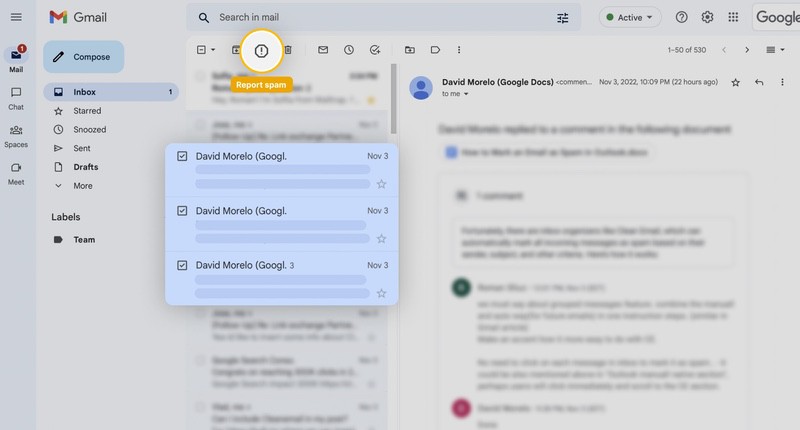
Choosing between gmail unsubscribe vs block vs report spam depends on the level of trust you have with the sender. If it is a known company like a retailer or a tech blog, unsubscribing is the professional standard. If the email looks suspicious or the "unsubscribe" link itself looks like it might lead to a malware site, reporting spam is the safer bet.
Troubleshooting: What to Do When the Unsubscribe Button Is Missing
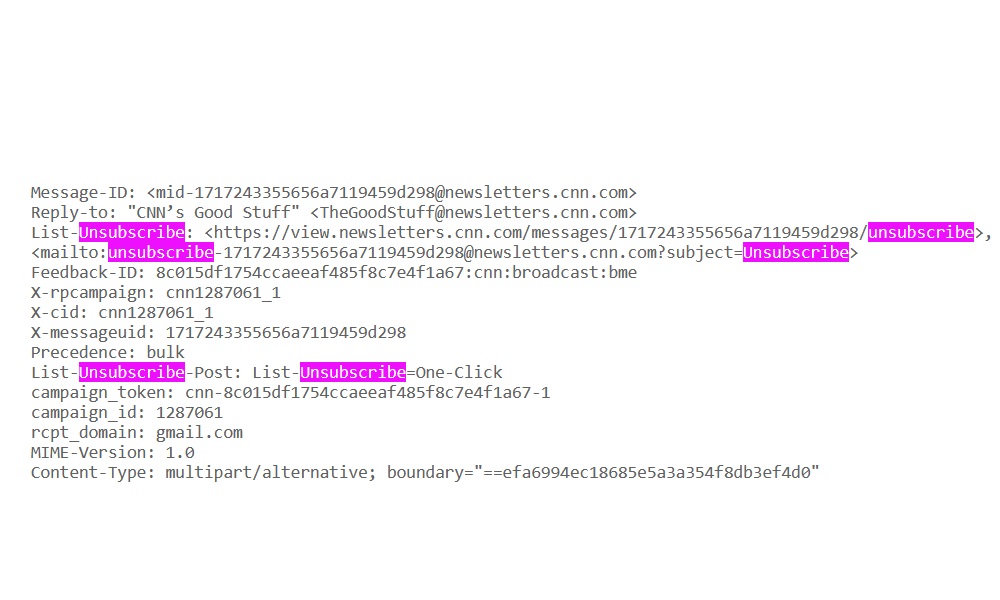
It can be frustrating when you are ready to purge your inbox but find that the Gmail unsubscribe feature is nowhere to be found. This usually happens because of a technical disconnect in the email's metadata. For Gmail to display its one-click button, the sender must include a specific piece of code known as a List-Unsubscribe header (RFC 2369).
If this header is missing, Gmail cannot verify the legitimate path to remove your address. This is common with smaller organizations, legacy systems, or unfortunately, bad actors who intentionally omit the header to make it harder for you to leave. Furthermore, transactional emails—such as receipts, flight confirmations, or security alerts—are legally exempt from requiring opt-out links because they contain essential information regarding a user's account or purchase.
If you are wondering how to unsubscribe when gmail unsubscribe button is missing, you have a few manual workarounds within Google Workspace:
- Create a Custom Filter: Go to Gmail settings and create a filter for the sender's domain (e.g., from:@annoyingsite.com). Set the action to Delete it or Skip the Inbox (Archive it). This effectively automates the cleaning process.
- Search for "Unsubscribe": Use the search bar to find the word "unsubscribe" within the email body. Legitimate senders are required by law to include a physical link, even if it is hidden in tiny text at the bottom.
- The Block Function: If the sender is rotating their email aliases but using the same domain, blocking the specific address is the quickest way to stop the immediate flood.
Pro Tips for Faster Inbox Zero in 2026
Reaching and maintaining a clean inbox requires more than just a one-time purge; it requires a sophisticated productivity workflow. As we move through 2026, the volume of digital noise is only increasing, making newsletter fatigue a real challenge for most professionals.
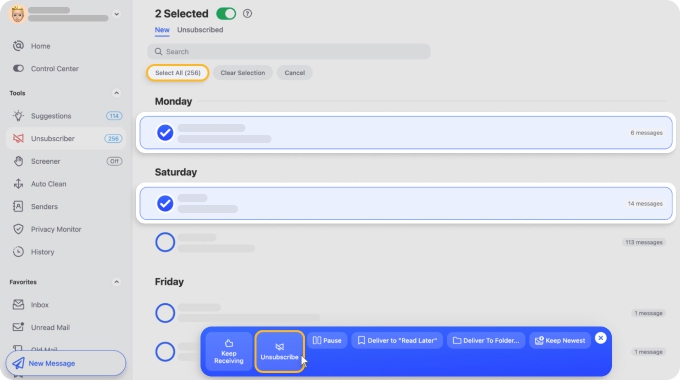
One of the most powerful tools in the new dashboard is the ability to perform bulk actions. Instead of opening 50 different emails, you can use the hub's checkboxes to bulk unsubscribe gmail emails without third party apps. This keeps your data private, as you aren't granting access to your inbox to a third-party service that might sell your browsing habits for analytics.
Another advanced strategy is using plus-sign aliases for digital decluttering. When you sign up for a service, use an address like yourname+newsletters@gmail.com. If that specific alias starts receiving junk, you can easily create a single filter to delete everything sent to that address. This also helps you track which companies are selling your data to third parties.
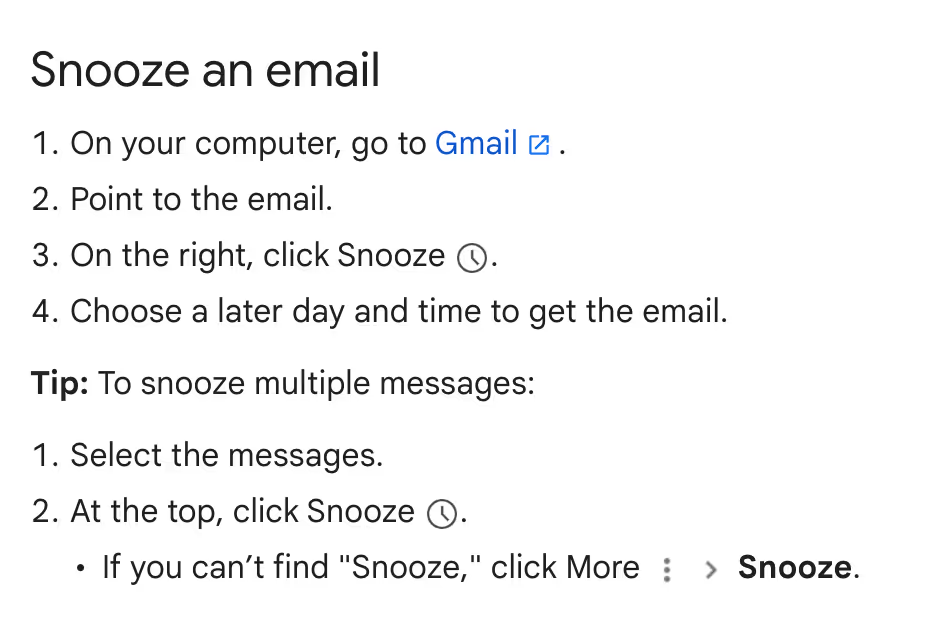
Finally, remember that the Gmail unsubscribe feature works best when paired with other native tools like the Snooze button. If you receive a newsletter you actually want to read but don't have time for right now, snooze it until Saturday morning. This keeps your primary feed clear for active tasks, allowing you to perform effective inbox triage throughout the work week.
FAQ
How do I use the unsubscribe button in Gmail?
You can find the button at the top of an email, right next to the sender's name and address. Alternatively, you can go to the Manage Subscriptions hub to view a list of all active mailing lists and click the unsubscribe button next to each sender to opt out in bulk.
Why is the unsubscribe button not appearing in Gmail?
This button only appears if the sender has included a List-Unsubscribe header in the email metadata. If the email is a transactional message (like a receipt) or if the sender is not following standard bulk-email protocols, the button will not be visible.
Is the Gmail unsubscribe feature safe to use?
Yes, using the native Gmail button is actually safer than clicking links within the body of an email. The native feature uses a standardized communication method with the sender's server, reducing the risk of being redirected to a malicious website or confirming to a spammer that your email address is active.
How do I unsubscribe from multiple emails at once in Gmail?
The best way is to use the Manage Subscriptions dashboard introduced in 2025. This hub allows you to select multiple senders using checkboxes and hit a single unsubscribe button to process all requests simultaneously, helping you reach inbox zero much faster.
What happens when I click the unsubscribe button in Gmail?
Gmail sends a request to the sender's mailing list server to remove your address. While the request is sent immediately, it can take the sender's system anywhere from a few days to two weeks to fully update their database and stop sending you messages.