Quick Facts
- Professional Minimum: An HDMI 2.0 connection is the baseline for work; 4K at 60Hz is necessary because 30Hz creates noticeable cursor lag that kills precision.
- Productivity Boost: Moving from a single screen to a multi-monitor setup can result in an average productivity increase of 42 percent for most professional tasks.
- Market Growth: The demand for connectivity is surging, with the USB Type-C market expected to grow from 13.6 billion USD in 2024 to over 37.4 billion USD by 2032.
- High Performance: The latest HDMI 2.1 adapters support massive throughput, handling up to 4K at 240Hz or 8K at 60Hz for elite gaming and video editing.
- The Power Tax: Be aware that multi-port USB-C hubs often reserve about 15W of power for their own internal circuitry, which can slow down laptop charging.
- Compatibility Check: Always look for the small DisplayPort (DP) logo or the Thunderbolt lightning bolt icon next to your port to ensure video output is supported.
While most people use a USB-C HDMI adapter to simply mirror a laptop screen to a TV, professionals use this tool to transform their creative and gaming workflows. From high-end Android gaming emulation to using a DSLR as a pro-grade webcam, the possibilities are vast if you have the right hardware. Beyond simple screen mirroring, a USB-C to HDMI adapter enables advanced workflows like turning a high-end Android smartphone into a mobile gaming workstation through emulation on a 4K monitor. Professionals also use these adapters to connect DSLR or mirrorless cameras to laptops, transforming them into high-quality webcams with superior depth of field and low-light performance.
Mobile Gaming Workstation: Emulation at 4K
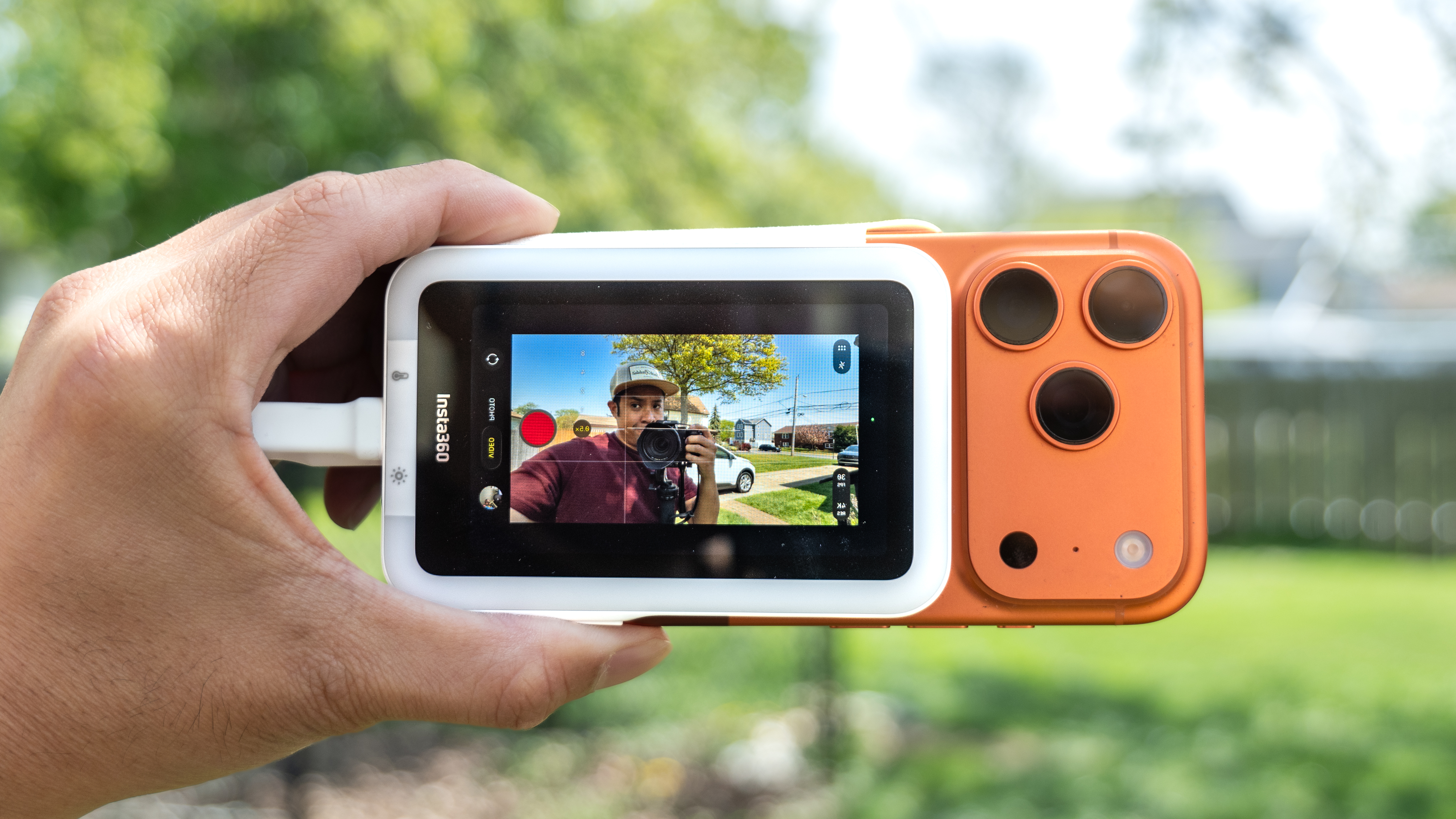
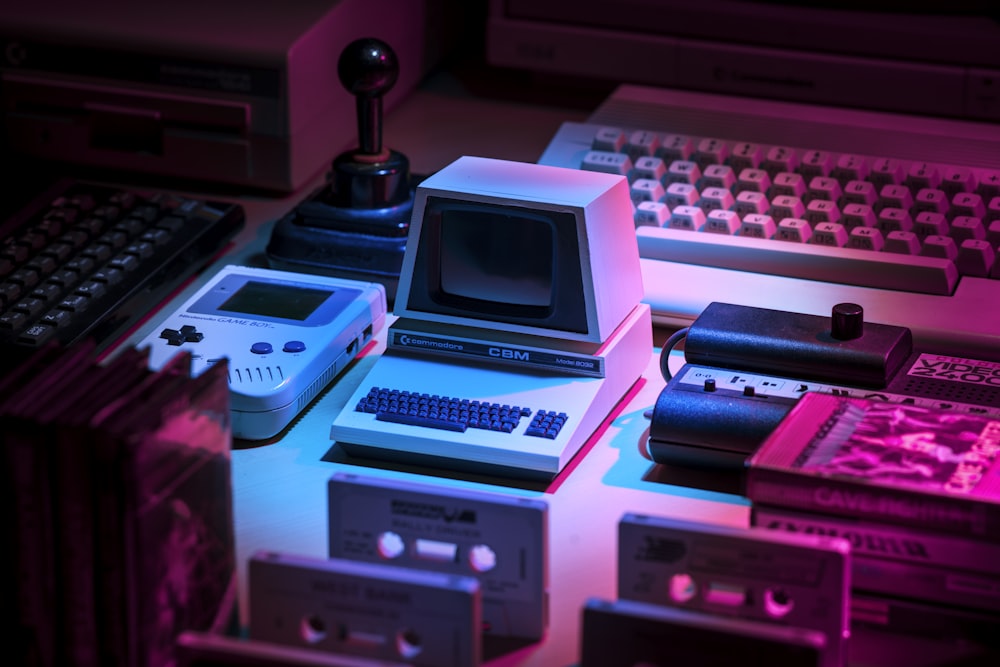
For the modern mobile enthusiast, a flagship smartphone is no longer just a communication device; it is a pocket-sized powerhouse capable of running high-end emulation and cloud gaming services. By utilizing a high-quality USB-C HDMI adapter, you can bridge the gap between a 6.7-inch screen and a massive 4K display, effectively creating a mobile gaming monitor setup that rivals traditional consoles. This is particularly transformative for Android gaming emulation, where modern chips can handle up to 4K output for retro classics or even contemporary titles via streaming.
When setting up a mobile workstation for gaming, the refresh rate is the most critical factor. Many cheap adapters cap out at 30Hz, which creates a stuttering effect that ruins the experience of fast-paced games. To achieve a smooth content creation workflow or a high-end gaming feel, you need an adapter that supports at least 60Hz. Even better, look for hardware that supports Variable Refresh Rate (VRR) to eliminate screen tearing during intense sequences. Achieving 4K at 60Hz with 8-bit color requires a minimum bandwidth of 18 Gbps, so the quality of your adapter cable and internal chipset matters immensely.
Another benefit of this setup is the reduction in signal latency reduction. While wireless casting like Miracast or Chromecast introduces significant lag, a physical USB-C to HDMI adapter provides a direct path for the video signal. This allows for near-instantaneous response times, which is non-negotiable for competitive gaming or precision tasks. If you are using a phone like the Samsung Galaxy S24, connecting via an adapter can also trigger Samsung DeX, providing a full desktop environment that makes your phone feel like a legitimate PC.
DSLR Webcam Connection Guide: Pro-Grade Video
The built-in webcams on even the most expensive laptops are often disappointing, suffering from tiny sensors and poor low-light performance. For professionals who spend hours on video calls or live streams, a USB-C HDMI adapter is the secret weapon for a DSLR webcam connection guide that elevates your visual presence. By connecting your mirrorless or DSLR camera to your laptop via an adapter, you gain access to superior depth of field and professional-grade optics.
Using a DSLR as webcam with USB-C to HDMI adapter allows you to achieve that "bokeh" effect—where the background is naturally blurred—without the glitchy artifacts of software-based filters. This setup requires the camera to have a "clean HDMI output," meaning it can send a video signal without the UI overlays like shutter speed or battery life appearing on the screen. Because streaming high-definition video generates significant heat, professional-grade adapters often feature aluminum heat dissipation housings. This metal casing acts as a heat sink, ensuring the adapter doesn't throttle or disconnect during a two-hour board meeting or a long streaming session.
Furthermore, ensure your hardware is HDCP 2.3 compliance if you plan on viewing or capturing protected content, although for a simple webcam setup, the focus remains on the raw video bandwidth throughput. The difference in quality is night and day; the rich color reproduction and low-light sensitivity of a real camera sensor make you look more professional and engaged.
![Connecting a DSLR via a USB-C adapter bypasses low-quality built-in webcams, offering superior depth of field and color for video professionals.] (https://img.mac-geek.com/publisher/imagehub/c808943558d0.jpg)
Expanding Hardware: Connecting to GPU Type-C Ports
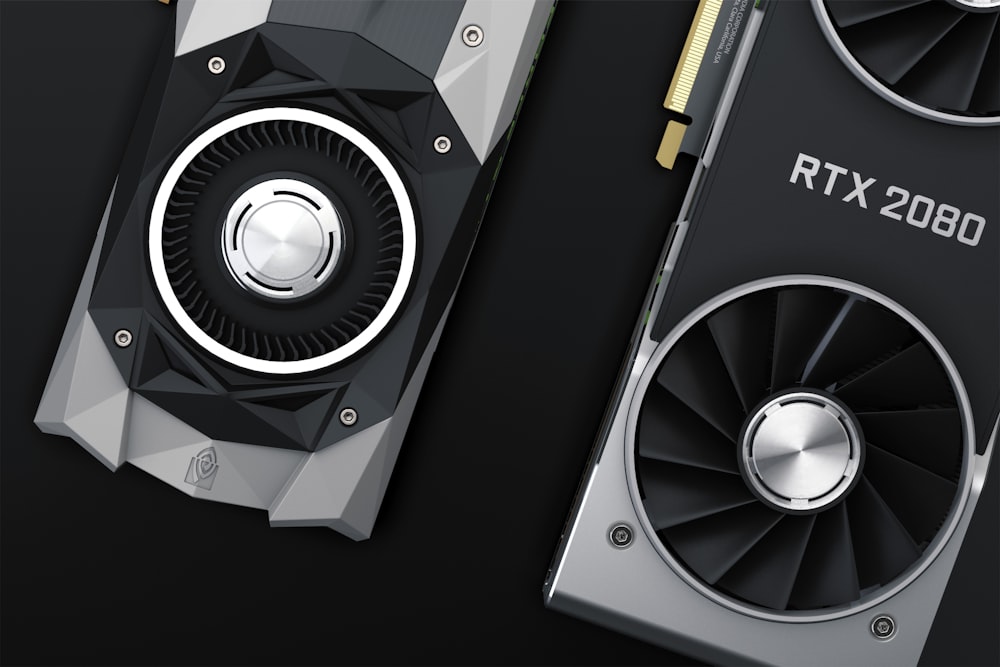
In the world of desktop PC building, we often find ourselves running out of ports on the back of our graphics cards. Most modern GPUs come with three DisplayPorts and one HDMI port. However, certain high-end cards, like the NVIDIA RTX 20 series (which featured the VirtualLink port) and the AMD Radeon RX 7900 XTX, include a dedicated USB-C port designed for VR headsets or high-speed data.
Smart builders are now connecting USB-C to HDMI adapter to GPU Type-C ports to drive additional monitors. This is an excellent way to enable an extended desktop mode when your primary ports are already occupied by high-refresh-rate gaming monitors. Since these ports are wired directly into the GPU’s silicon, they offer the same performance and features as the standard DisplayPort or HDMI slots. Using a USB-C to HDMI adapter 4K 60Hz for professional monitors in this scenario ensures that your secondary or tertiary screens maintain color accuracy and sharpness without taxing your CPU’s integrated graphics.
This configuration is particularly useful for professionals using Thunderbolt 4 compatibility on high-end motherboards. While Thunderbolt 4 is often associated with laptops, many professional creator motherboards now include these ports to allow for a streamlined single-cable connection to high-end docking stations or specialized displays.
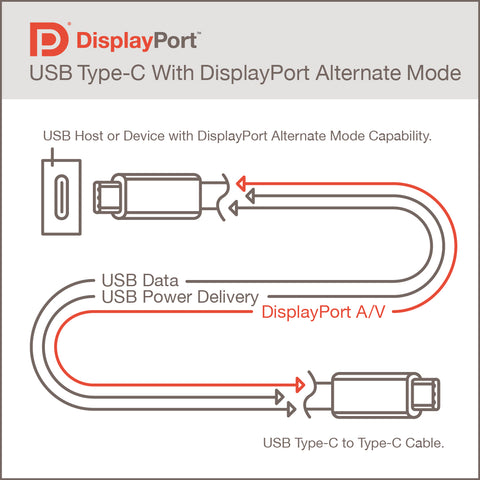
The Technical Checklist: DP Alt Mode & HDMI 2.1
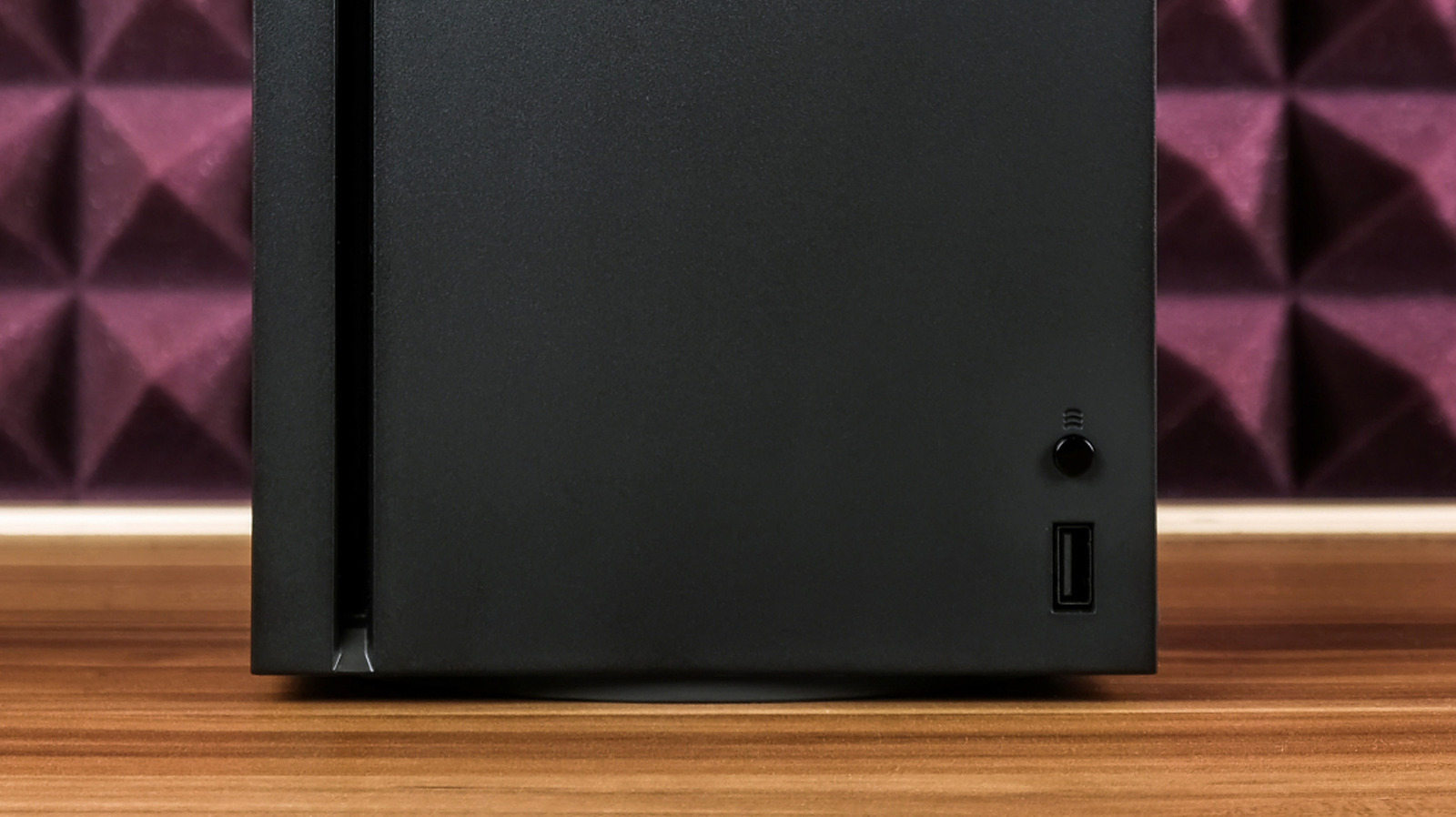
Not every USB-C port is created equal, which is the most common source of frustration for users. To successfully use an adapter, your source device must support USB-C Alt Mode display output. This protocol allows the USB-C port to carry non-USB signals, specifically DisplayPort video. If your port only supports data transfer, no adapter in the world will make it output video.
How to check USB-C DisplayPort Alt Mode compatibility is relatively straightforward. Look for the DisplayPort "D" logo or a Thunderbolt icon next to the port on your laptop or motherboard. If there are no icons, you will need to check your device’s technical specification sheet for mentions of DisplayPort Alternate Mode.
Technical Specifications by Version
| Feature | HDMI 1.4 | HDMI 2.0 | HDMI 2.1 |
|---|---|---|---|
| Max Resolution | 4K @ 30Hz | 4K @ 60Hz | 8K @ 60Hz / 4K @ 120Hz |
| Max Bandwidth | 10.2 Gbps | 18 Gbps | 48 Gbps |
| HDR Support | Limited | Yes (Static) | Yes (Dynamic/HDR10+) |
| Variable Refresh Rate | No | No | Yes |
When shopping for an adapter, consider whether you need USB-C hubs with HDMI 2.1 for 8K video output. While HDMI 2.0 is sufficient for most office work, HDMI 2.1 is necessary if you want to take advantage of a 144Hz refresh rate or higher on a 4K gaming monitor. Also, be mindful of the "Power Tax" when using multi-function hubs. These devices often reserve 15W of power for their own ports (USB-A, SD cards, etc.), meaning if you plug in an 85W charger, your laptop might only receive 70W. If you only need video, a dedicated single-port adapter is often more reliable and runs cooler.
FAQ
Do all USB-C ports support HDMI output?
No, they do not. Only USB-C ports that specifically support DisplayPort Alternate Mode or Thunderbolt 3/4 can output a video signal to an HDMI adapter. Budget laptops and older smartphones often have data-only USB-C ports that cannot transmit video.
How do I know if my device supports DisplayPort Alt Mode?
The easiest way is to look for a logo next to the port. A small "D" shape (DisplayPort) or a lightning bolt (Thunderbolt) indicates video support. If no logo is present, refer to the manufacturer’s specification page for your specific model and look for video out or Alt Mode listed under the USB section.
Why is my USB-C to HDMI adapter not working?
The most common reason is lack of Alt Mode support on the host device. Other causes include a faulty HDMI cable, the adapter not being fully seated in the port, or an issue with the Extended Display Identification Data (EDID) handshake between the monitor and the computer. Try restarting the device with the adapter plugged in.
Does a USB-C to HDMI adapter support 4K resolution?
Yes, but the version of the adapter matters. Most modern adapters support 4K at 60Hz (HDMI 2.0), while older or cheaper ones may be limited to 4K at 30Hz. For 4K at 120Hz or 144Hz, you must ensure both the adapter and the HDMI cable meet the HDMI 2.1 standard.
Can a USB-C to HDMI adapter transmit audio to a TV?
Yes, the USB-C Alt Mode protocol includes audio transmission. As long as your source device is set to output audio via the HDMI/DisplayPort channel in its sound settings, the adapter will carry both high-definition video and multi-channel audio to your TV or monitor.
Choosing the Right Hardware for Your Workflow
Selecting the right USB-C HDMI adapter comes down to understanding your specific performance needs. If you are a mobile professional building a portable 4K workstation, durability and heat management should be your top priorities. Look for adapters with braided cables to prevent fraying and aluminum shells to keep internal temperatures low during high-bandwidth tasks like 4K video editing or gaming.
For those pushing the limits of modern displays, ensure your hardware chain is consistent. A high-end HDMI 2.1 adapter won't provide 120Hz if you are using an old HDMI 1.4 cable you found in a drawer. High Dynamic Range (HDR) and color depth also depend on this bandwidth; if you see washed-out colors, your adapter might be the bottleneck. By choosing an adapter that matches your display's peak specs, you ensure a seamless, high-performance experience whether you are crushing a presentation or a gaming leaderboard.