Quick Facts
- Primary Feature: Home Monitoring
- Compatible Devices: Echo Show 5, 8, 10, 15, 21
- Key Requirement: Physical privacy shutter must be open
- App Access: Alexa App > Devices > Cameras
- Remote Control: Pan and tilt functionality available on Echo Show 10 only
- Privacy Signal: On-screen banner and optional audio alert when active
To use an Echo Show as a security camera, you must enable Home Monitoring on the device itself. Swipe down from the top of the Echo Show screen, select Settings, and tap Camera. Toggle the Home Monitoring switch to the on position and follow the prompts to verify your Amazon account and confirm your settings.
As of 2024, approximately 68.9 million U.S. households owned at least one Amazon Echo device, with 60% of all smart-speaker owners in the United States using an Echo-branded product. While most users rely on these devices for checking the weather or setting kitchen timers, your Echo Show security camera capabilities represent one of the most practical ways to leverage the Amazon device ecosystem. By completing a quick Alexa Home Monitoring setup, you can transform your smart display into a versatile window into your home without spending an extra dime on hardware.
Compatible Devices and Prerequisites
Before you begin the configuration, it is important to understand which devices in your home automation ecosystem support this feature. The Echo Show security camera function is compatible with nearly the entire current lineup, including the Echo Show 5, Echo Show 8, the rotating Echo Show 10, and the wall-mountable Echo Show 15 and 21.
There are a few non-negotiable requirements for this to work. First, the Echo Show and the smartphone running the Alexa app must be signed into the same Amazon account. Second, the Echo Show must be connected to a stable Wi-Fi network. Most importantly, you must ensure the physical camera shutter is moved to the open position. Many users forget that the hardware override is absolute; if that slider is closed, no amount of software configuration will grant you a live feed.
Pro Tip: If you are planning to set up alexa home monitoring with echo show 8 specifically for a nursery or a high-traffic area, place the device at an elevated angle. Unlike a standard camera, the Echo Show 8 has a fixed lens, so its field of view is determined entirely by where it sits on your furniture.
Step 1: Enabling Home Monitoring on Your Echo Show
The most common reason for a failed setup is trying to do everything from your phone. Amazon requires you to physically touch the smart display to authorize remote access, a vital security measure to prevent unauthorized hacking. Follow these steps on the device itself:
- Swipe down from the top of the Echo Show screen to reveal the main menu.
- Tap the Settings icon (the gear shape).
- Scroll down and select the Camera option.
- Find the toggle labeled Home Monitoring and switch it to the ON position.
- A prompt will appear explaining what the feature does; tap Continue.
- You will be asked to verify your identity. Enter your Amazon account password on the screen.
- Once verified, you can choose whether you want the device to play an audio alert when a remote stream begins.
By completing this on-device configuration, you are effectively granting permission for the Alexa app to bypass the standard Drop-In protocols and access the raw video feed. This step is the foundation of how to enable home monitoring on echo show devices across all generations.
Step 2: Accessing the Live Feed via the Alexa App
With the hardware ready, you can now manage your Echo Show remote viewing from anywhere in the world. This is handled entirely through the Alexa app on your iOS or Android device.
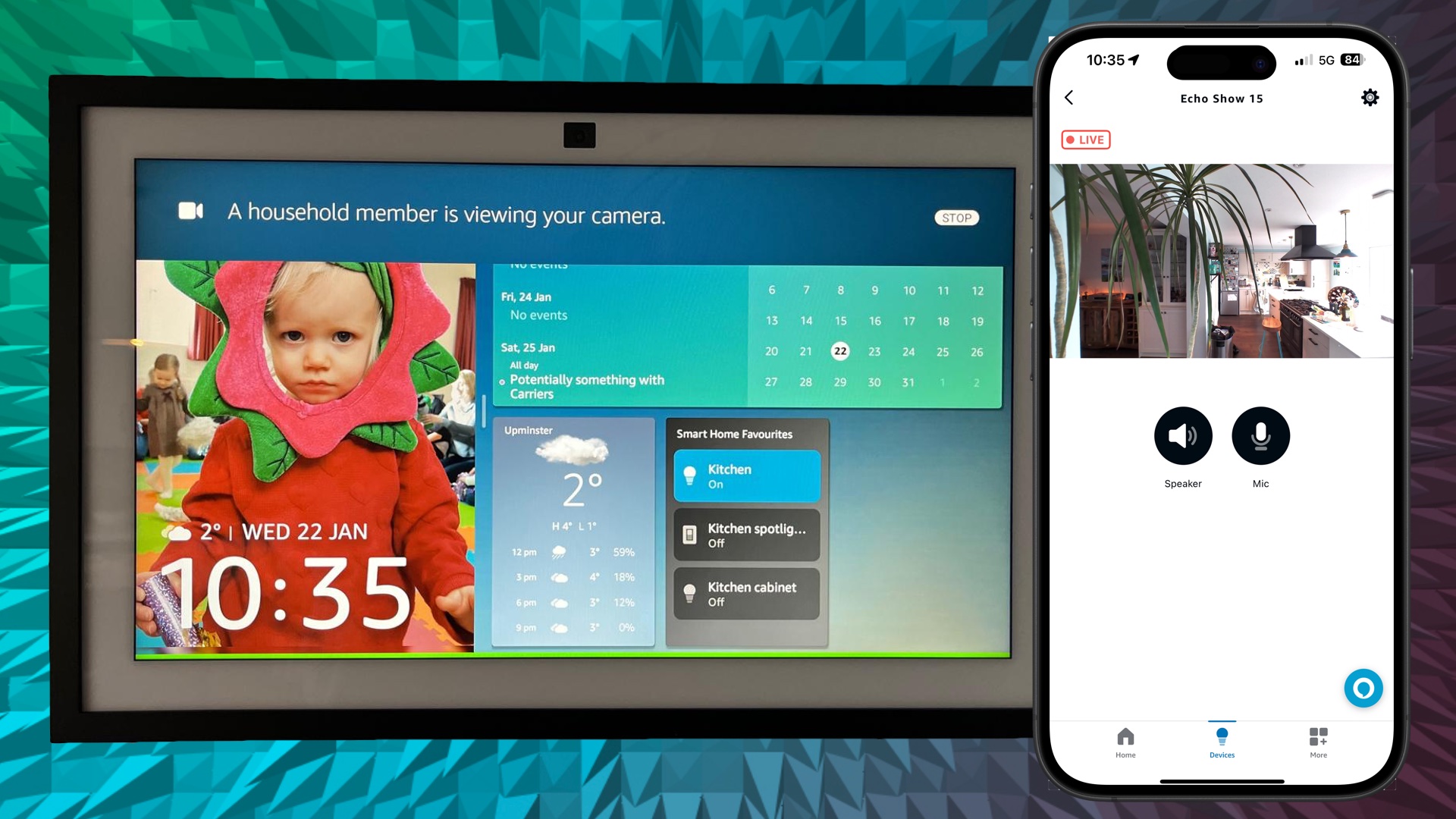
To view the live stream, open the app and navigate to the Devices tab at the bottom of the screen. At the top, you will see various categories like Lights, Plugs, and Cameras. Tap on Cameras, and then select the specific Echo Show you wish to view. Within a few seconds, an in-app video feed will initialize.
If you are using the flagship model, you can access specific echo show 10 pan and zoom security camera settings directly from this screen. By swiping left or right on the video feed on your phone, the Echo Show 10 will physically rotate its screen to follow the action, giving you a 360-degree view of the room. On all models, you can use the microphone icon to initiate two-way audio communication, allowing you to speak to anyone in the room or even tell a pet to get off the couch.
Troubleshooting and Privacy Controls
It is frustrating when technology does not behave as expected. If you need to troubleshoot alexa app camera live feed not working, the first thing to check is the physical shutter. If the shutter is closed, the app will typically show a black screen or a message saying the camera is unavailable.
Another common issue involves network latency. Because the Echo Show security camera feed is encrypted and sent through Amazon’s servers to your phone, a slow upload speed at home can cause the stream to time out. Ensure your Echo Show has at least two bars of Wi-Fi strength for reliable real-time monitoring.
Privacy is a major pillar of a seamless smart home experience. To ensure residents aren't caught off guard, Amazon has built-in several visual privacy notifications. When a remote stream is active, the Echo Show displays a clear green banner at the top of the screen stating "A household member is viewing your camera." If you value even more transparency, ensure you have enabled the echo show security camera privacy alerts and sounds in the device settings, which will play a distinct chime the moment the lens becomes active.
Echo Show vs. Dedicated Security Cameras
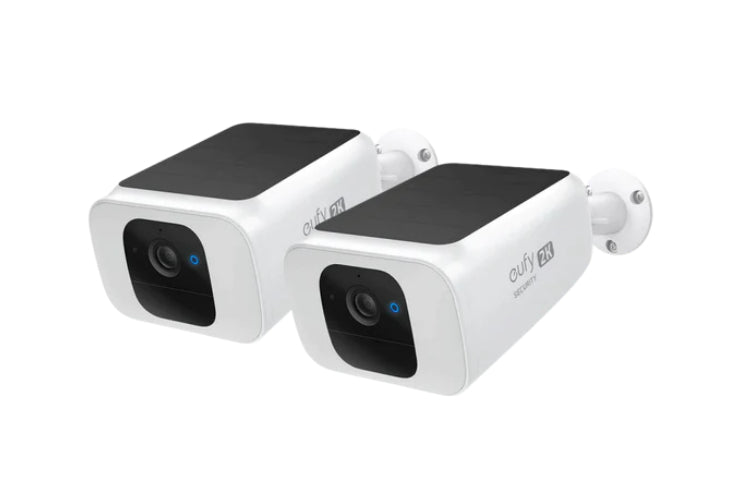
While the Echo Show is a fantastic multi-tool, it is important to manage your expectations compared to dedicated surveillance hardware. The Echo Show is designed primarily as a smart display with a camera, whereas devices from Ring, Blink, or Eufy are purpose-built for security.
| Feature | Echo Show | Dedicated Security Camera |
|---|---|---|
| Continuous Recording | No | Optional / Yes |
| Motion Detection Clips | Limited (requires Alexa Guard) | Standard |
| Night Vision | Digital (low light) | Infrared (total darkness) |
| Physical Shutter | Yes | Rarely |
| Two-Way Audio | Yes | Yes |
| Field of View | Fixed (except Show 10) | Wide-angle / Ultra-wide |
One significant difference is that the Echo Show does not automatically record footage to the cloud when it sees movement unless you have an active Alexa Guard Plus subscription or use specific Routines to trigger a snapshot. If your goal is 24/7 video evidence, you are better off with a dedicated device. However, for a quick check-in on the dog or to see if the kids have started their homework, the Echo Show camera settings Alexa app integration is more than sufficient.
FAQ
Can you use an Echo Show as a security camera?
Yes, you can use any Echo Show device as a security camera by enabling the Home Monitoring feature in the device settings. This allows you to view a live video feed of your room remotely through the Alexa app on your smartphone, providing basic surveillance capabilities without the need for additional hardware.
How do I enable home monitoring on my Echo Show?
To enable this feature, swipe down from the top of your Echo Show screen and select Settings. Navigate to the Camera menu and find the Home Monitoring toggle. Switch it to the on position, follow the security prompts to verify your Amazon account password, and confirm your preferences for video delays and audio alerts.
Can I watch my Echo Show camera remotely from my phone?
You can watch the camera feed remotely by opening the Alexa app on your mobile device. Go to the Devices tab, select the Cameras category at the top, and tap on your Echo Show name. This will launch a live video stream, provided your Echo Show is powered on and the physical privacy shutter is open.
Does Echo Show record footage like a standard security camera?
By default, the Echo Show does not record or store video footage like a traditional NVR or cloud-based security camera. It is designed for live viewing only. However, you can integrate it with Alexa Guard or set up specific motion-sensor routines to receive notifications, but it generally lacks the 24/7 continuous recording features found in dedicated security systems.
Does Echo Show have a physical camera shutter for privacy?
Most Echo Show models, including the Show 5, 8, and 10, feature a built-in physical privacy shutter. This is a sliding cover that mechanically blocks the camera lens. For the Echo Show security camera feature to work, this shutter must be manually moved to the open position; if it is closed, the remote live feed will only show a black screen.
The versatility of the Echo Show makes it a standout component of any modern home. While it might not replace a full-scale outdoor surveillance system, its ability to act as an indoor Echo Show security camera adds a layer of peace of mind for those already invested in the Amazon ecosystem. By following these steps and respecting the privacy of your household through the use of alerts and shutters, you can create a more connected and secure living space.